
MultiCHAX Overview Hardware and Software Requirements MultiCHAX Installation Activating your license Adding a new bank account Fine tuning your check printout Editing your control record Set descriptive printing Adjusting the MICR line (vertical and horizontal alignment) on your checks Number of Significant Digits Create and Import Templates Adding Users User Permissions
Category Archives: support

Blog News QuickBooks
Top 15 Benefits of Check Printing Software – Print Checks on Demand
Top 15 Advantages of Using Check Printing Software – Print Checks on Demand In today’s [...]
Continue reading
11
Jan
Jan

Online Blog QuickBooks
How to Print Paychecks in QuickBooks Online
To print payroll checks (paychecks) from QuickBooks Online, you will need the following requirements: Firefox [...]
Continue reading
24
Feb
Feb

Blog News QuickBooks
Blank Check Stock vs. Pre-Printed: Why it’s better to Print Your Own Checks
Pre-printed check stock has become a tradition. Many businesses and private individuals use it without [...]
Continue reading
10
Feb
Feb
To begin using MultiCHAX for use with Windows Server 2008 / 2012 Terminal Services, please check the following system requirements: MultiCHAX pre-installed on a compatible Windows Client Machine: Windows XP Windows Vista Microsoft Windows 7 Windows 8 Remote Desktop (RDC 6.1) Connection software Install .NET (3.5 SP1) framework on the client machine For more information, click here: http://technet.microsoft.com/en-us/library/cc753853%28WS.10%29.aspx […]
NOTE: The following instructions assumes that you will be using the default built-in FORM templates of Peachtree (Sage 50). To use custom forms, please contact CHAX, INC. technical support for assistance. Configure MultiCHAX – Sage 50 – Peachtree Setup: Open Sage 50 Accounting (Peachtree Accounting) Select the REPORTS & FORMS > FORMS > CHECKS (alternatively, this works with PAYROLL CHECKS too) Using one of the […]
25
Mar
Mar
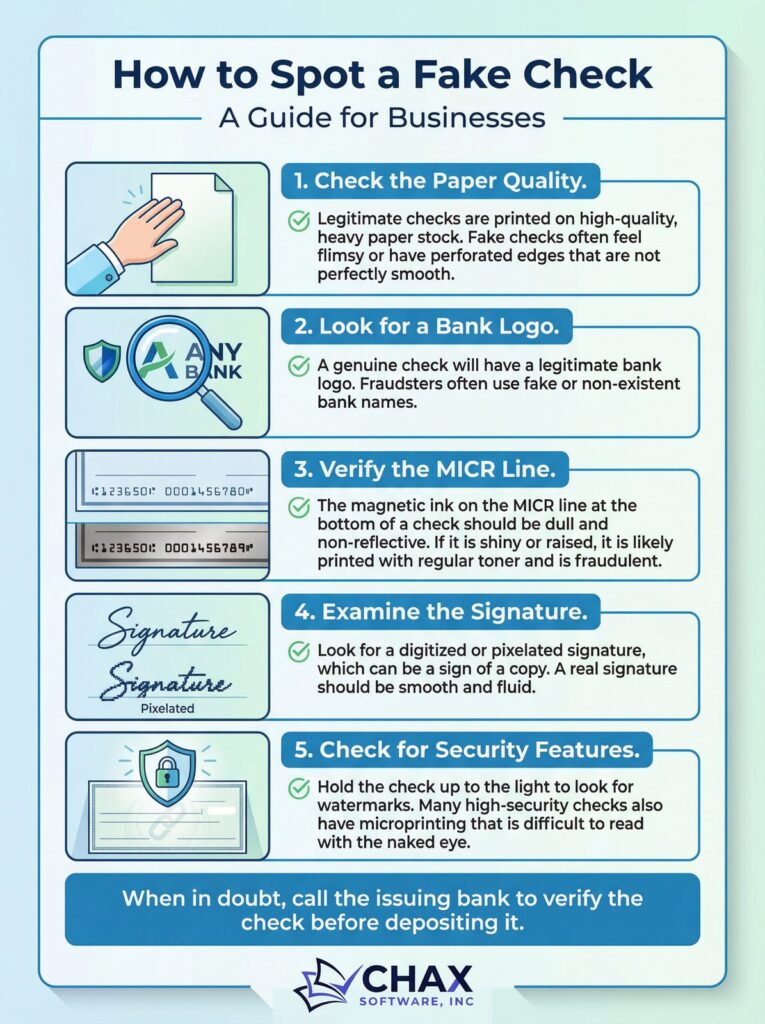
Accepting a fraudulent check can cost your business thousands. Learn the 5 key red flags that indicate a check may be fake, and what to do if you suspect fraud.
23
Mar
Mar
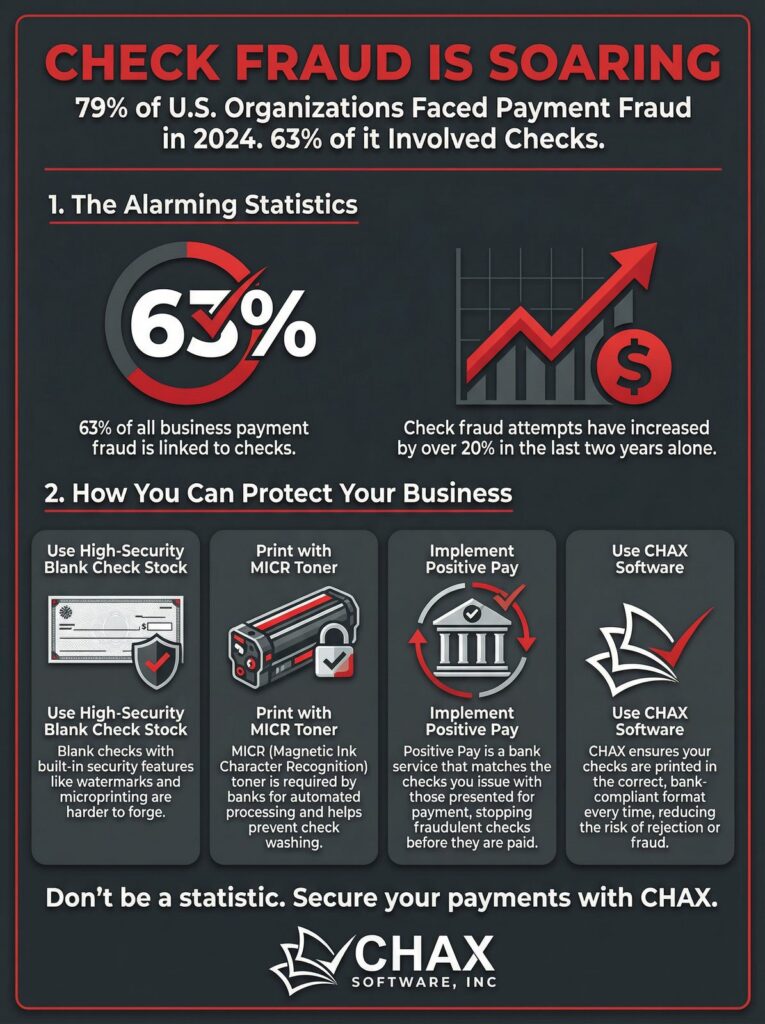
Check fraud is at an all-time high. Learn the latest statistics and the four essential steps every business should take to protect themselves from check fraud in 2026.
10
Mar
Mar
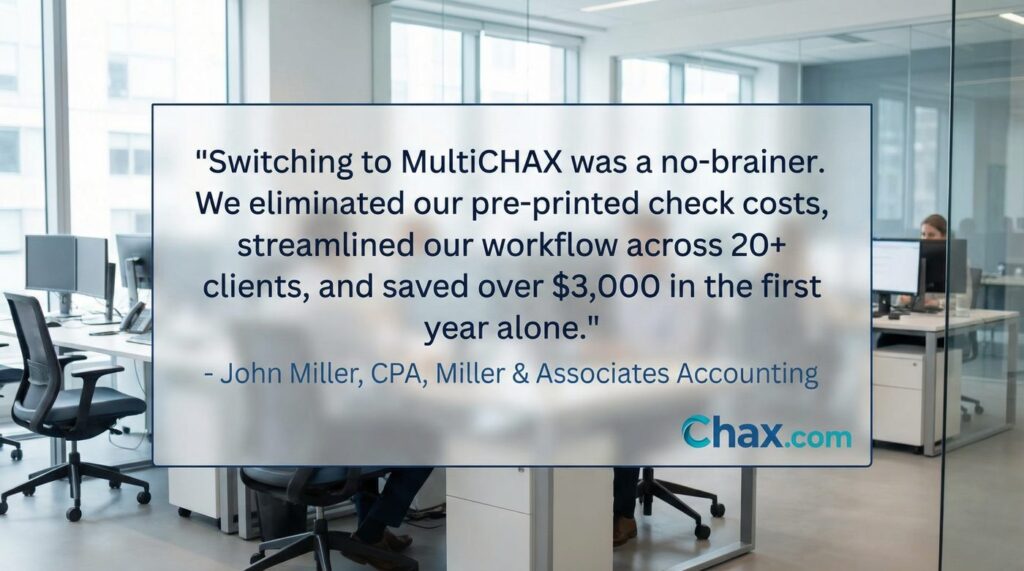
Miller & Associates, a CPA firm managing 20+ clients, eliminated pre-printed check costs, reduced printing time by 80%, and saved over $3,000 in the first year with MultiCHAX.
06
Mar
Mar
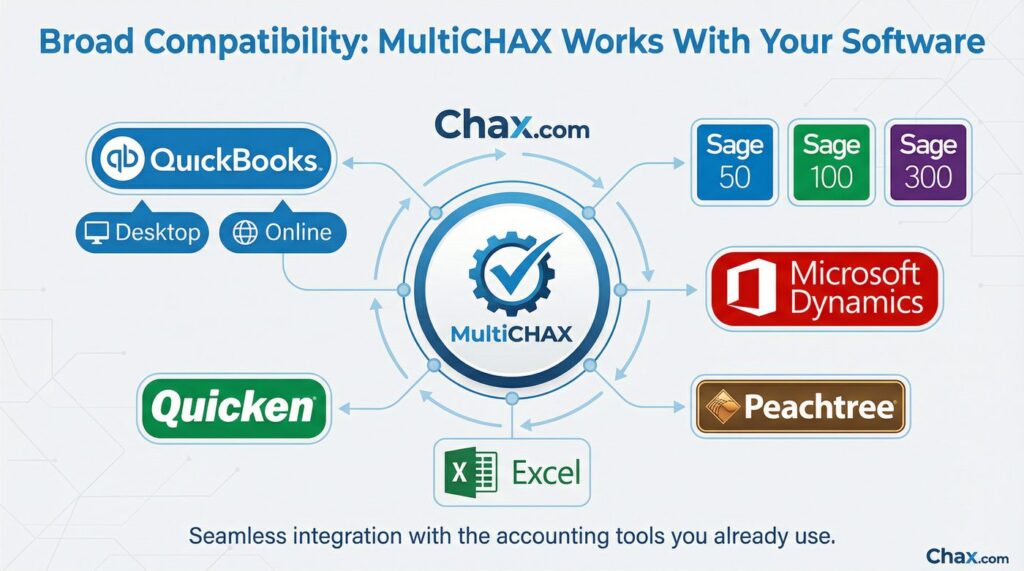
MultiCHAX’s virtual printer technology makes it compatible with virtually any Windows accounting software — including Quicken, Microsoft Dynamics, Sage 100/300, and even Excel.
USER PERMISSIONS Each user can have multiple permissions settings: Supervisory – use this setting if you wish to make the user an administrator. Restricted to certain controls – the user will only be able to see and select certain control records and layouts Restricted to certain banks – the user will only be able to select and […]
SETUP USERS and ENABLE SECURITY Go to the MultiCHAX program and enter SETUP. You must then click on “Maintain Users”, in the toolbar, and then highlight your userid (admin is added as the default user,when you install the program), and click on update user. Click on button to toggle enable/disable security In Maintain Users, you can setup: Users […]
SET DESCRIPTIVE PRINTING This is an option that is accessed in the toolbar of the setup control record window. In this screen you can turn on or off verbiage that is printed on your check face, such as “Pay to the Order Of”, “Amount”, “Check Number”, and the “Bottom Signature Line”. Also if these features are turned on, […]
You can import/create templates in the edit control screen. To open it, select MULTICHAX > SETUP > SELECT CONTROL > EDIT THIS CONTROL. Create Template Click on this button to create and name a template copy of the currently selected control record. You will be given the opportunity to choose where you want to save this […]
Number of Significant Digits for ID Embedded in Check # If your accounting program is able to print a check number on the check printout (most do), then MultiCHAX can automatically determine the bank account. This can only be applied in our software if you choose the “Automatic” method of check selection (Ultimate Edition only). You should specify […]
[et_pb_section][et_pb_row][et_pb_column type=”2_3″][et_pb_text admin_label=”Text”] To activate or change your license (serial key) for MultiCHAX, please follow these instructions. Open MultiCHAX Select the menu SETUP Click on “Enter New Serial #” Enter your serial number (case sensitive) MultiCHAX will record your serial number and exit. [/et_pb_text][/et_pb_column][et_pb_column type=”1_3″][et_pb_cta admin_label=”Call To Action” title=”Order MultiCHAX” button_url=”http://www.chax-store.com/Check-Printing-Software-QuickBooks-Peachtree-Free-Demo-s/4.htm” button_text=”Buy It Now” background_color=”#95d666″ […]
You can adjust some printed wordings, symbols and their positions on the check. Open MultiCHAX > SETUP > Select Control > Edit this Control > Set Descriptive Printing. Print the words “Pay to the Order Of”. Print the words in either 2 lines or 4 lines. Print word “Amount” and currency symbol. You can […]
EDITING YOUR CONTROL RECORD Follow the below-given steps of Editing Your Control Record Open MultiCHAX and select SETUP from the menu. In the SETUP screen, click on SELECT THIS CONTROL Click EDIT THIS CONTROL The following is the EDIT CONTROL SCREEN The following is your check placement settings. Select Top, Middle, Bottom, or 3-up check […]
- 1
- 2