
NOTE: The following instructions assumes that you will be using the default built-in FORM templates of Peachtree (Sage 50). To use custom forms, please contact CHAX, INC. technical support for assistance.
Configure MultiCHAX – Sage 50 – Peachtree Setup:
- Open Sage 50 Accounting (Peachtree Accounting)
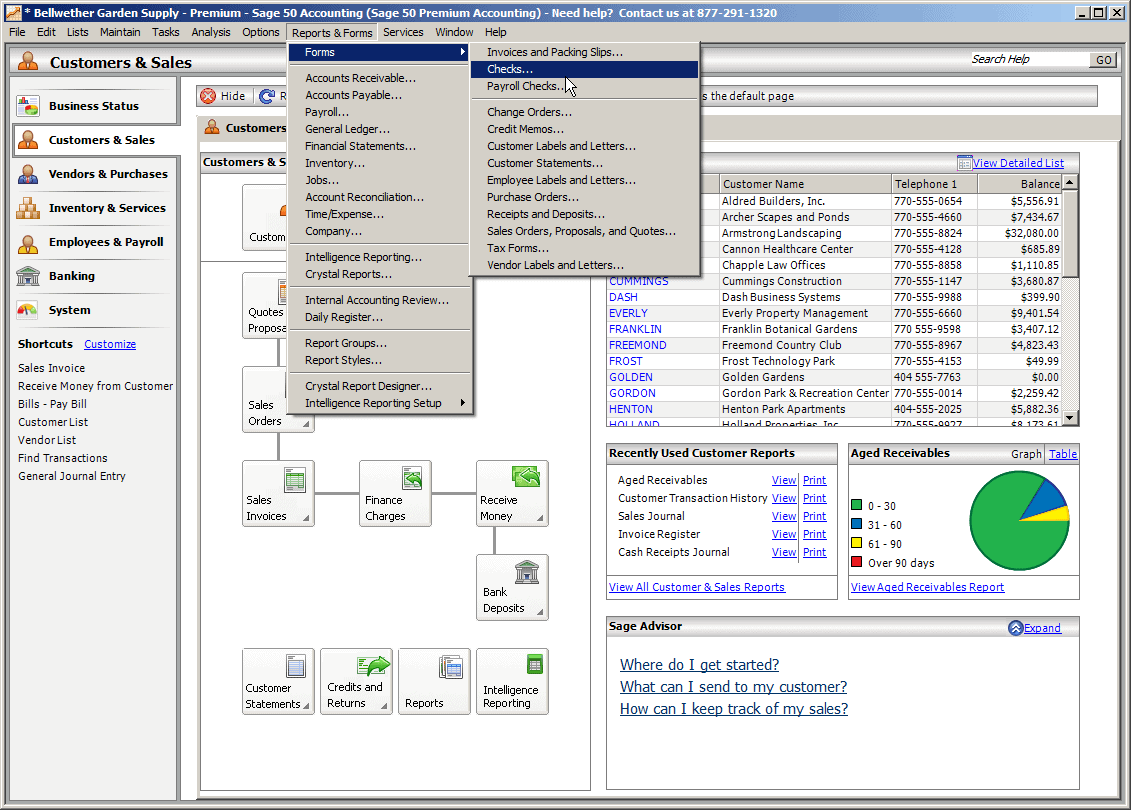
- Select the REPORTS & FORMS > FORMS > CHECKS (alternatively, this works with PAYROLL CHECKS too)
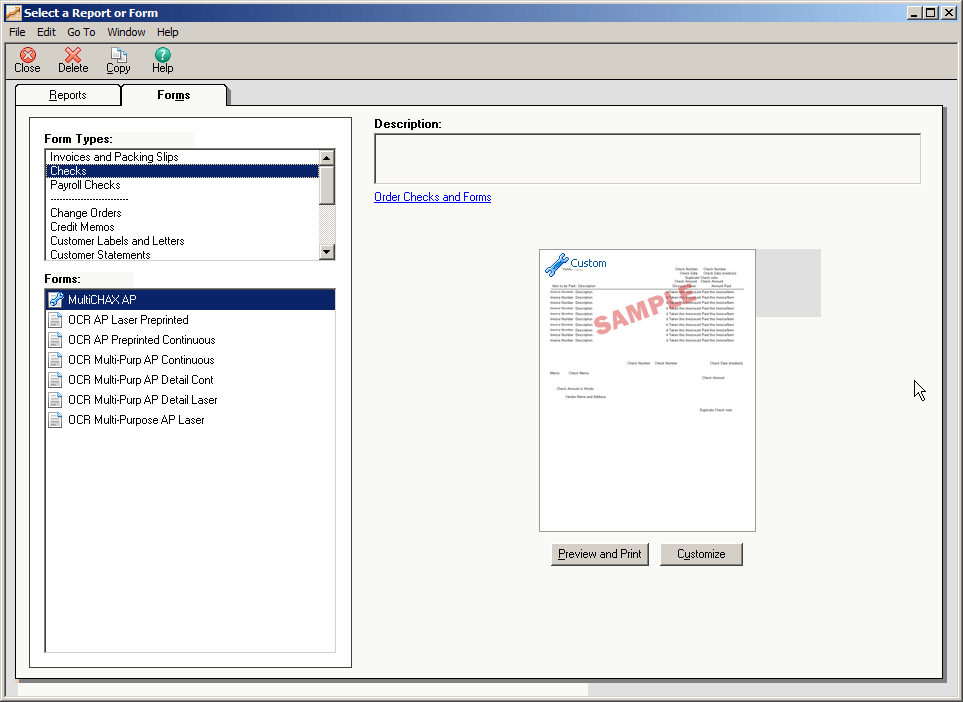
Configure MultiCHAX – Sage 50 – Peachtree - Using one of the default forms (such as OCR Multi-Purp AP Detail Laser), select and customize it
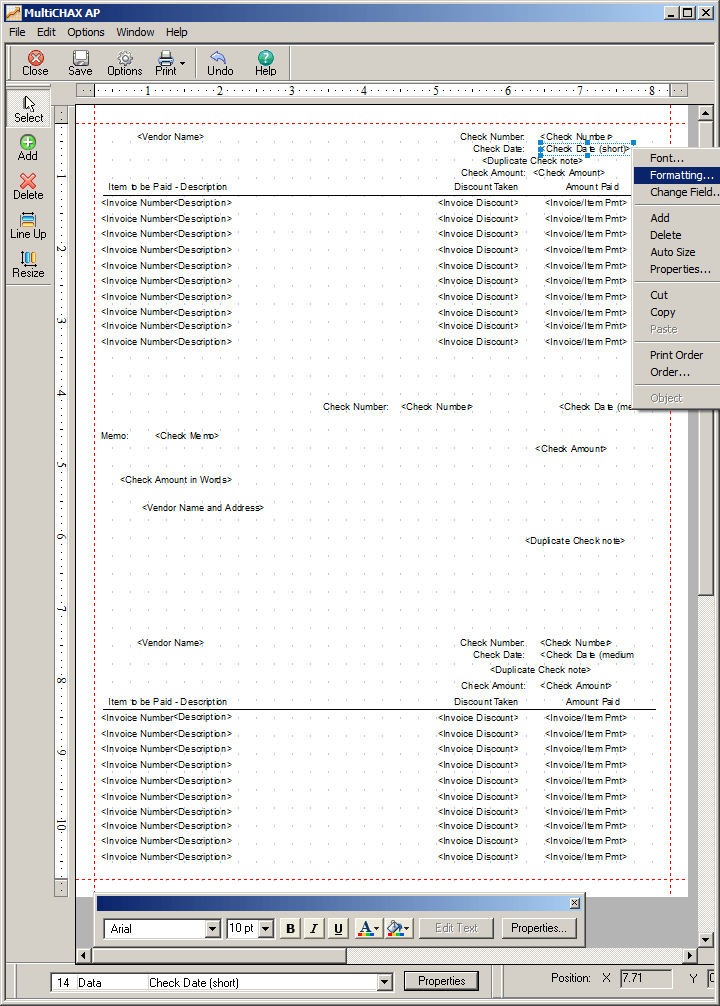
- Edit the form’s check date variable field by right clicking on the check date position, and selecting change field (as shown).
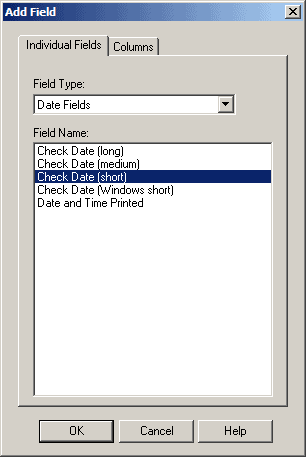
- Change the check date field to short.
- Save the form as MultiCHAX AP (or MultiCHAX Payroll)
- Create and print a check.
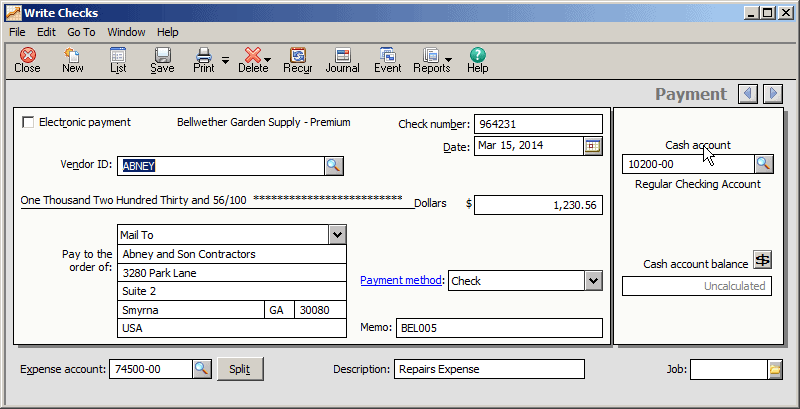
- Print the check and select the FORM MultiCHAX AP (or MultiCHAX Payroll)
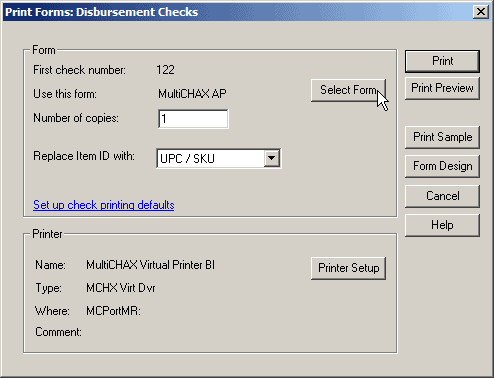

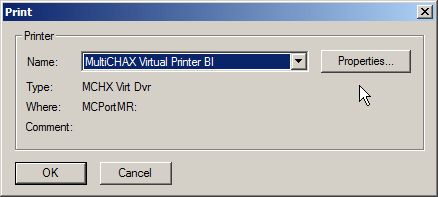
- Select the printer as the MultiCHAX Virtual Printer BI
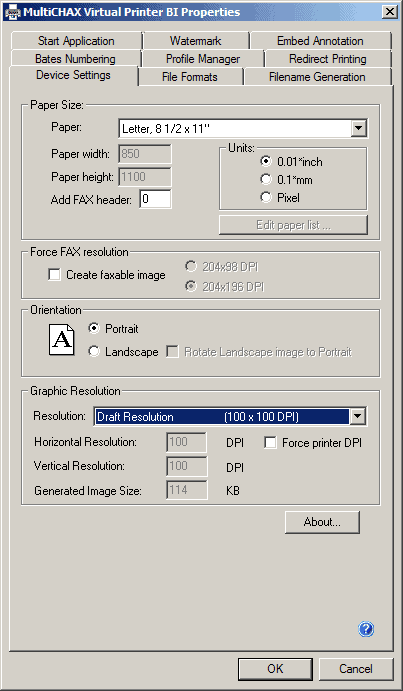
- During printer selection, open the properties of MultiCHAX Virtual Printer BI and change the Graphic Resolution to 100 x 100 DPI
- You are now ready to print your checks to MultiCHAX
MultiCHAX allows you to print your own MICR checks for accounts payable and payroll using low-cost blank check stock. MultiCHAX is compatible with virtually any accounting program including QuickBooks, QuickBooks Online, Sage 50, and many more. These are the Important steps you have to Follow One by One to Configure Multichax Sage 50 Software.
Contact us if you need assistance for Sage 50 / Peachtree products.