
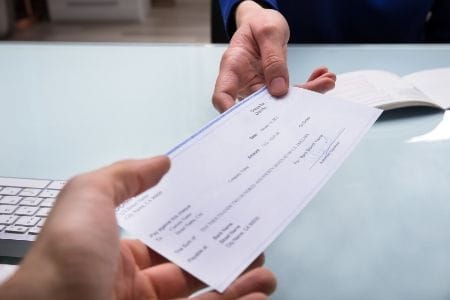
Top 15 Advantages of Using Check Printing Software – Print Checks on Demand In today’s fast-paced business environment, efficiency and innovation are paramount. The dawn of check printing software offers both by transforming the traditional approach to managing checks. Let’s delve into the multifaceted benefits of printing checks in-house. 1. Modernization and Digital Relevance In […]
Category Archives: QuickBooks

Blog News QuickBooks
Top 15 Benefits of Check Printing Software – Print Checks on Demand
Top 15 Advantages of Using Check Printing Software – Print Checks on Demand In today’s [...]
Continue reading
11
Jan
Jan

Online Blog QuickBooks
How to Print Paychecks in QuickBooks Online
To print payroll checks (paychecks) from QuickBooks Online, you will need the following requirements: Firefox [...]
Continue reading
24
Feb
Feb

Blog News QuickBooks
Blank Check Stock vs. Pre-Printed: Why it’s better to Print Your Own Checks
Pre-printed check stock has become a tradition. Many businesses and private individuals use it without [...]
Continue reading
10
Feb
Feb
How can QB Online print in middle check stock? The short answer is no. By design, QB Online can only print in top voucher style checks or 3-per-page standard checks. The long answer is yes, with the use of check writing software like MultiCHAX. Using MultiCHAX, you will be able to use your existing check […]

24
Feb
Feb
To print payroll checks (paychecks) from QuickBooks Online, you will need the following requirements: Firefox / Chrome Browser Adobe PDF Reader Subscription to QuickBooks Online Payroll (30 Day Trial is available) Once enrolled in a QuickBooks Online account and QB Online Payroll, you can follow the guide to setup printing payroll checks for your employees. […]

10
Feb
Feb
Pre-printed check stock has become a tradition. Many businesses and private individuals use it without exploring other options, or even giving it a second thought. Yet there are many benefits of choosing blank check stock and check printing software over-relying on pre-printed checks. First, it’s important to note that using blank stock is not any […]
USER PERMISSIONS Each user can have multiple permissions settings: Supervisory – use this setting if you wish to make the user an administrator. Restricted to certain controls – the user will only be able to see and select certain control records and layouts Restricted to certain banks – the user will only be able to select and […]
SETUP USERS and ENABLE SECURITY Go to the MultiCHAX program and enter SETUP. You must then click on “Maintain Users”, in the toolbar, and then highlight your userid (admin is added as the default user,when you install the program), and click on update user. Click on button to toggle enable/disable security In Maintain Users, you can setup: Users […]
SET DESCRIPTIVE PRINTING This is an option that is accessed in the toolbar of the setup control record window. In this screen you can turn on or off verbiage that is printed on your check face, such as “Pay to the Order Of”, “Amount”, “Check Number”, and the “Bottom Signature Line”. Also if these features are turned on, […]
You can import/create templates in the edit control screen. To open it, select MULTICHAX > SETUP > SELECT CONTROL > EDIT THIS CONTROL. Create Template Click on this button to create and name a template copy of the currently selected control record. You will be given the opportunity to choose where you want to save this […]
You can adjust some printed wordings, symbols and their positions on the check. Open MultiCHAX > SETUP > Select Control > Edit this Control > Set Descriptive Printing. Print the words “Pay to the Order Of”. Print the words in either 2 lines or 4 lines. Print word “Amount” and currency symbol. You can […]
EDITING YOUR CONTROL RECORD Follow the below-given steps of Editing Your Control Record Open MultiCHAX and select SETUP from the menu. In the SETUP screen, click on SELECT THIS CONTROL Click EDIT THIS CONTROL The following is the EDIT CONTROL SCREEN The following is your check placement settings. Select Top, Middle, Bottom, or 3-up check […]
Adjusting the MICR line on Your Checks Follow the below-given steps to Adjust the MICR Line on your Checks. Select “Set MICR Offsets” in the MultiCHAX® toolbar The following screen will be displayed Offset Instructions and Setting: Since any two printers are slightly different in the way they feed and align the paper. […]
To add a new bank account, you must be logged in to MultiCHAX as an administrator. NOTE: No other users can be logged in while adding bank accounts or setting up the control records. Open the MultiCHAX program Click on the SETUP menu Click on Select Control And Click on Select a Bank Select Add […]
MultiCHAX Installation: If you are installing on a network folder, make sure that you have proper (full control) rights to create directories and search, add, modify, and remove files. It is recommended that you place the data files onto a network drive so that all users operating MultiCHAX® will share the same files. Be sure […]
Desktop Application Users: CPU required: Pentium or newer Minimum memory required: 128 MB Minimum hard disk space required: 200 MB Operating system version: Windows XP, Windows Vista, Windows 7, Windows 8, Windows 10 Minimum screen resolution: 1024 x 800 Microsoft .Net Framework 3.5 SP1 QuickBooks Online (web-based application) Users: Must meet above desktop application requirements […]
The MultiCHAX® system composes of two (2) programs: The MultiCHAX® Virtual Printer is a Windows print driver. When printing checks within your accounting software you should select “MultiCHAX Virtual Printer BI” as the output printer for checks. The MultiCHAX (Multichx.exe) program is the main software to configure and setup your checks. When using the “MultiCHAX Virtual Printer” driver, […]
- 1
- 2