Knowledge Base › CHAX 11 › Troubleshooting and reference
Troubleshooting and reference
Fix printing, import, and Host mode problems, and look up terms, common questions, and what is new.
Windows and macOS6 guides

Knowledge Base › CHAX 11 › Troubleshooting and reference
Fix printing, import, and Host mode problems, and look up terms, common questions, and what is new.
Find your symptom and follow the fix for misaligned fields, shrunk checks, MICR rejections, the DEMO watermark, the wrong sheet position and missing printers.
| Symptom | Likely cause | Fix |
|---|---|---|
| Fields sit slightly off the boxes or lines on the stock | Your printer feeds paper a little differently from the default layout | Adjust offsets in Settings › Check alignment. Details |
| The whole check is smaller than the stock, or starts too far in | The printer driver or PDF viewer is scaling the page | Turn off Fit to page or Shrink to fit, and print at 100%. Details |
| The bank rejects the check or can’t read the MICR line | Toner, scale, a MICR line outside the clear band, or an EPC digit the bank doesn’t want | Laser printer, MICR toner, 100% scale, MICR offset. Details |
| DEMO / TRIAL across the page and D E M O on the check | No valid license on this PC | Activate a license in Settings › License. Details |
| The check lands in the wrong third of the sheet | The check position doesn’t match your stock | Set Check position on page in Printer setup. Details |
| Captions print twice, or are missing | The wrong stock type is selected | Select Safety or Economy stock to match your paper. Details |
| Nothing came out, or the check isn’t in Transactions | The print job failed, or the monthly allowance is used up | Read the red message. Your entry is kept. Details |
| Your printer isn’t in the list | It’s offline or not installed in Windows or macOS | Install it in the operating system first. Details |
CHAX positions each field from a fixed layout, in hundredths of an inch from the top-left corner of a Letter page. Printers feed paper a little differently, so small corrections may be needed.
Go to Settings › Check alignment, or choose Alignment setup in Printer setup.

Choose Print test page. You get a VOID sample check with inch rulers on the top and left edges and the MICR clear band outlined. It uses the offsets on screen, saved or not.
Page offset (applies to all checks) moves everything together. Individual fields moves one field, such as the payee or amount. Positive values move right (X) and down (Y). Offsets are in hundredths of an inch, so 10 is one tenth of an inch.
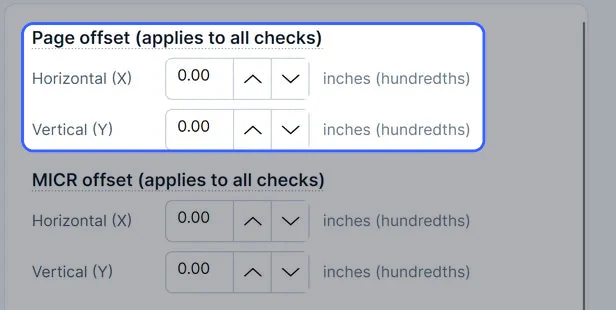
Repeat the test page until it lines up, then choose Save. CHAX shows “Alignment saved. It applies to every check you print.” Reset offsets returns to zero.
The page offset moves every section of the sheet. The MICR offset moves only the check’s own MICR line, and field offsets move single fields on the check. The file copy and stub ignore both. The fraud trace follows the bank field’s offset, because it sits under the transit number.
After a CHAX 10 upgrade, CHAX 11 uses its own alignment and not your old offsets. Print the alignment page once before your first real check. Read Check alignment and the test page.
There are two test pages, and neither is recorded in Transactions. Print test page in Printer setup prints a sample check marked TEST PAGE and VOID with your saved settings. Print test page in Check alignment prints rulers and the MICR clear band, using the unsaved offsets on screen.
Fix the scale before you touch alignment offsets. A scaled check moves every field and the MICR line, and banks may not read it.
CHAX always sends a full-size Letter page at 100%. If the check still comes out shrunk or shifted toward the middle, something else is scaling it:
The MICR line is the row of numbers along the bottom: check number, routing number and account number. Bank machines read it. CHAX prints it in the E-13B MICR font that comes with the app, so you never have to install a font. Work through these in order:
| Check | What to do |
|---|---|
| Printer and toner | Use a laser printer. Many banks also ask for MICR toner, which contains magnetic ink. Inkjet output often fails bank readers. |
| Scale | Print at 100%. Any scaling changes the size of the MICR characters. |
| Clear band | Print the alignment page. The MICR line has to print inside the outlined band, 3/16 inch or more above the bottom edge of the check. Move it with MICR offset (applies to all checks). |
| EPC digit | If your bank asks, turn off Include EPC code in Settings › Check format. The EPC is one digit that some banks expect immediately before the routing number. |
| Numbers | Compare the 9-digit routing number and the account number with the payer’s own check. Account numbers keep their leading zeros. |
| Demo check | Trial checks print placeholder bank numbers on purpose. Read the next section. |
To fix this, open Settings › License and activate your license. If you have a license and still see DEMO, the License page gives the reason the saved license isn’t in effect, such as an expiry or a license that belongs to another computer. Read Activate your license.
With no valid license, every feature works but checks print as demo checks. They show “DEMO / TRIAL” across the page, “D E M O” on the check, and placeholder routing and account numbers (012345678 and 123-456-789), so they can’t be cashed. Demo checks have no fraud trace.
Check stock usually places the check in the top, middle or bottom third of a Letter sheet. In Settings › Printer setup, select the matching Check position on page. With one check per page, CHAX fills the other two thirds with a file copy and a confirmation stub, in the order your position needs.
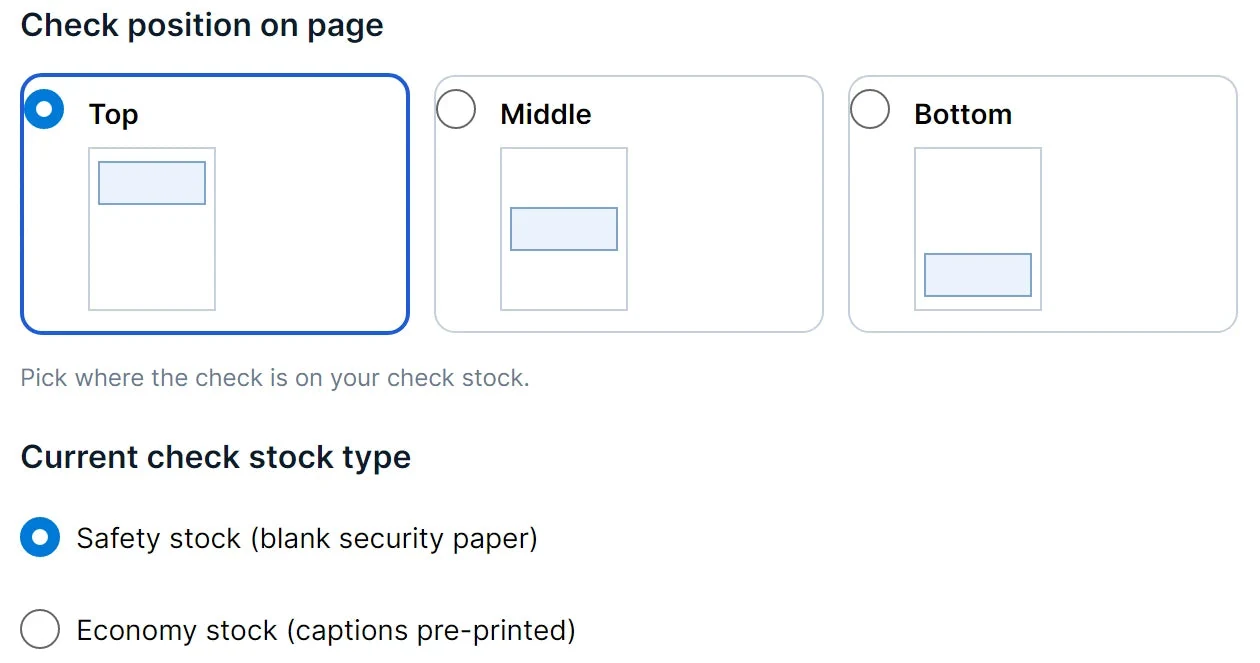
Match both settings to the paper in your tray. New check also lets you change the position for one check.
Transactions records a check only after it goes to the printer or is saved with Export PDF…. When printing fails, CHAX keeps your work and shows a red message:
| Message | What it means and what to do |
|---|---|
| The check was not printed. … Your entry is still here, so you can try again. | New check: the job never reached the printer. Read the reason in the middle of the message, fix it, and choose Print check again. |
| Nothing was printed. … The checks are still in the batch. | Print review: no check from the batch was printed or recorded. Fix the cause and print the batch again. |
| Choose a printer first. | No printer is selected. Pick one under Print settings or in Printer setup. |
| [Printer] isn’t available. Check that it’s on and installed, or choose another printer. | Windows no longer recognizes a printer by that name. Turn it on, reinstall it, or pick another. |
| [Printer] couldn’t print: … | Windows accepted the printer but the job failed. Look at the printer’s queue in Windows. |
| The printer refused the job: … | macOS: the print system declined the job. Look at the printer in System Settings › Printers & Scanners. |
| Printing isn’t set up on this computer (CUPS wasn’t found). | macOS: the print system CHAX uses is unavailable. Add a printer in System Settings first. |
| Your Standard license allows 25 checks a month, and all of them are used. Upgrade to print more this month. | You’ve used the monthly allowance. It resets on the 1st of the next month. Professional allows 100, and Enterprise is unlimited. |
| Your … license allows … checks a month; … are left. Print fewer checks or upgrade. | The batch holds more checks than your remaining allowance. Select fewer checks. |
| That check number is already used on this account. Another PC may have just printed it; choose the next number. | Host mode: another PC used the number moments ago. Choose the next number and print again. |
If CHAX says the check was sent but no paper appeared, the job is in the operating system’s print queue. Look for a paused printer, a jam or an empty tray. The check is already in Transactions, so reprint it from there once the printer works. Read Transactions.
CHAX doesn’t install printers. It lists the ones your operating system has, with the default printer first.
Find any message from Import checks or a CHAX 10 migration and learn what to do about it.
| Message | Cause | Fix |
|---|---|---|
| CHAX couldn’t read file: … | Another program has the file open, the file moved, or you lack permission to read it. | Close the file in Excel, confirm it still exists, and choose Browse… again. |
| The file has no rows to import. | The file is empty or holds only a header row. CHAX ignores blank lines. | Open the file and confirm it has data rows. If it has no column names, untick First row contains column headers. |
| The preview shows everything in one column | The Delimiter is wrong. CHAX guesses it from the first line. | Under File options, pick Comma, Semicolon, Tab or Pipe. |
| Names show odd characters, such as é instead of é | The Encoding is wrong. | Switch between UTF-8 (recommended) and Windows (Western European). |
| Your Excel file won’t open | Import checks reads CSV text files, not .xlsx workbooks. | In Excel, use File › Save As › CSV, and import the CSV. |
| Message | Cause | Fix |
|---|---|---|
| Map a column to: Payer, Routing number, … | A required field is still set to Not mapped. The required fields are payer, payee, routing number, account number, amount, check number and check date. | Pick the CSV column for each listed field. For the payee, you can set Payee source to Use default payee instead. Memo is optional. |
| Enter a name for this mapping. | You chose Save mapping with no name. | Type a name in Mapping name, such as AP Vendor Import. |
| Type the new name in Mapping name, then choose Rename. | You chose Rename with no new name. | Type the new name first. |
CHAX guesses the mapping from common column names, such as payer, routing, acct, amount or date, and ignores spaces, dashes and underscores. Confirm each guess in the Sample value column.
Rows with a problem land in Needs correction, and rows that may repeat a check land in Possible duplicates. The import button, such as Import 43 checks with your count, stays disabled until both lists are empty. The bar at the bottom says what’s left, for example “Resolve 3 errors and review 1 possible duplicate to continue.”
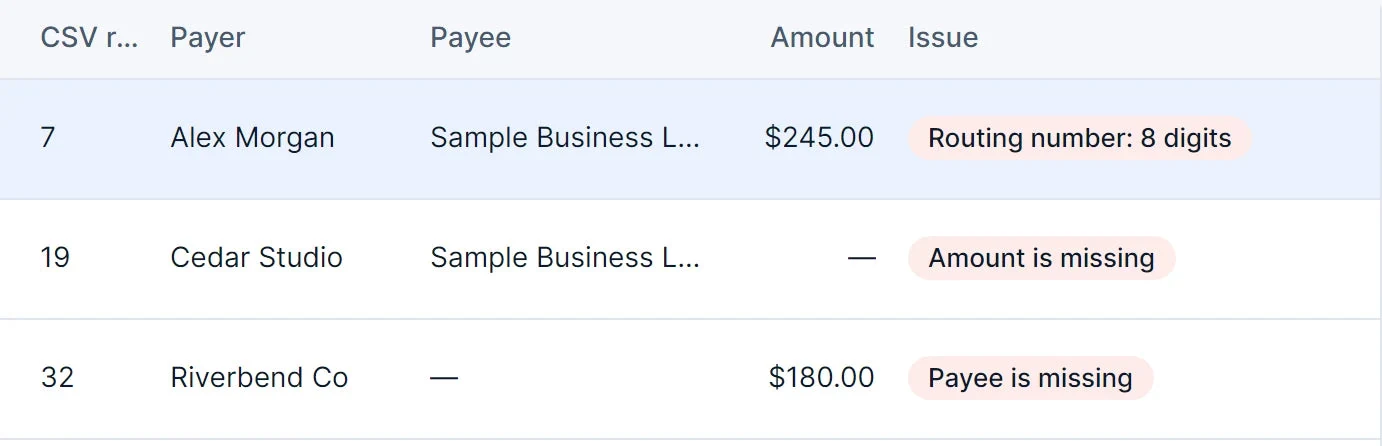
The Issue column gives the first problem in each row. CSV row numbers count the header row, so they match Excel’s row numbers.
| Issue | Fix |
|---|---|
| Payer is missing | The payer cell is empty. Type the payer’s name in the correction panel. |
| Payee is missing | The payee cell is empty and Payee source is From CSV column. Type the payee, or go back and choose Use default payee. |
| Amount is missing | Enter the amount, such as 245.00. |
| Amount is not a number | The cell holds letters or another format. Dollar signs and thousands commas are fine, but text such as “two hundred” isn’t. |
| Amount must be more than zero | CHAX can’t print zero or negative amounts. Correct the amount or skip the row. |
| Check number is missing | Enter the check number. |
| Check number: digits only | Take out letters, spaces or dashes. |
| Routing number is missing | Enter the payer’s 9-digit routing number. |
| Routing number: digits only | Take out spaces, dashes or letters. |
| Routing number: 8 digits (or any count other than 9) | Excel often drops a leading zero. Type the full number, or type part of it and choose Find bank to search the routing directory. |
| Account number is missing | Enter the payer’s account number. |
| Account number: digits only | Take out spaces, dashes or letters. |
| Check date is missing | Enter the date. |
| Check date is not MM/DD/YYYY (or the format you chose) | The file’s dates don’t match Date format. If every row shows this, choose ← Back to mapping and pick MM/DD/YYYY, DD/MM/YYYY or YYYY-MM-DD. Single-digit months and days are fine. |
| Possible duplicate of check 1050 | Read Possible duplicates below. |
| Message | Fix |
|---|---|
| Enter a 9-digit routing number. | The corrected value still doesn’t have 9 digits. |
| No bank in the routing directory matches this number. | Find bank found nothing. Check the number on the payer’s check, or add the bank under Bank routing. |
| Found bank, branch (number). Choose Apply correction to use it. | CHAX found a match. Choose Apply correction. |
| Enter an amount like 245.00. | The corrected amount isn’t a number. |
| Enter the date as MM/DD/YYYY. | Corrections always use MM/DD/YYYY, whatever format the file uses. |
| Preview unavailable until required details are valid. | This isn’t an error. The check preview appears when the row has no problems. |
Corrections affect this import only. Your CSV file, saved payers and saved mapping stay the same. To leave a row out, choose Skip this row. The row is then marked as skipped and won’t be imported. Include this row again brings it back.
CHAX flags a row when its check number is already used on the same routing and account number, either in CHAX (printed or in the batch) or earlier in the same file. The panel explains it, for example “Check 1050 on account ending 4321 is already in CHAX or earlier in this file.”
Imported checks go to the batch, which says “Import complete. No checks have been printed.” It also tells you how many rows you left out, if any. Nothing prints until you choose Review & print. Read Batch printing and Print review.
These messages come from Settings › Migrate from CHAX 10. Errors stop the import. Notes appear in the review afterward and need no action unless they say so.
| Message | What to do |
|---|---|
| CHAX 10 wasn’t found on this computer. Choose its CHAX.MDB. | Choose the CHAX.MDB file in CHAX 10’s data folder. |
| file isn’t CHAX 10’s CHAX.MDB. Choose the CHAX.MDB in CHAX 10’s data folder. | You picked a different file. Choose CHAX.MDB. |
| CHAX.MDB isn’t in folder any more. | The file moved after you chose it. Choose it again. |
| CHAX 10 data can only be imported on Windows. … | Import on the Windows PC that ran CHAX 10, and open that CHAX 11 database on your Mac afterward. |
| This PC uses the database on the host. Import CHAX 10 data on the host PC … | Run the migration on the host PC. |
| path already exists. CHAX 10 data goes into a new database: choose another file name. | Pick a new file name for the CHAX 11 database. |
| Reading the CHAX 10 data took too long. Close CHAX 10 and try again. | Close CHAX 10 on every PC and try again. |
| The CHAX 10 reader couldn’t be started. It needs the .NET Framework 4.8 that comes with Windows. | Run Windows Update and try again. |
| The CHAX 10 reader is missing … / is a different version … Reinstall CHAX 11. | Reinstall CHAX 11. |
| CHAX 10’s check alignment wasn’t carried over … | Print an alignment test page before you print checks. Read Check alignment. |
| Payer name has no routing number; add it in CHAX 11 before printing. | Open the payer in Payers and add the routing number. |
| User id had no password; they’ll choose one when they first sign in to CHAX 11. | No action needed. |
| Check n: the amount “…” couldn’t be read; it was imported without one. | The check is in history with no amount. Check it in Transactions. |
| Check n: the date “…” couldn’t be read, so it was skipped. | That history check wasn’t imported. |
| Batch check n: the date couldn’t be read; it’s dated today instead. | Fix the date in the batch before printing. |
| Schedule “…” had no checks left or no next date in CHAX 10; it was imported paused. | If you still need it, edit and resume it in Recurring checks. |
| Routing number “…” isn’t 9 digits; that bank was skipped. | If you need the bank, add it again in Bank routing. |
| A payer / payee / user without a name (user ID) was skipped. | No action needed. The record was empty. |
| … appeared twice with the same details; kept once. | No action needed. |
| … was also marked as the default payee; … stays the default. | If needed, change the default in Payees. |
| More than one different check used number n on the same account in CHAX 10. All were kept as history. | No action needed. History stays as it was. |
CHAX reads the CSV as plain text and handles quoted fields, doubled quotes and line breaks inside quotes. It converts nothing to a number while reading, so routing and account numbers keep their leading zeros. A missing leading zero means Excel removed it before saving the file.
Each row goes through the same rules as New check, with one exception. If the file has no bank name, CHAX fills it in from the routing directory when the checks go to the batch.
CHAX compares each row with every check in Transactions, every check in the batch, and the rows above it in the file. A row is a possible duplicate when check number, routing number and account number all match.
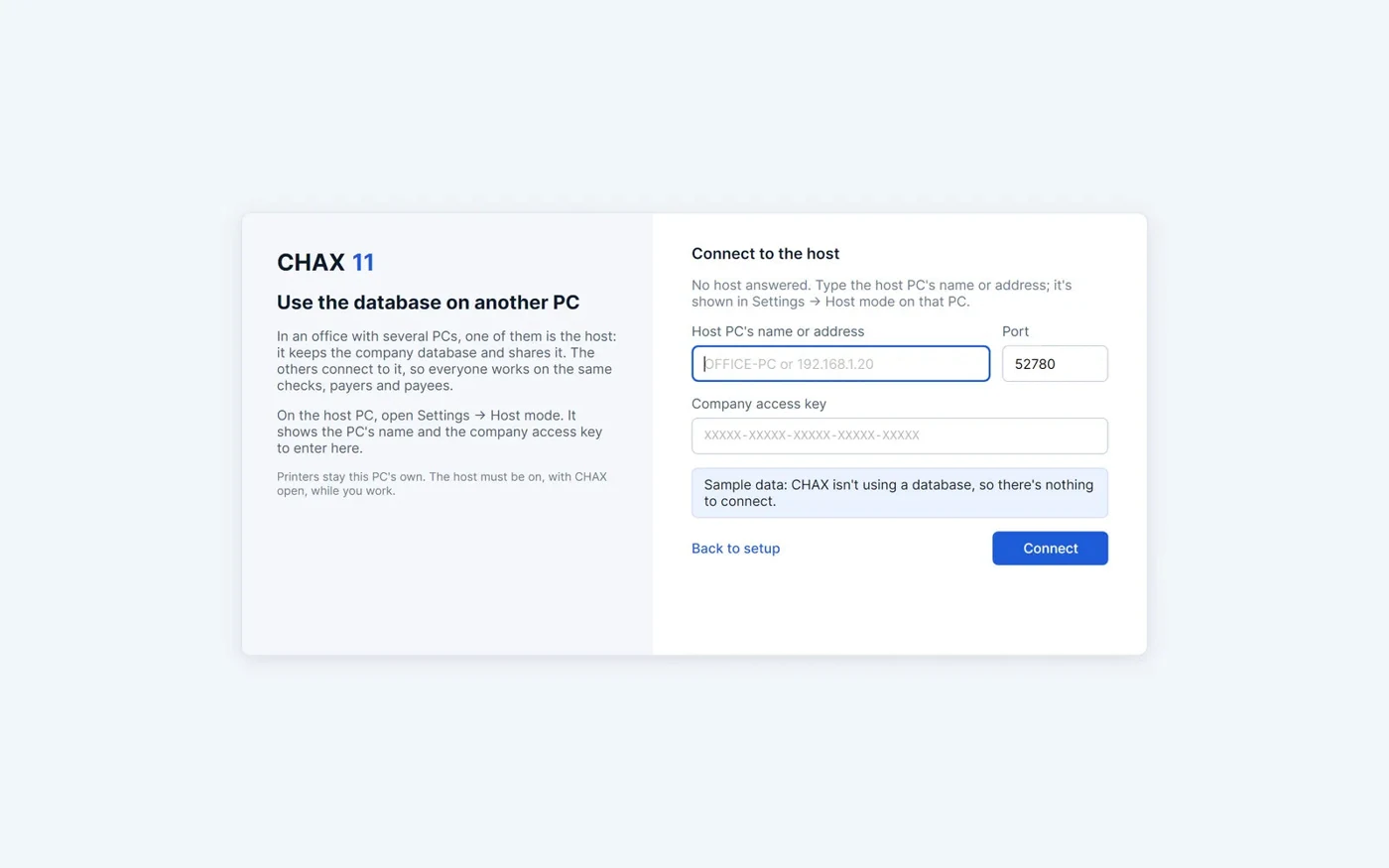
Find the message you see on the host or a connecting PC and follow the fix. Most problems trace back to the firewall, the port, the CHAX version, the access key or a sleeping host.
The host shares the database only while CHAX runs on it and Settings › Host mode shows Sharing. Pick a host PC that stays on during working hours.

The connecting PC has to reach the host over the local network. The automatic search finds hosts on the same network only.
The versions have to match exactly. Look in Help & about on each PC.

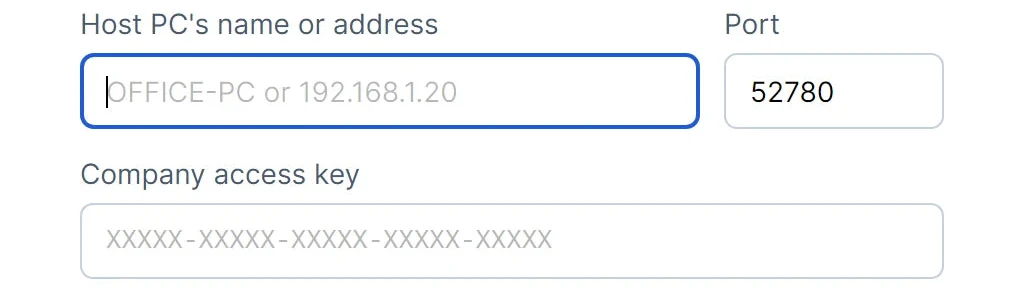
Copy Company access key from Settings › Host mode on the host. It has 25 letters and digits, shown in groups of five.

Errors appear in a red box above Connect. Leave the port at 52780 unless the host shows a different one.
| Message | Cause | Fix |
|---|---|---|
| Can’t reach the CHAX host at name. Check that the PC is on, CHAX is open on it in host mode, and both PCs are on the same network. | Nothing answered within 5 seconds. The host is off or asleep, CHAX isn’t sharing, the firewall blocks the port, or the name doesn’t resolve. | Work through Firewall and port 52780 and The host went to sleep. Try the IP address in place of the name. |
| No host answered. Type the host PC’s name or address; it’s shown in Settings → Host mode on that PC. | The automatic search got no reply. It covers the local network only, and a firewall can block it. | Type the name or one of the addresses listed under Connect to on the host. |
| This PC has CHAX 11.x and the host (name) has CHAX 11.y. Install the same version on both. | The versions differ. | Update the older PC so both run the same version. |
| The access key isn’t the one name uses. Check it in Settings → Host mode on that PC. | The key is wrong, or the host created a new one. | Copy the key from the host again. |
| The access key is 25 letters and digits, shown in Settings → Host mode on the host PC. | The key you typed is too short or has other characters. | Type or paste the whole key. Case, dashes and spaces make no difference. |
| Enter the host PC’s name or address. | The name box is empty. | Enter a name such as OFFICE-PC or an address such as 192.168.1.20. |
| The port is a number from 1 to 65535. Unless the host changed it, it’s 52780. | The port box doesn’t hold a valid number. | Enter 52780, or the port the host shows. |
| name isn’t the host this PC connected to before: its certificate changed. If the host was set up again, connect to it again in Settings → Host mode. | The host’s security certificate differs from the one this PC remembers, for example after the host was reinstalled. | If you know the host was set up again, choose Connect to another host… and enter the key. If you don’t, ask your administrator before connecting, because another computer may be answering in its place. |
| The host couldn’t prove it has the access key. Check the address and the key. | The PC that answered doesn’t have this key. | Confirm you typed the right host and the current key. |
| The connection took too long. Try again. | The handshake ran over a minute. | Choose Connect again. |
| The host answered … Make sure name is a PC running CHAX in host mode. | Something other than CHAX answered on that address and port. | Check the address and port. |
| The host’s answer couldn’t be read. Is that PC running the same CHAX? / The host sent an empty answer. | The usual cause is a version mismatch or another program on the port. | Install the same version on both PCs. |
| Sample data doesn’t connect to a host. | CHAX is showing sample data, not a database. | Set up CHAX with a real database first. |
If the host restarts, replaces its database or loses touch with your PC, CHAX reconnects by itself and asks you to sign in again. The sign-in screen gives the reason:
| Message | What happened |
|---|---|
| This PC lost touch with the host for a while (asleep, or off the network). | The host heard nothing from this PC for 2 minutes. Sign in again. |
| The host restarted. | CHAX restarted on the host. Sign in again. |
| This PC connected to the host again. | This PC opened a new session, which replaced its old one. |
| This PC isn’t connected to the host (name). | You tried an action while disconnected. Wait for CHAX to reconnect, or restart CHAX. |
If CHAX can’t reconnect, it opens Connect to the host with the reason. At startup, you can also choose Use a database on this PC instead, which restarts CHAX on this PC’s own database. That database doesn’t have the host’s checks or users.
| Message | Fix |
|---|---|
| CHAX couldn’t share the database on port 52780: … Another program may be using that port; choose another one. | Another program or a second copy of CHAX is on the port. Close it, or choose another port from 1024 to 65535 and enter that port on every connecting PC. |
| Choose a port from 1024 to 65535. 52780 is CHAX’s usual one. | The port you typed is out of range. |
| Only an admin can share the database. | Sign in as an administrator to start or stop sharing. |
| There’s a new access key. Every other PC was disconnected; enter the new key on each of them. | This is expected after New access key…. Enter the new key on each PC. |
| Couldn’t copy to the clipboard. Type the key on the other PC instead. | Read the key from the screen and type it. |
On a connecting PC, some actions say “… is done on the host PC (name), in Settings → Database & backup.” You restore, move, export a copy, open another database and change encryption on the host. CHAX 10 data is imported there too (“Import CHAX 10 data on the host PC.”). Each PC still needs its own license, managed on that PC.
Messages such as “Sign in first.”, “Only an admin can change users.” or “Only an admin can view the audit log.” mean your user’s role doesn’t allow the action. Read Users and permissions.
CHAX uses TCP and UDP port 52780 unless you choose another on the host. TCP carries the connection, and UDP on the same port finds hosts automatically.
If the search finds nothing but typing the address works, only UDP discovery is blocked. You can keep connecting by name or address.
A sleeping host can’t answer, so every other PC sees “Can’t reach the CHAX host…”. Connected PCs ping the host every 30 seconds. After 2 minutes of silence, the host ends that PC’s session and the PC has to sign in again.
The connecting PC first asks the host for its name and CHAX version, and stops with the version message if they differ. Both sides then prove they hold the access key without sending it. Only after that does the host open a session for the PC.
A certificate the host creates when it first shares encrypts the connection. Each connecting PC remembers that certificate’s fingerprint and refuses a host with a different one. Settings › Host mode shows Certificate fingerprint on the host and on the connecting PC, and the two should match.
With the database on a network drive, two PCs can write to it at once, which can damage it. In host mode, the host is the only PC that touches the file, and the other PCs send it their requests.
Plain definitions of the check and CHAX terms on your screen. They match the tooltips in CHAX, which appear when you hover over an underlined term.
| Term | Meaning |
|---|---|
| Payee | Your business, or the company you represent. It’s the name on the “Pay to the order of” line. Standard includes 1 payee, Professional 2, and Enterprise unlimited. Read Payees. |
| Payer | Your client who is paying your business. The check is drawn on the payer’s bank account, with their permission. All editions allow unlimited payers. Read Payers. |
| Term | Meaning |
|---|---|
| MICR | Magnetic Ink Character Recognition. It’s the line of special numbers along the bottom of a check: check number, routing number and account number. Bank machines read this line, so CHAX prints it in the MICR font. Use a laser printer. Many banks also ask for MICR toner. Read Anatomy of a check. |
| E-13B | The MICR font on US checks, with the digits 0 to 9 and special symbols. It comes with CHAX, so you have nothing to install. |
| MICR clear band | The bottom 5/8 inch of the check, reserved for the MICR line. The line has to print inside this band, at least 3/16 inch above the bottom edge. The alignment test page outlines the band. |
| Routing number (ABA number) | The 9-digit ABA number that identifies the payer’s bank. You’ll find it in the MICR line and on the payer’s own checks. CHAX’s routing directory uses it to look up the bank. Read Bank routing directory. |
Transit symbol ⑆ |
Marks where the routing number starts and ends in the MICR line. |
| Transit number (fraction) | The routing number in fraction form, for example 12-3456/7890, printed near the top right of the check. It’s optional, and your bank can tell you what it is. When CHAX knows the bank, it fills this in from the routing directory. |
| Account number (on-us number) | The payer’s bank account number that the check is drawn on. It prints in the MICR line after the routing number and ends with the on-us symbol ⑈. “On-us” is the banking name for this field. CHAX keeps leading zeros. |
| Check number | The number in the top right corner and in the MICR line, between on-us symbols. It takes digits only. CHAX suggests the next unused number for each routing and account number, starting at 1001 for a new account, and warns about a number already used on the same account. |
| EPC | External Processing Code, a single digit some banks expect in the MICR line directly before the routing number. If your bank asks you to, turn it off with Include EPC code in Settings › Check format. |
| Term | Meaning |
|---|---|
| Safety stock | Blank check paper with security features, such as a watermark or void pantograph, and no printed captions. CHAX prints the whole check: captions, values and MICR line. |
| Economy stock | Check forms with the captions (Pay to the order of, Date, Memo…) already printed. CHAX prints only the values and the MICR line. |
| Check position | Where the check sits on the Letter sheet: top, middle or bottom. With one check per page, the rest of the sheet holds a file copy and a confirmation stub. Standard prints in the middle only. Read Printer and check stock. |
| Offsets | Adjustments that move what CHAX prints, in hundredths of an inch. Positive values move right (X) or down (Y). To check them, print the alignment test page on plain paper and hold it against your stock. Editing offsets takes Professional or Enterprise. Read Check alignment. |
| Authorization message | Prints “This payment has been authorized by your depositor” in place of a signature line, for checks drawn on a payer’s account with their permission. Set it in Settings › Check format. Read Check format. |
| DEMO check | A check printed without a valid license. It shows “DEMO / TRIAL” across the page and “D E M O” on the check, and its placeholder bank numbers mean it can’t be cashed. Activate a license to print real checks. Read Activating your license. |
| Fraud trace | A small 22-digit code printed directly under the bank’s transit number on licensed checks. It identifies the license that printed the check, the date and the check number. The code stops matching if someone later changes the amount, payee, routing, account or check number. Chax Software can decode it on request. DEMO checks don’t have one. Read Fraud trace. |
| Term | Meaning |
|---|---|
| Batch | Checks waiting to print together. It collects imported checks, prepared recurring checks and checks you add with Add to batch. Nothing prints until you choose Review & print. Batch printing is part of Enterprise. Read Batch printing. |
| Recurring check | A check repeated on a schedule: daily, weekly, every two weeks, twice a month, every four weeks, monthly, quarterly, twice a year or yearly. CHAX prepares due checks for your review and never prints them automatically. Read Recurring checks. |
| Transaction | A check that was sent to the printer or exported as a PDF, along with its output history: who printed it, on which computer, and when. Read Transactions. |
| Term | Meaning |
|---|---|
| Host | The PC that keeps the company database and shares it with the other office PCs, from Settings › Host mode. It has to be on, with CHAX open, while others work. Read Host mode. |
| Client | A PC that connects to the host and works on the host’s database. It keeps its own printers and print settings, and it needs its own license. |
| Access key | The company access key: 25 letters and digits shown on the host in Settings › Host mode. A PC can’t connect without it. Keep it inside the office, and create a new one with New access key… if it gets out. |
| Recovery key | Shown once, when an administrator encrypts the database. It opens the database and its backups if the database password is forgotten. You, your administrator and Chax Software can’t reset a lost password, so keep the key away from the computer. Read Database encryption. |
| Database | One file per company, holding your checks, payers, payees, users and settings. CHAX backs it up automatically every day. Read Database and backups. |
Short answers to the questions CHAX 11 customers ask most, each with a link to the full guide.
The payee is your business, or the company you represent, and its name goes on the “Pay to the order of” line. The payer is the client paying you. The check is drawn on the payer’s bank account, with their permission. Read Payees and Payers.
Yes. CHAX 11 runs on 64-bit Windows and on macOS. To import CHAX 10 data you need Windows, since that’s where CHAX 10 ran. Read Install CHAX 11.
Yes. On the New check page, Authorization… saves a one-page form for the payer to sign, covering one check or recurring checks. For one-time payments, you can also save a phone script for a recorded call. Read Payment authorization forms.
CHAX is in trial mode because this PC has no valid license. All features work, but checks print with a DEMO watermark and placeholder bank numbers, and banks won’t accept them. Activate your license in Settings › License. Read Activate your license.
You need a laser printer and check stock. Pick Safety stock for blank security paper, where CHAX prints everything, or Economy stock for forms with captions already printed. Many banks also ask for MICR toner. Read Printer and check stock.
Print the test page from Settings › Check alignment on plain paper and hold it against your stock. Then adjust the offsets, which are in hundredths of an inch. Editing offsets requires Professional or Enterprise. Read Check alignment and the test page.
Something is scaling the page, because CHAX prints at 100%. Turn off “Fit to page” or “Shrink to fit” in the printer driver, or print exported PDFs at actual size. Read Fix printing problems.
Yes, on Professional or Enterprise. Select Top, Middle or Bottom in Settings › Printer setup. Standard prints in the middle only. Read Printer and check stock.
Standard prints 25 a month, Professional prints 100, and Enterprise is unlimited. The count resets on the 1st of each month, and Home shows what you have left. Read Editions compared.
No. Transactions records a check only after it’s sent to the printer or exported as a PDF. When printing fails, your entry stays on screen or your checks stay in the batch, ready for another try. Read Fix printing problems.
Yes, on Professional or Enterprise. Find it in Transactions and reprint it, or start a new check from it. The check’s history gains an entry for each output. Read Transactions.
It’s the fraud trace, which appears on licensed checks. It identifies the license that printed the check, the date and the check number, and it stops matching if someone alters the check. Chax Software can decode it on request. Read Fraud trace.
On Professional and Enterprise, tick Hide branding in Settings › Check format. Standard and trial checks keep the line. Read Check format.
Not on one account. CHAX blocks a check number already used on the same routing and account number. A different account can use the same number. Read Write and print a check.
Yes, with Enterprise. In Excel, choose File › Save As › CSV, then open Import checks. Map the columns once, save the mapping, and fix any rows CHAX flags. The checks then go to the batch. Read Import checks from a CSV file.
CHAX reads every value as text, so zeros in the file stay. If Excel already removed them, CHAX flags the row, for example with “Routing number: 8 digits”. You can correct it or use Find bank. Read Fix import problems.
No, nothing prints automatically. CHAX prepares due checks for your review. On Enterprise they go to the batch, and on other editions each one opens in New check. Read Recurring checks.
Yes, with host mode, in every edition. One PC shares the company database, and the others connect using the company access key. Each PC needs its own license. Read Share a database with host mode.
No. Two PCs writing to one file at the same time can damage it. Use host mode, so that only the host touches the file. Read Database and backups.
Yes. CHAX makes a daily backup, and another before upgrades, restores and moves. Keep extra copies somewhere other than the computer itself. Read Database and backups and Restore a backup.
Ask your CHAX administrator for a reset. If you’re the administrator and forgot your own, contact support@chax.com. Read Sign in.
Enter the recovery key shown when encryption was turned on. You, your administrator and Chax Software can’t reset a database password. Without the password or the recovery key, the data can’t be opened. Read Database encryption.
On the Windows PC that ran CHAX 10, open Settings › Migrate from CHAX 10. CHAX copies payers, payees, checks, users and settings into a new database. Afterwards, print an alignment test page, because CHAX 11 starts from its own alignment. Read Upgrade from CHAX 10.
Email support@chax.com. Help & about in CHAX also includes built-in help and diagnostics. Read Help and support.
Review what changed and what was fixed in CHAX 11.1, and what CHAX 11 brought compared with CHAX 10.
| What’s new | What it means for you |
|---|---|
| Payment authorization forms | On New check, Authorization… saves a one-page PDF for your payer to sign and return. A person’s form reads “I, …”, and a business’s form reads “We, …” and is signed by a representative. Tick One-time for a single check, or Recurring for checks on a schedule, with how often, the first date, a fixed amount or the full amount of each invoice, and until an end date or cancelled in writing. You can tick the boxes in CHAX or leave them for the payer. The form has a box for a taped voided check, and only the last four digits of the account number print. Read Payment authorization forms. |
| Phone script | For one-time payments taken by phone. This PDF lists each detail to read on a recorded call, with “Yes” boxes, a record of the call to fill in, and a reminder of the consumer telemarketing rules. Read Payment authorization forms. |
| Order checks | Order checks in the sidebar opens your web browser at the new check styles. For pricing, see CHAX 11 editions and pricing. Read Buying or upgrading, and ordering checks. |
| Change | What it means for you |
|---|---|
| Host mode in every edition | All editions can share one company database between the PCs in your office. Each PC uses its own license. Read Host mode. |
| Clearer check positions | Standard prints one check in the middle of the page, and Printer setup now says so. 3 checks per page is offered with Enterprise, which prints batches. Read Printer and check stock. |
| Fresh alignment after a CHAX 10 upgrade | Upgrades start from CHAX 11’s own check alignment, not your CHAX 10 offsets. When CHAX 10’s alignment was different, the import review says so and suggests printing an alignment test page. Read Upgrade from CHAX 10. |
| Economy stock lines up | The economy check layout now matches today’s economy check stock. Read Check alignment and the test page. |
| Clearer activation errors | When the license server refuses a serial number or an activation, CHAX gives you the reason. Read Activating your license. |
| One support address | Support email and error reports both go to support@chax.com. Read Help and support. |
| Theme per user | On Windows, each Windows user on a PC keeps their own light or dark theme. Read Appearance. |
| New icon | The Windows installer, shortcuts and Add/Remove Programs display the CHAX 11 icon. Read Install CHAX 11. |
CHAX 11 is a new app on a new database. If you’re coming from CHAX 10, these are the differences.