Knowledge Base › CHAX 11 › Importing and recurring
Import and recurring checks
Bring checks in from a CSV or Excel file, and set up checks that repeat on a schedule.
Windows and macOS2 guides

Knowledge Base › CHAX 11 › Importing and recurring
Bring checks in from a CSV or Excel file, and set up checks that repeat on a schedule.
On this page
Turn a spreadsheet of payments into checks: choose the file, match its columns to CHAX fields, and fix any rows CHAX flags. The checks land in the batch, ready to review and print.
CHAX Enterprise and trial mode include Import checks. Other editions see the message “Bulk import is part of CHAX Enterprise”. When sign-in is on, you also need the Power user or Admin role.
CHAX reads CSV files (.csv or .txt). For an Excel workbook, open it and choose File › Save As › CSV, then import that file.
Use one row per check, plus a header row of column names. With names like these, CHAX matches every column for you.
Payer,Payee,Routing,Account,Amount,CheckNo,Date,Memo
Alex Morgan,Sample Business LLC,012345678,0001234567,100.00,1060,10/18/2026,Invoice 1060
Cedar Studio,Sample Business LLC,012345678,0001234568,"1,115.00",1061,10/18/2026,Invoice 1061
Amounts may include $ and thousands commas. Put quotes around any value that contains a comma.
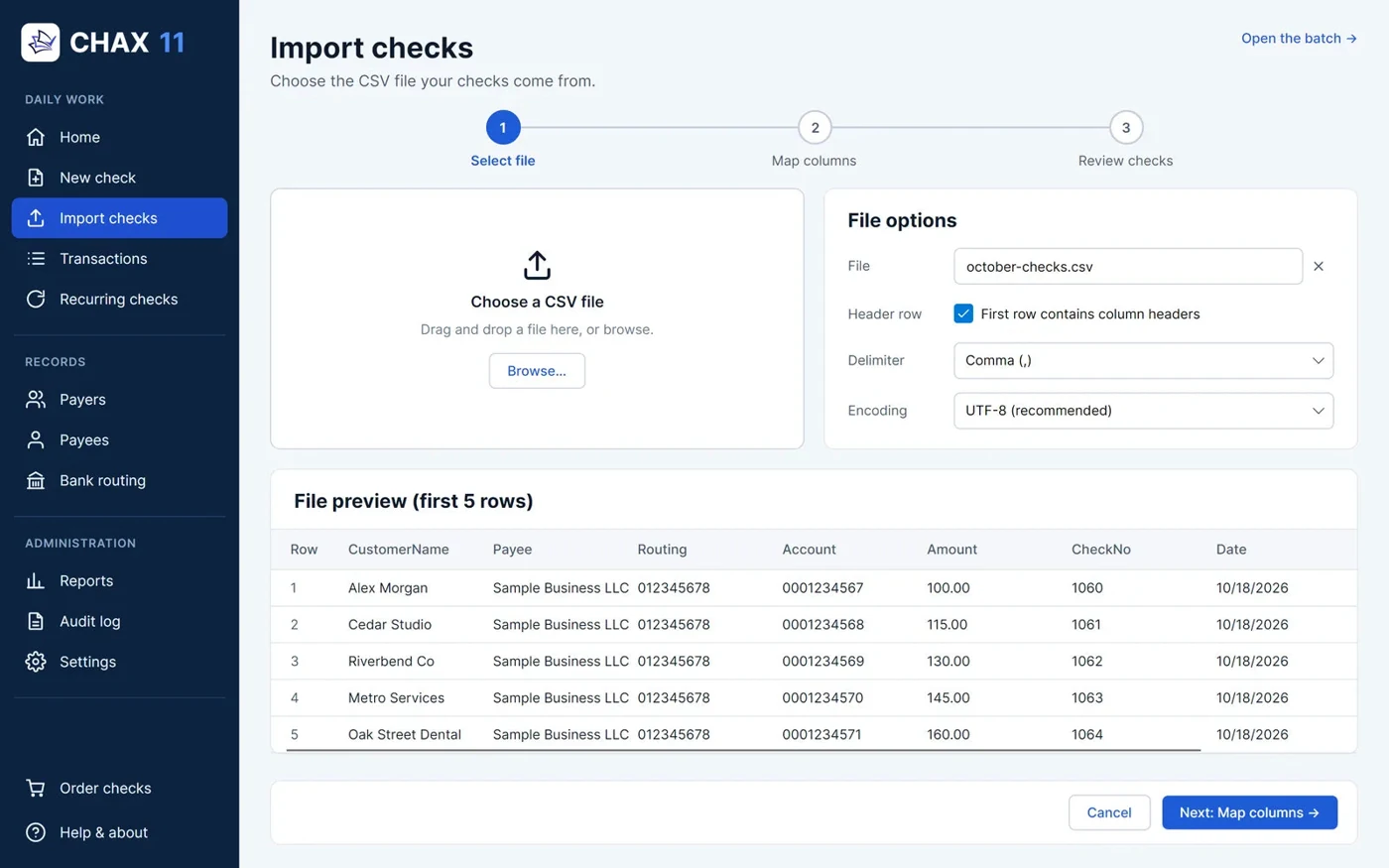
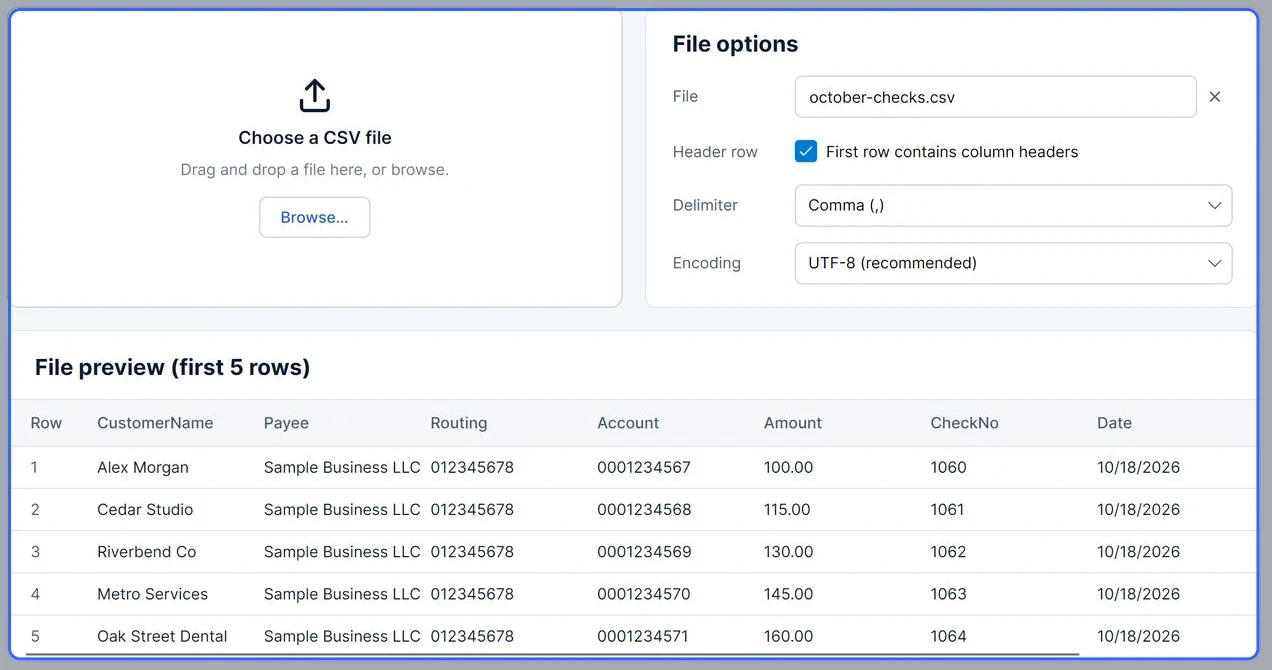
Open Import checks in the sidebar. Drag your file onto Choose a CSV file, or choose Browse…. Under File options, confirm that First row contains column headers is ticked and that the Delimiter and Encoding are right. File preview (first 5 rows) shows what CHAX read.
When the columns look right, choose Next: Map columns →.

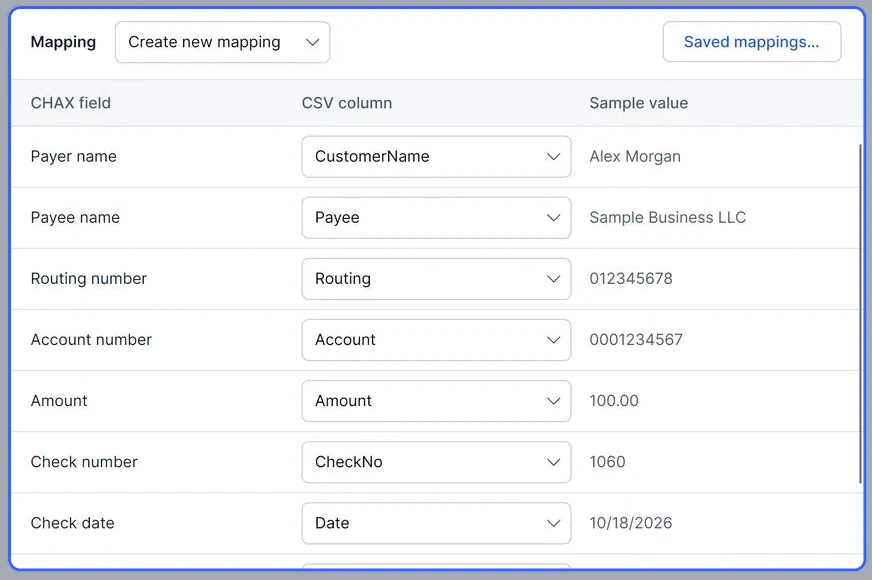
The Map columns step lists each CHAX field with its CSV column and a Sample value from your file, so you can confirm each match. CHAX fills in the columns it recognizes. Pick any missing column from the list. Optional fields (memo, addresses, phone, bank name, transit number) are under Optional fields: addresses, phone, bank name, transit number.
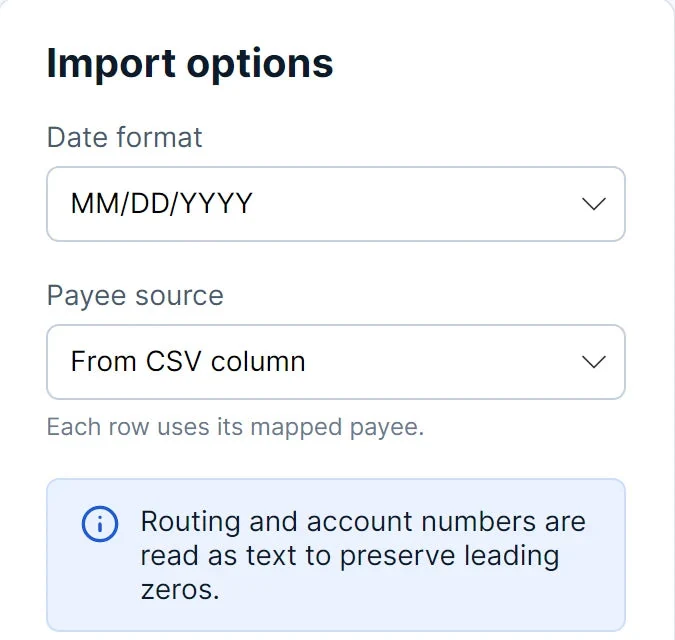
Under Import options, choose the Date format your file uses and the Payee source. That’s either From CSV column, or Use default payee so rows with no payee use your default. Dates can be MM/DD/YYYY, DD/MM/YYYY or YYYY-MM-DD, and single-digit days and months, such as 3/7/2026, are fine.
Choose Review 47 rows →, where the number is your row count. If a required field has no column, CHAX says “Map a column to: …” and stays on this step.
If you import the same kind of file regularly, choose Saved mappings….

Type a Mapping name and choose Save mapping. Next time, pick it from the Mapping list, or select it in the sheet and choose Use mapping. You can also Rename, Duplicate or Delete a saved mapping.
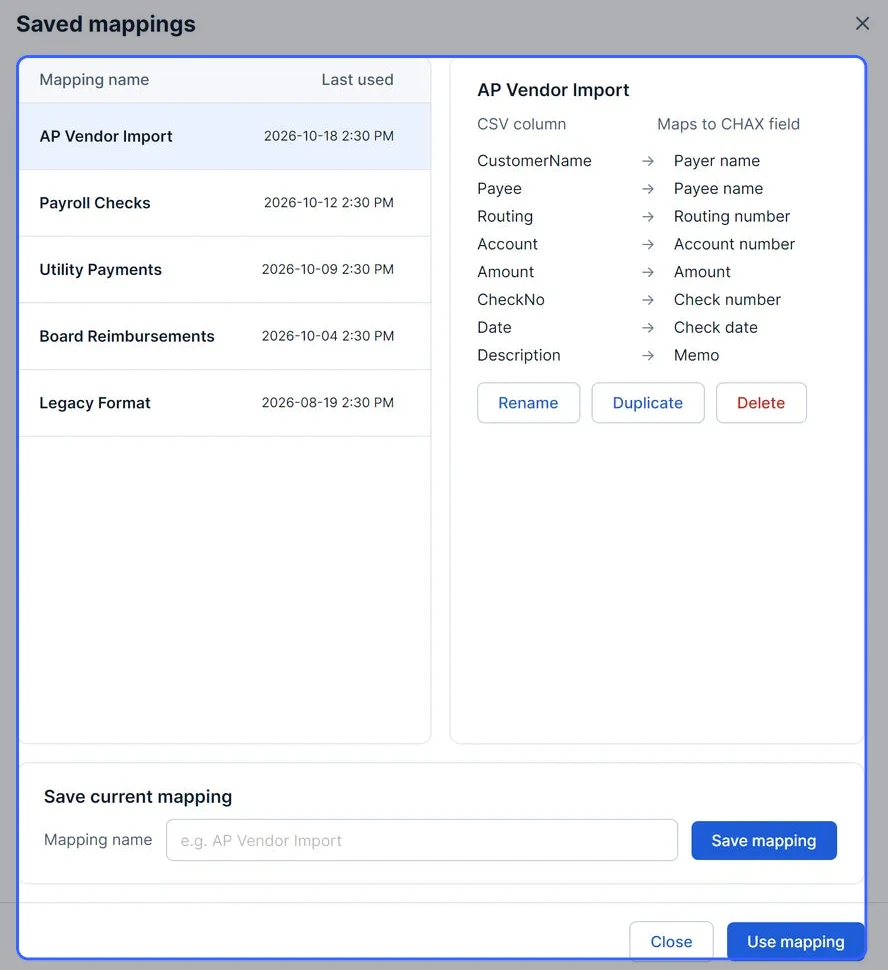
The CHAX database stores saved mappings, so every computer sharing it sees them.
Review checks counts the rows: total, ready, need correction and possible duplicate. The tabs filter the list. Row numbers include the header row, so row 7 is the 7th line of the file.
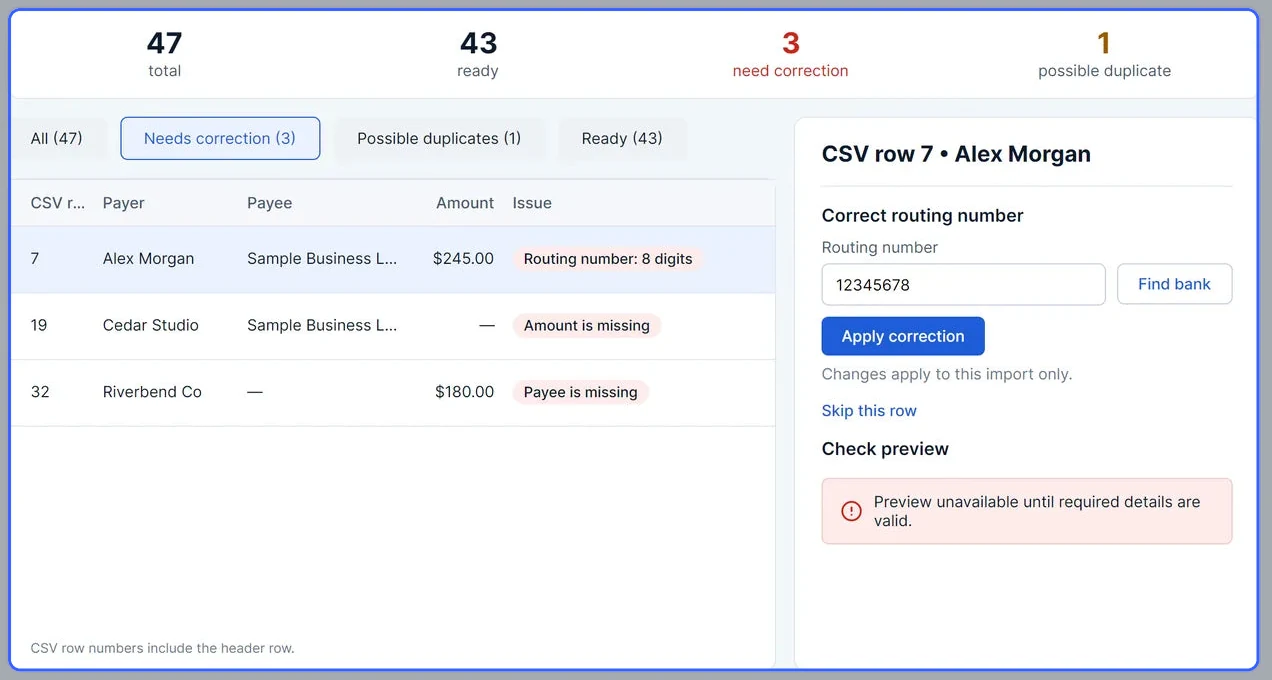
Select a row to fix it on the right. Type the value, then choose Apply correction. For a routing number, Find bank looks it up in the bank routing directory. If a row shouldn’t be imported, choose Skip this row. Corrections apply to this import only, and your CSV file doesn’t change.
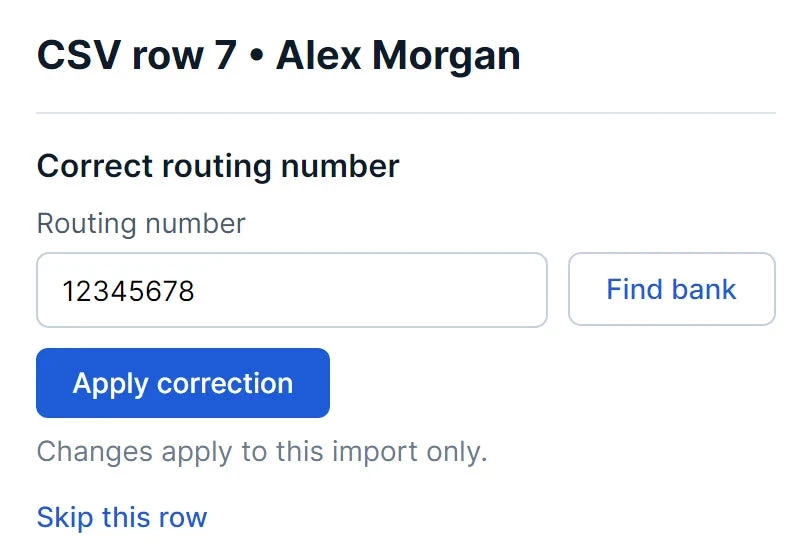
After each correction, CHAX rechecks the row and moves to the next problem. The counts update as you go. Here, one routing number has been fixed.

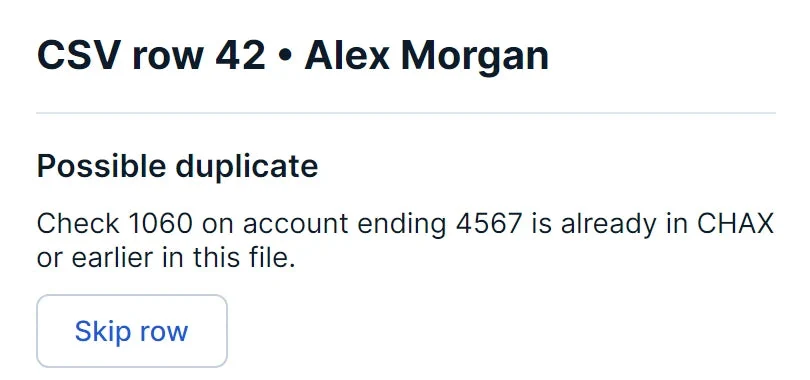
On the Possible duplicates tab, CHAX explains the match, such as “Check 1060 on account ending 4567 is already in CHAX or earlier in this file.” Choose Import anyway to keep the row, or Skip row. CHAX then labels a row you keep as a duplicate that will be imported.
When nothing needs correction and you’ve decided every duplicate, choose Import 47 checks.

CHAX opens Imported batch with the new checks selected and the message “Import complete. No checks have been printed.” Check them, then choose Review & print, which confirms the checks, printer and stock before anything prints. Read Batch printing and Print review.

The first seven fields are required, though Payee name can stay unmapped when Payee source is Use default payee. CHAX recognizes a column by these names, ignoring capitals, spaces, dashes and underscores, so Check_No matches checkno.
| CHAX field | Required | Column names CHAX recognizes |
|---|---|---|
| Payer name | Yes | payer, payername, customer, customername, from, accountname |
| Payee name | Yes (or default payee) | payee, payeename, payto, paytotheorderof, vendor, vendorname, to |
| Routing number | Yes | routing, routingnumber, routingno, aba, rtn, bankrouting |
| Account number | Yes | account, accountnumber, accountno, acct, acctno, bankaccount |
| Amount | Yes | amount, amt, checkamount, total |
| Check number | Yes | check, checkno, checknumber, checknum, number, no |
| Check date | Yes | date, checkdate, paymentdate, issuedate |
| Memo | No | memo, description, note, notes, reference, invoice |
| Bank name | No | bank, bankname |
| Transit number | No | transit, transitnumber, fraction |
| Payer phone | No | payerphone, phone |
| Payer address lines 1 to 3 | No | payeraddress / address / address1, payeraddress2 / address2, payeraddress3 / address3 / citystatezip |
| Payer address line 4 | No | Map it by hand |
| Payee address lines 1 to 3 | No | payeeaddress / payeeaddress1, payeeaddress2, payeeaddress3 |
| Payee address line 4 | No | Map it by hand |
| Message | What to do |
|---|---|
| Payer is missing / Payee is missing | Type the name, or skip the row. |
| Amount is missing / Amount is not a number | Enter an amount such as 245.00. |
| Amount must be more than zero | CHAX can’t print zero or negative amounts. |
| Check date is missing / Check date is not MM/DD/YYYY | Enter the date, or choose ← Back to mapping and pick the right Date format. |
| Routing number: 8 digits | US routing numbers have 9 digits. The usual cause is a missing leading zero. |
| Check number: digits only / Account number: digits only | Remove letters, spaces or dashes. |
CHAX reads standard CSV, including quoted values, doubled quotes inside quotes, and line breaks inside quotes. It skips blank lines. When you open a file, it picks the delimiter that splits the first line into the most columns: comma, semicolon, tab or pipe. You can change this under Delimiter.
Encoding is UTF-8 or Windows (Western European). Choose the second if accented letters look wrong. A blank header cell becomes Column 3 and so on, and with no header row, every column gets a name like that.
CHAX keeps every value as text, so 012345678 stays 012345678. It can only keep zeros that are in the file, though, and Excel drops them from number columns. Format routing and account columns as Text in Excel before you save the CSV.
For a new file, CHAX reduces each column name to lower-case letters and digits and compares it with the names in the table above. Each column serves one field at most. A saved mapping you choose replaces the guess, and any column it names that isn’t in the file stays unmapped.
A row is a possible duplicate when its check number is already used on the same routing and account number, in Transactions, in the batch, or in an earlier row of the file. The same number on another account is fine.
Bank name is optional. On import, CHAX fills in the bank name and address from the bank routing directory for each routing number it finds there.
Schedule a payment that repeats, such as a monthly installment. CHAX tells you when a check is due and prepares it for you to review and print. Nothing ever prints by itself.
Every edition includes recurring checks. When sign-in is on, you need the Power user or Admin role. The payer and payee must already be saved in Payers and Payees.
Open Recurring checks and choose New schedule.

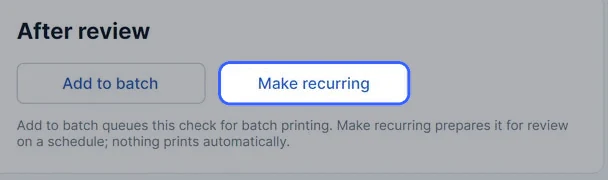
You can also start from a check you’ve entered. In New check, under After review, choose Make recurring. This creates a monthly schedule starting on the check’s date, which you can then edit.
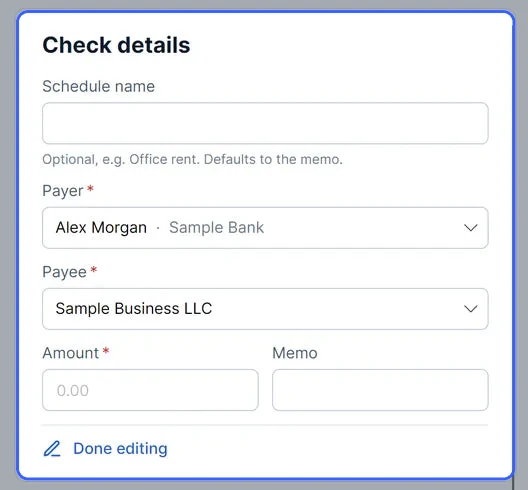
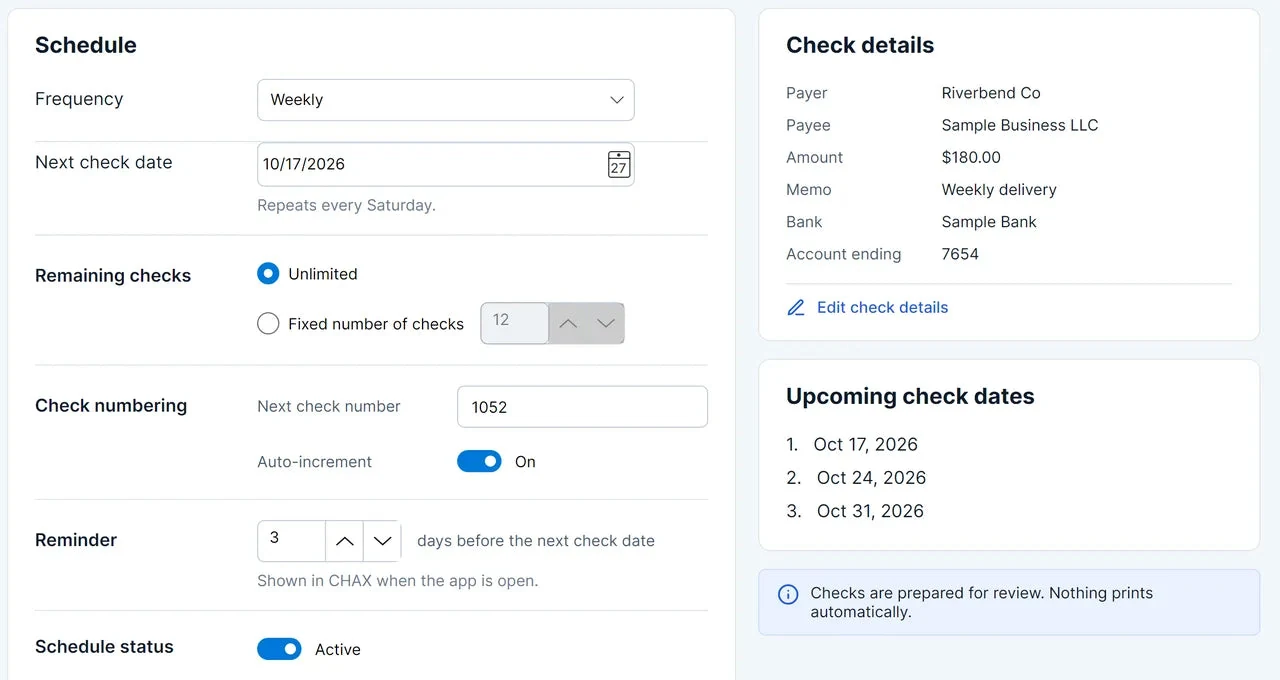
Under Check details, choose the Payer and Payee, then enter the Amount and an optional Memo. Schedule name is optional, such as “Office rent”. With no name, the schedule uses the memo.
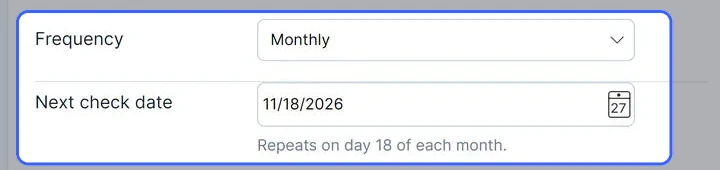
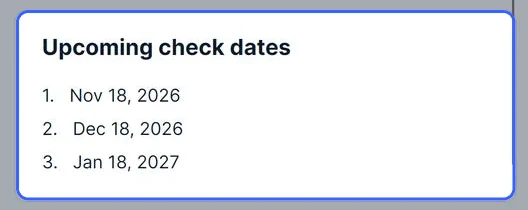
Pick the Frequency and the Next check date. The line under the date describes the pattern, such as “Repeats on day 18 of each month.”
Upcoming check dates lists the next three dates.
Under Remaining checks, keep Unlimited, or choose Fixed number of checks and enter the count. A fixed number counts down, and the schedule pauses when it reaches zero.
Under Check numbering, enter the Next check number. With Auto-increment on, the number goes up by one each time CHAX prepares a check.
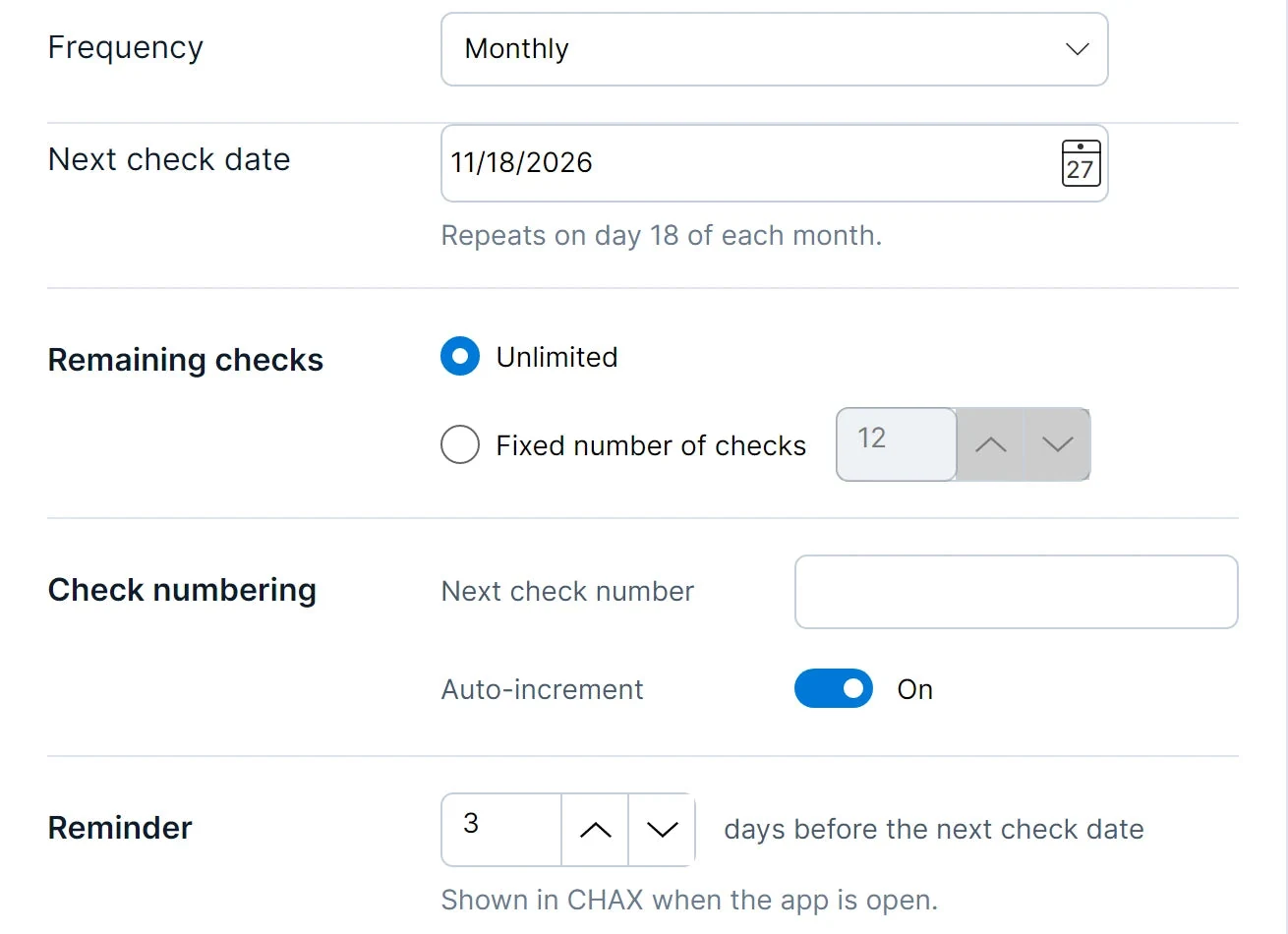
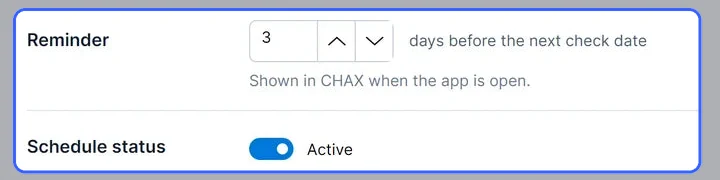
Enter the Reminder in days before the next check date. The default is 3, and 0 means none. From that many days before the date, Home shows the schedule as coming up, such as “Coming up: Office rent on Oct 21.” Leave Schedule status on Active.
Choose Save schedule. If something is missing, CHAX lists it, such as “To save, choose a payer, enter an amount.”
| Frequency | Next date after a check | Example from Oct 18, 2026 |
|---|---|---|
| Daily | 1 day later | Oct 19 |
| Weekly | 7 days later, same weekday | Oct 25 |
| Every 2 weeks | 14 days later | Nov 1 |
| Twice a month | The schedule’s day and the day 15 apart (explained below) | Nov 3 |
| Every 4 weeks | 28 days later | Nov 15 |
| Monthly | 1 calendar month later | Nov 18 |
| Quarterly | 3 calendar months later | Jan 18, 2027 |
| Twice a year | 6 calendar months later | Apr 18, 2027 |
| Yearly | 1 year later | Oct 18, 2027 |
Select a schedule and choose Edit schedule. The check details appear as a summary, and Edit check details lets you change the payer, payee, amount or memo. Choose Save schedule when you finish. Changing the next check date moves every later date with it.
To stop a schedule for a while, select it and choose Pause. It then shows Paused, and CHAX prepares no checks until you choose Resume. If a paused schedule has no next date, such as a fixed number of checks that ran out, resuming starts it from today. The Paused filter finds these schedules.
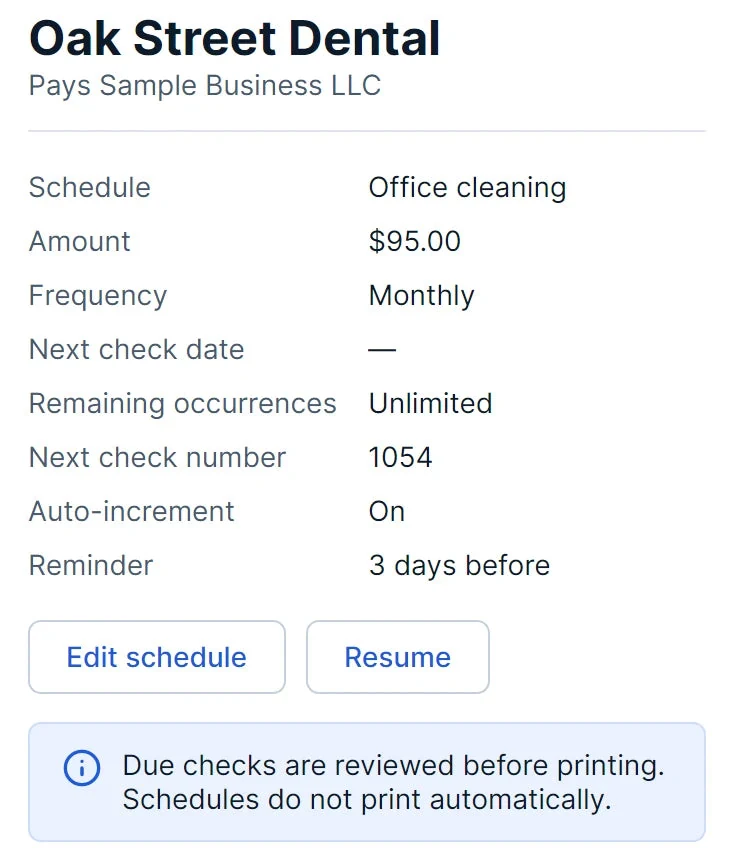
A schedule is Due on its next check date and Overdue after it. Home shows how many recurring checks are due for review, and names each schedule within its reminder days.
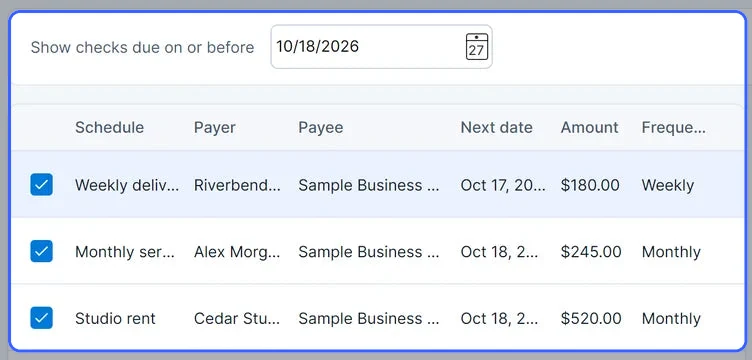
Choose Review 3 due checks at the top of Recurring checks, where the number changes to match. To prepare one schedule only, select it and choose Review due check.

Show checks due on or before starts at today. Pick a later date to prepare checks early, such as before a holiday. Tick the checks you want.
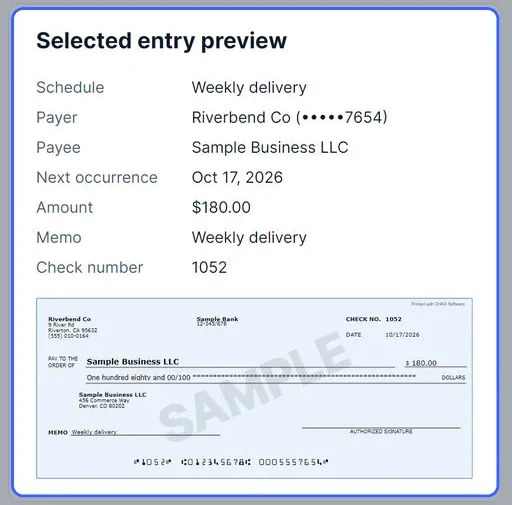
Selected entry preview shows the check exactly as CHAX will prepare it.
Choose Prepare selected checks (3).

With Enterprise or in trial, the checks go to the batch and stay selected, with the message “Prepared 3 recurring checks for review.” They wait there unprinted until you review them and choose Review & print. Each schedule moves on to its next date.

In this example, the weekly schedule moved from Oct 17 to Oct 24, and its next check number from 1052 to 1053.
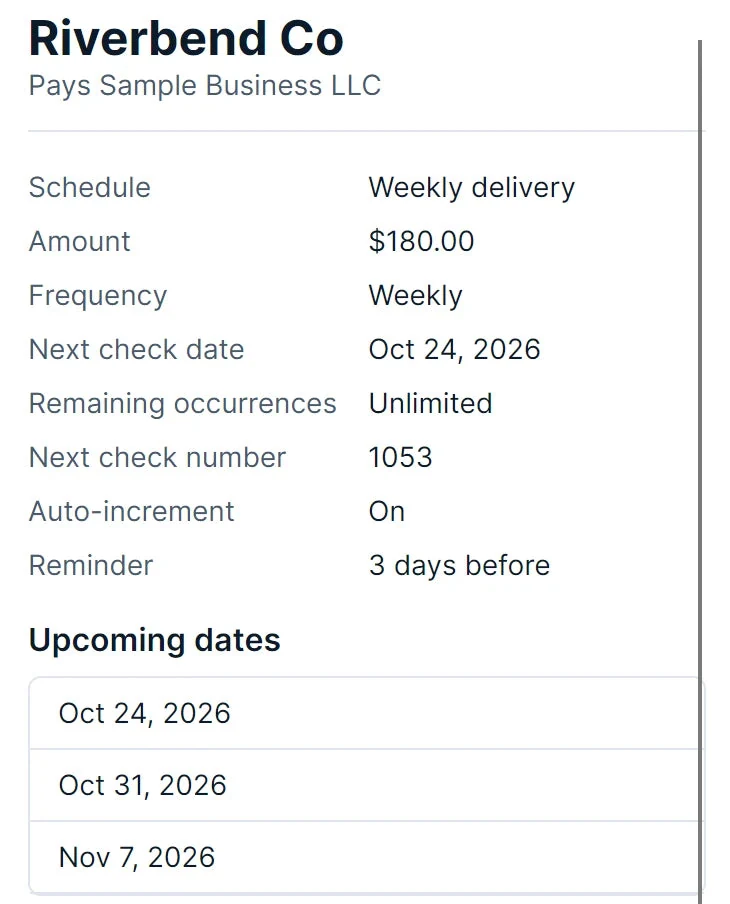
CHAX copies the schedule’s check, using its next check date and next check number. Then the schedule moves on: the date advances one step of the frequency, a fixed count drops by one, and the number rises by one when Auto-increment is on. When a fixed count reaches zero, the schedule has no next date and pauses.
Before preparing, CHAX checks the number against Transactions and the batch. If the same routing and account number already uses it, CHAX skips that schedule and doesn’t move it on. The message names it, such as “check 1052 is already used”. Change its Next check number and prepare it again.
Monthly, quarterly, twice-a-year and yearly schedules move by calendar months and keep their repeat day. If a month doesn’t have that day, CHAX uses the month’s last day, then returns to the schedule’s day: Jan 31, Feb 28 (Feb 29 in a leap year), Mar 31. CHAX takes the schedule’s day from the date you set when you create the schedule, or when you change its Next check date in Edit schedule.
These schedules run on two days 15 apart: the schedule’s day and the day 15 later, or 15 earlier from the 16th on. A schedule on the 15th runs on the 15th and 30th, and one on the 1st runs on the 1st and 16th. If a month is too short for a day, CHAX uses its last day. So in February, the 15th and 30th become Feb 15 and Feb 28, and the schedule returns to the 15th and 30th in March. Schedules from CHAX 10 keep their days the same way.
Status comes from the next check date and today’s date: Due on the day, Overdue after it, Active before it, and Paused when the schedule is paused or has no next date. An Active schedule within its reminder days shows on Home as “Coming up” until it’s due.