
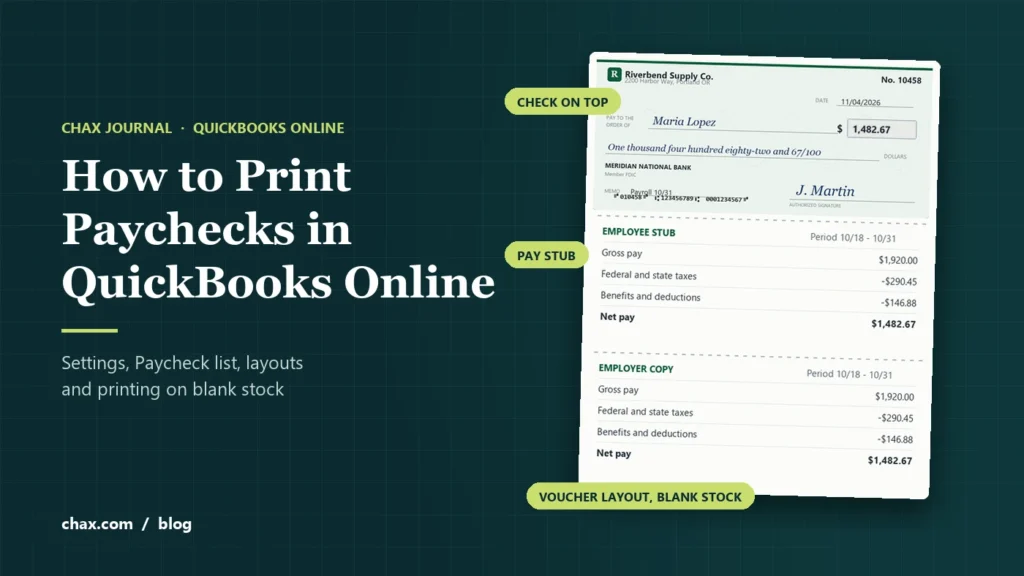
QuickBooks Online Payroll can print paper paychecks and pay stubs from any printer, but only after you set it up the right way. The settings decide whether you get a full paycheck on check paper or just a stub on plain paper, which layouts work, and whether your bank details print at all. This guide covers the current QuickBooks Online Payroll steps, what each printing choice means, how to reprint and void, and how to print complete paychecks on blank check stock.
- Go to Settings > Payroll settings, select Edit in the Printing section, choose QuickBooks-compatible check paper, pick paycheck and 1 pay stub or 2 pay stubs, run Align check and save.
- Run payroll as usual, with the employee’s payment method set to paper check.
- Go to Payroll > Employees > Paycheck list, select the paychecks and print.
QuickBooks Online prints the pay details only. To print the bank name, account numbers and MICR line on blank stock, you need check printing software such as MultiCHAX.
What you need before you print paychecks
- A QuickBooks Online Payroll subscription. Intuit sells it as Core, Premium and Elite; the printing steps below are the same in each.
- Employees set to be paid by paper check. In each employee’s profile, the payment method must be paper check rather than direct deposit, or QuickBooks only produces a stub.
- Check stock. QuickBooks Online prints payroll on voucher checks: one check per page with stubs. Use stock that already carries your bank details, or blank stock with MultiCHAX.
- A laser printer. If you print the MICR line yourself, use a MICR toner cartridge so bank equipment can read it. Our MICR toner FAQ explains why.
Step 1: set your paycheck printing preferences
QuickBooks Online Payroll has two printing choices: pay stubs on plain paper, or paychecks on QuickBooks-compatible check paper. If it is set to plain paper, the “paycheck” you print has no check on it. Set it once:
- Select Settings (the gear icon), then Payroll settings.
- In the Printing section, select Edit.
- Choose QuickBooks-compatible check paper to print paychecks, then pick the voucher layout: paycheck and 1 pay stub or paycheck and 2 pay stubs.
- Select Align check and follow the on-screen test on plain paper.
- Select Save.
You can reach the same settings after a payroll run from the Payroll is done window, using Change print settings.
Pay stubs on plain paper
Prints the earnings statement only, with no check.
- For employees paid by direct deposit
- Or when you write paychecks by hand
- No alignment needed
Paychecks on check paper
Prints the check plus one or two stubs on a voucher sheet.
- For employees paid by paper check
- Needs compatible check stock
- Run Align check once before the first payroll
Step 2: run payroll for paper check employees
Run payroll the way you normally do. Enter hours or salaries, review the totals, and submit. For employees paid by paper check, QuickBooks creates a paycheck with a check number instead of a direct deposit. When the payroll is submitted, the Payroll is done window lets you print right away or come back later.
Before you print, check the first check number on the stock in your printer, and confirm it matches what QuickBooks expects. A mismatch is the most common cause of a check register that no longer lines up with the bank.
Step 3: print paychecks and pay stubs
- Go to All apps > Payroll > Employees.
- Select Paycheck list (under Run payroll).
- Use Filter to set the Date range or a single Employee.
- Select the paychecks to print, or use Print pay stub in the Action column for one employee.
- In the preview, select the printer icon and print.
The same Paycheck list is where you reprint a paycheck from an earlier payroll: filter by date and employee, then print again. If a check was lost or printed wrong, void it from the Paycheck list rather than deleting it, so payroll taxes and your records stay correct, then issue a replacement.
What a QuickBooks Online paycheck looks like
| Earnings and deductions | This period | Year to date |
|---|---|---|
| Gross pay | $1,920.00 | $38,400.00 |
| Federal and state taxes | −$290.45 | −$5,809.00 |
| Benefits and other deductions | −$146.88 | −$2,937.60 |
| Net pay | $1,482.67 | $29,653.40 |
Which check layouts work for payroll
Check stock comes with the check at the top, middle or bottom of the page. QuickBooks Online is strict about payroll layouts, and this is where most printing problems start.
| Layout | QuickBooks Online on its own | MultiCHAX, payroll checks | MultiCHAX, vendor checks |
|---|---|---|---|
| Check on top (voucher) | Yes | Yes | Yes |
| Check in the middle | No | No | Yes |
| Check on the bottom | No | Yes | Yes |
| 3 checks per page | Vendor checks only | No | Yes |
Can QuickBooks Online print middle checks? Not on its own. QuickBooks Online prints payroll on top-check voucher stock and vendor checks as voucher or standard checks. MultiCHAX can reformat vendor checks to a middle layout, but payroll paychecks need a top or bottom layout, because the pay stub detail does not fit around a check in the middle.
Printing complete paychecks on blank check stock
QuickBooks Online prints the pay details, not your bank information. With pre-printed voucher checks, the bank name, account numbers and MICR line are already on the paper. With MultiCHAX, you load blank stock and it prints everything in one pass:
- Print the paychecks from the Paycheck list as above. QuickBooks Online opens them as a PDF.
- Print the PDF from Adobe Reader or Acrobat to the MultiCHAX Virtual Printer, using Fit to Page.
- MultiCHAX adds your bank details, MICR line, logo and signature, and sends the finished checks to your laser printer.
Payroll needs one extra component. QuickBooks Online Payroll stubs need the Miraplacid text driver to line up correctly. CHAX tech support installs it at no charge by remote session. Turn on Print stubs in 17 CPI in the MultiCHAX QuickBooks Online control.
The full setup is in our QuickBooks Online setup guide. Blank stock also means one supply of paper for every bank account, and no boxes of checks with your account number printed on them.
Pay stubs and payroll records: what the law requires
Federal law does not require you to hand employees a pay stub. The U.S. Department of Labor says the Fair Labor Standards Act requires accurate records of hours worked and wages paid, but not pay stubs. Many states do require a written pay statement, though, so check your state labor department’s rules before you stop printing stubs.
Whatever you print, keep the records. Under the FLSA, payroll records must be kept for at least three years, and the records wages are calculated from, such as time cards, for at least two. Printing the 2-stub layout gives you a paper copy alongside the records QuickBooks keeps.
For a broader look at paper paychecks, direct deposit and pay cards, see our guide on how to print payroll checks.
Tips for running payroll in QuickBooks Online
Printing goes smoothly when the payroll behind it is set up well. These habits save the most time:
- Finish each employee profile. Enter the W-4, pay rate, pay schedule, deductions and payment method before the first payroll. Most printing problems trace back to a missing or wrong payment method.
- Use pay schedules. Set weekly, biweekly, semimonthly or monthly schedules so each payroll covers the right people and dates. Auto Payroll can run on schedule for eligible employees paid by direct deposit; paper check employees still need you to print.
- Track time where payroll can see it. QuickBooks Time comes with the Premium and Elite payroll plans, so approved hours flow into payroll without retyping.
- Read the payroll reports. The Payroll Summary and Payroll Tax Liability reports show what each payroll cost and what you owe before a deposit is due.
- Reconcile the payroll bank account. Match cleared paychecks to the Paycheck list each month, and void lost checks in QuickBooks so your records stay right.
- Ask an accountant about unusual cases. Employees in several states, garnishments and worker classification are worth a second opinion.
If you run payroll in a separate app instead, you print paper checks from the payroll app, and the integration sends the payroll data to QuickBooks Online. That is how we do it at CHAX: we run payroll and print our paychecks in Gusto, and QuickBooks gets the numbers. See our list of QuickBooks Online integrations for other options.
Troubleshooting QuickBooks Online paycheck printing
Only a pay stub prints, with no check
Your printing preference is set to plain paper pay stubs. Change it to QuickBooks-compatible check paper in Payroll settings, and confirm the employee is paid by paper check, not direct deposit.
Text prints outside the boxes
Run Align check again on plain paper and hold the test against a sheet of check stock. If you print through MultiCHAX, use Fit to Page in Adobe Reader and keep the Miraplacid driver in place for payroll.
Stub details are cut off or overlap
In MultiCHAX, turn on Print stubs in 17 CPI. Also confirm you are not using middle-check stock for payroll.
The check number does not match the paper
Check the first number on the stock before each run. If a sheet jams, reprint that paycheck from the Paycheck list instead of starting a new one, so the register stays in order.
QuickBooks Online paycheck FAQ
Can I print paychecks from QuickBooks Online on my own printer?
Yes. Any printer your computer can use will work. Run Align check before the first payroll, and use compatible voucher stock or blank stock with MultiCHAX.
Why does QuickBooks Online only print a pay stub?
Because the printing preference is set to pay stubs on plain paper. Switch it to QuickBooks-compatible check paper in Payroll settings.
Can QuickBooks Online print paychecks on blank check paper?
Not by itself. It does not print bank account numbers or a MICR line. Check printing software such as MultiCHAX adds them, with a MICR toner cartridge.
Can I reprint a paycheck from a past payroll?
Yes. Open the Paycheck list, filter by date range and employee, and print it again.
Do I have to give employees a pay stub?
Federal law does not require one, but many states do. Check your state’s pay statement rules.
How do I print vendor checks from QuickBooks Online?
That uses a different screen. See our guide on how to write and print checks in QuickBooks.
Sources
- Print or reprint paychecks and pay stubs, Intuit QuickBooks Support
- Questions and Answers About the Fair Labor Standards Act, U.S. Department of Labor
- Fact Sheet #21: Recordkeeping Requirements under the FLSA, U.S. Department of Labor
- QuickBooks Online Setup for MultiCHAX, CHAX Knowledge Base
- QuickBooks Payroll plans and pricing, Intuit
