Knowledge Base › MultiCHAX 11 › License and account
Your license and account
Compare editions, activate your license, upgrade, order checks, and find out how to get help.
Windows4 guides


Knowledge Base › MultiCHAX 11 › License and account
Compare editions, activate your license, upgrade, order checks, and find out how to get help.
Find out what Standard, Professional, and Enterprise include, how trial mode behaves, and what you’ll see at a limit or when a subscription ends.

| Feature | Standard | Professional | Enterprise |
|---|---|---|---|
| Print checks from your accounting program | Yes | Yes | Yes |
| Checks per month | 300 | Unlimited | Unlimited |
| Bank accounts | 5 | 25 | Unlimited |
| Check templates | 1 | 2 | Unlimited |
| PCs running MultiCHAX | 2 | Unlimited | Unlimited |
| Write checks, blank checks, PDF import | Yes | Yes | Yes |
| Transactions and reports | Yes | Yes | Yes |
| Secure amount font | No | No | Yes |
Pricing is on the MultiCHAX 11 page. To change edition, see Buy, upgrade, and order checks.
MultiCHAX runs in trial mode when it has no license, or when its saved license isn’t valid. Every feature works, and there’s no monthly limit. The secure amount font is the exception. The trial runs on one PC.
An ended subscription or a refunded license doesn’t bring back demo checks. MultiCHAX becomes read-only for 30 days, and then locks until you renew. Your records stay in the database throughout.
| When | What you see |
|---|---|
| The first 30 days | Every page has a banner: Your MultiCHAX subscription has ended. Checks and reports can’t be printed and records can’t be changed. MultiCHAX stops working in 12 days. You can view everything and back up the database in Settings › Database & backup. Settings › License shows Subscription ended. |
| After 30 days | MultiCHAX opens on a full-screen Your MultiCHAX subscription has ended page. All other screens are locked, including sign-in. |
If you try any of these, Your subscription has ended opens with the same buttons as the banner.
Both the banner and the lock page offer Renew monthly, Renew yearly, and Buy a perpetual license. Each button opens the MultiCHAX 11 product for your edition. MultiCHAX notices the renewal at its next license check. To check right away on the lock page, choose I’ve renewed: check again.
The lock page has three more buttons: Enter a license key for a new license code or serial number, Back up my database, and Contact CHAX support.
| Message | What it means and what to do |
|---|---|
| This job has 40 checks, and 12 of this month’s 300 are left. Upgrade your license to print more checks this month. | Standard prints 300 checks per calendar month, and nothing printed. Print fewer checks, wait for the 1st, or upgrade. |
| Your edition allows 5 bank accounts. Remove one, or upgrade, to add another. | Add bank account stays off until you remove one or upgrade. |
| Your edition allows 1 check template. Remove one, or upgrade to add more. | New template and Duplicate are off. Ready-made templates count toward the limit. |
| A Standard license runs MultiCHAX on 2 PCs, and 2 are already registered. | A third PC can’t open MultiCHAX. Remove a replaced PC in Database & backup, or upgrade. |
| The MultiCHAX trial runs on one PC only. | Activate a license on this PC. |
Every license names its edition. MultiCHAX applies that edition’s limits at startup, and immediately when you activate another license.
The count covers checks in Transactions printed this calendar month. That includes checks from your accounting program, Import from PDF (printed or saved as PDF), Write check (printed or exported), and Blank checks. All 300 can print, while the previous version stopped at 299. A check that fails to print isn’t recorded and doesn’t count.
This license covers one Windows server that people use over Remote Desktop. It has Enterprise’s features and limits, and Settings › License shows it as Server Edition.
They count from the day the subscription ended, or the day MultiCHAX first found out that it had. The rules come from the license, so they cover every screen and automatic printing. Nothing in the database is changed or deleted.
A PC is registered in the database, which the previous version shares, when it opens that database. You’ll find the list in Settings › Database & backup, under PCs using MultiCHAX.
Turn on live check printing with an online or offline activation, and move your license to another computer when you need to.
Have the license code or serial number from your purchase email ready. Online activation needs an internet connection.
Go to Settings › License. The status card lists the Edition, the License status (Trial mode or Active), Licensed to, and a masked License identifier.

This is the first tab. If you want your business name on the license, type it in Licensed to (optional).
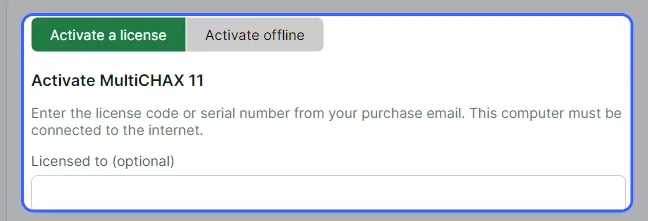
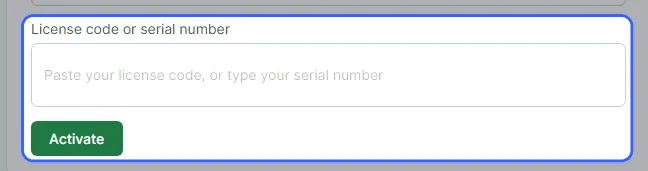
Paste the license code or type the serial number in License code or serial number. Line breaks copied from the email are fine, because MultiCHAX removes them.

You see a confirmation naming your edition, such as “MultiCHAX Standard is activated on this computer.” Checks print live from now on.


support@chaxsoftware.com. Either choose Email to support…, or choose Copy machine code and send it from another device.You’ll see Move this license to another computer on this page if the license was activated online.
| Message | What to do |
|---|---|
| The license server couldn’t be reached. | Check your internet connection, or activate offline. |
| This isn’t a valid MultiCHAX license code. | Copy the entire code from the email again. |
| The serial number couldn’t be validated. | Confirm you typed it correctly and the PC is online. |
| This license is activated on a different computer. | Deactivate it on that computer, or contact support to move it. |
| The license server didn’t confirm this license on this computer… | The license is on as many computers as it allows. Deactivate it on one that doesn’t need it now. |
| This computer’s date or time appears to be wrong. | Fix the Windows clock and try again. |
| This license can’t be used in this environment… | Remote Desktop is one example. Contact support. |
| This license has expired. / Your MultiCHAX subscription has ended… | Renew the subscription or buy a perpetual license. MultiCHAX stays read-only for 30 days, and then locks. See Compare the editions. |
Each computer has its own license file, %LocalAppData%\CHAX\multichax11-license.json, separate from CHAX 11’s. The CHAX license server counts activations.
MultiCHAX checks the license with the server once a day while it’s open. If a subscription has ended or been refunded, MultiCHAX becomes read-only without a restart, and renewing reverses that in the same way. If the server is out of reach, your license keeps working, and MultiCHAX tries again an hour later.
All licenses for the previous version of MultiCHAX activate MultiCHAX 11. On a PC upgrading from a previous version of MultiCHAX, MultiCHAX 11 uses the license the previous version saved in the database.
Get MultiCHAX 11, change to a higher edition, and order the blank check stock and MICR toner you print with.
You can choose from three editions: Standard, Professional, and Enterprise. Compare the editions to see what each includes. Pricing is on the MultiCHAX 11 page. To buy from inside MultiCHAX, open Help & about and choose Open the CHAX store.
Your purchase email includes your license code or serial number. Activate your license shows you where to enter it.
See the MultiCHAX 11 page for pricing. If you’re upgrading from a previous version of MultiCHAX, contact support about pricing.
Go to Settings › License, enter the new license code or serial number, and choose Activate. That PC gets the new edition’s limits right away.
A license is kept separately on each PC, so activate the new one on every PC that runs MultiCHAX 11. The status card on the License page shows each PC’s edition.
MultiCHAX prints the entire check, including the MICR line, on blank stock in a laser printer. Here’s what you need:
| Supply | Why you need it |
|---|---|
| Blank MICR check stock | This is letter-size security paper. Pick the check position that fits your templates: top, middle, bottom, or three per page. |
| MICR toner | Many banks ask for it, because it lets their machines read the MICR line. |
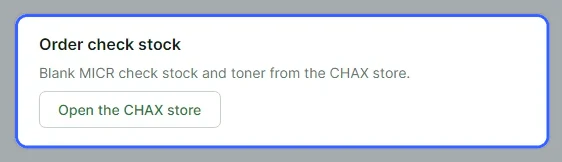
To order, open Help & about in MultiCHAX and choose Open the CHAX store.
You activate a license on each PC that runs MultiCHAX 11. Standard runs on 2 PCs. Professional and Enterprise have no PC limit.
MultiCHAX checks the license with the server once a day. After a subscription ends, MultiCHAX is read-only for 30 days, and then locks until you renew. Neither change needs a restart. Renew monthly, Renew yearly, and Buy a perpetual license each open the product for your edition. Compare the editions has the details.
Open help articles, check your version, and give support the details needed to solve your problem faster.
Everyone can open Help & about, at the bottom of the sidebar.
| Card | What you can do there |
|---|---|
| Help articles | Open the knowledge base shows CHAX’s help articles in your browser. |
| Contact support | Email support starts a message to support@chaxsoftware.com, with the subject “MultiCHAX 11 support”. |
| Order check stock | Open the CHAX store is where you get blank MICR check stock and toner. |
| License | Go to Settings → License lets you activate, move, or check your license. |
| About MultiCHAX 11 | Lists this PC’s Version, Edition, License, Operating system, and Database. |
Choose Copy diagnostic details. MultiCHAX confirms with Diagnostic details copied. Paste them into your email to support. Nothing is sent automatically.

Choose Email support, or use any email program to write to support@chaxsoftware.com. Paste the details. Then describe what you did, what you expected, and what happened. A screenshot of any on-screen message helps.
A page that can’t load shows Something went wrong and the reason. Open Details for support and copy the contents into your email. After that, choose Try again or Go to Home.
Occasionally, a short announcement from CHAX appears over the main window when MultiCHAX starts, such as news of an update. Choose Close to dismiss it. A closed announcement won’t return, in either MultiCHAX 11 or 10.
They list the MultiCHAX version and edition, the Windows and .NET versions, the database server and file, the MICR printer, and the print folder. Your license code and account numbers are never included.
MultiCHAX fetches them in the background, so startup isn’t delayed. Their buttons open secure (https) web pages only.
Talk to the support team, or browse all MultiCHAX 11 help.
Contact Support All MultiCHAX 11 Help