Knowledge Base › MultiCHAX 11 › History and reporting
Transactions and reports
Find and reprint checks in Transactions, and run reports on the checks you have printed.
Windows2 guides

Knowledge Base › MultiCHAX 11 › History and reporting
Find and reprint checks in Transactions, and run reports on the checks you have printed.
On this page
Look up any check MultiCHAX printed or exported, reprint it, reuse it, export the list to Excel, or remove checks from the register.
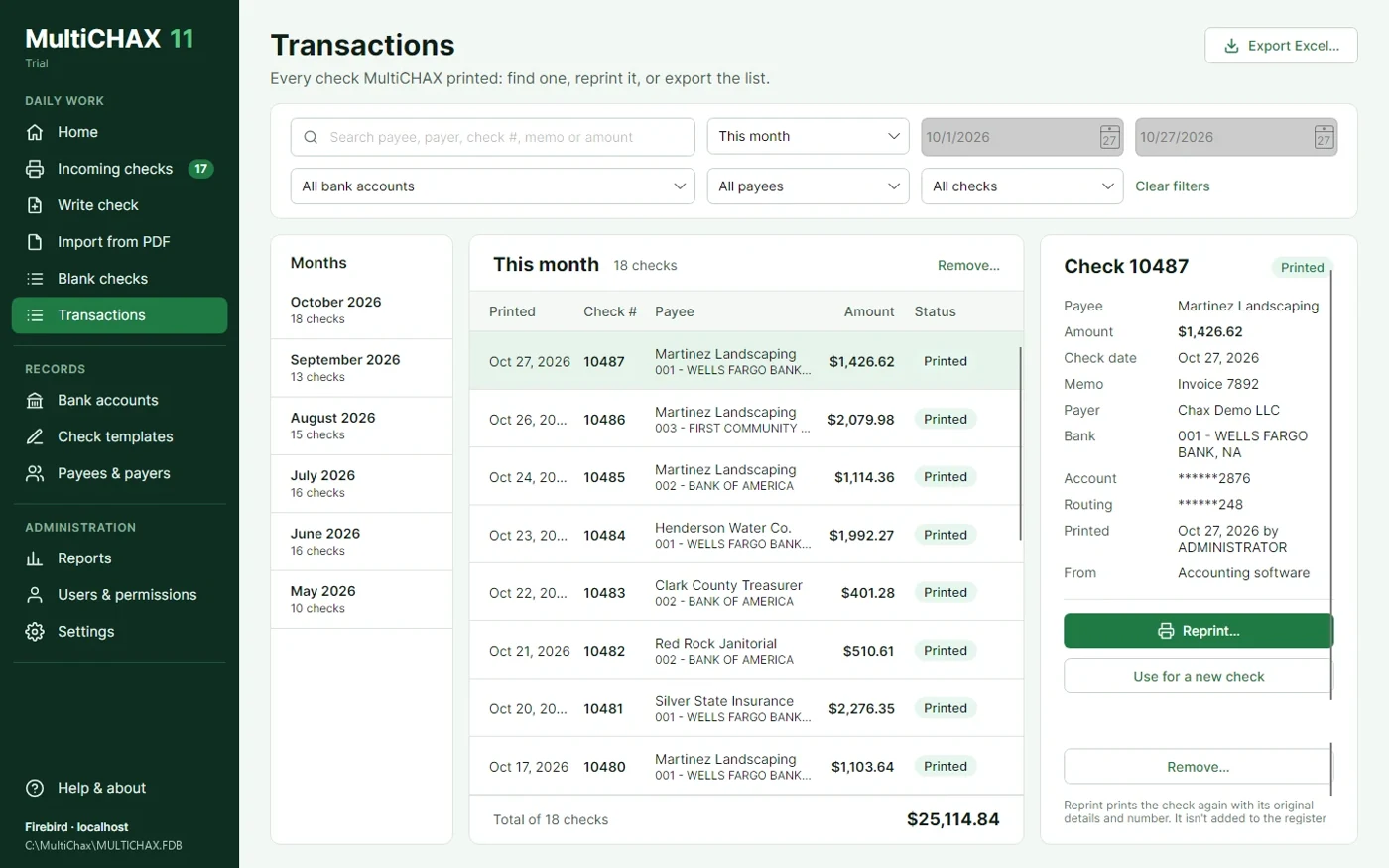
MultiCHAX records a check when it goes to the printer or is saved as a PDF. That applies to checks from your accounting program, Import from PDF, Write check and Blank checks, and the From line on each check tells you which one. A record holds the payee, amount, check date, memo, payer, bank account, and who printed it and when.
The page opens on this month. If this month has no checks, it opens on the latest month that does. To look elsewhere:

Clear filters resets the bank, payee, source and search. The dates stay as they are. The list gives each check’s print date, number, payee and bank, amount and status, and the total sits at the bottom.
Select the check in the list, then choose Reprint….

MultiCHAX selects your default template first. Choose the MICR printer and Check tray, then look over the preview. The check keeps its original details and number.

Choose Print check or Save as PDF…. The register doesn’t get a second entry for the reprint.

| Button | Result |
|---|---|
| Use for a new check | Opens Write check with the payee, payer, bank account, amount and memo in place, plus a new check number and today’s date. Requires the Print manual checks permission. |
| Export Excel… | Saves the checks your filters show as an Excel file with a total row. The file masks account and routing numbers. |
| Remove… | For administrators only. Deletes the selected checks from the check register. Hold Ctrl to select several. |
| Message | What to do |
|---|---|
| No bank account has this check’s bank number and account number | Someone removed or changed the bank account. Check Bank accounts. |
| This check is over your maximum check amount | Ask an administrator to raise your largest check or to do the reprint. |
| This month’s limit of 300 checks is used up. | Reprints count toward the Standard edition’s monthly limit. Wait for next month, or upgrade. See Editions compared and pricing. |
The previous version of MultiCHAX and MultiCHAX 11 read the same table, so this page shows checks printed in either version.
The screen and the Excel file show only the last digits of account and routing numbers. The register stores them in full, so a reprint gets the right MICR line.
A reprint looks up the bank account by bank number and account number. It handles the secure font and trial marking the way a new check does.
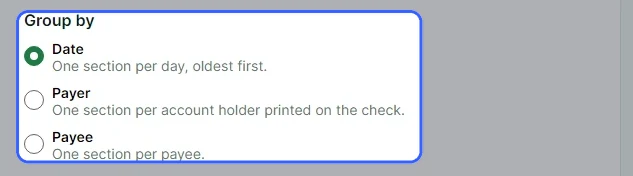
Report on the checks printed in a date range, grouped by date, payer or payee, then print it or export it as a PDF or Excel file.
Under Date range, pick This month, Last month, This year, Last year, All time, or Custom range with From and To dates. MultiCHAX uses the date each check was printed.

| Group by | You get |
|---|---|
| Date | A section for each day, oldest first. |
| Payer | A section for each account holder printed on the check. |
| Payee | A section for each payee. |
Keep All payees (or All payers), or choose Only these payees and tick the ones you need. The names come from checks printed in your date range.

Choose Generate report. Report preview opens and shows the report the way it will print.

To print, pick a Printer and choose Print report. It uses plain paper from the printer’s usual tray. To export, choose Export PDF… or Export Excel…. To change the dates or grouping, choose ← Change report.

The export buttons are at the top right.
Each line gives the check’s print date, number, payee, payer and amount, sorted by print date and then check number. Every group closes with a subtotal and a check count, and the last line is the total. The PDF also has the memo and page numbers. The Excel file also has the check date and memo, along with the subtotals and total.
| Message | What to do |
|---|---|
| The end date is before the start date. | Correct the From or To date. |
| Choose at least one of the payees, or report on all of them. | Tick a payee, or choose All payees. |
| No checks were printed in this date range. | Try a wider range, such as All time. |
Reports and Transactions read the same register. If you remove a check from Transactions, the report no longer has it.
Date sections are headed with the full date, such as “Monday, January 5, 2026”. Checks with no payer or payee name go under “(no name)”.
Talk to the support team, or browse all MultiCHAX 11 help.
Contact Support All MultiCHAX 11 Help