Knowledge Base › MultiCHAX 11 › Data and multi-PC
Your data and multiple PCs
Back up and restore your database, share it between PCs, move to a new computer, or uninstall MultiCHAX 11.
Windows5 guides


Knowledge Base › MultiCHAX 11 › Data and multi-PC
Back up and restore your database, share it between PCs, move to a new computer, or uninstall MultiCHAX 11.
See which database MultiCHAX uses, confirm it’s connected and current, and back it up while everyone keeps working.
One Firebird database stores your bank accounts, check templates, payees and payers, users, company-wide settings and every printed check. It’s usually C:\MultiChax\MULTICHAX.FDB. All the office’s PCs share it, and the previous version of MultiCHAX can stay on it too. See Using MultiCHAX on more than one PC.
To work with it, go to Settings › Database & backup. Only administrators can open Settings.

The same server and file appear at the bottom of the sidebar on every screen.
| Status | Meaning |
|---|---|
| Connected · version 5 | Everything is fine. |
| Connected · version 4, needs an upgrade to 5 | The database is missing MultiCHAX’s newer tables. Choose Back up and upgrade. MultiCHAX makes a backup, then upgrades, and the previous version of MultiCHAX still works with the database afterward. |
| Connected · version 6, newer than this MultiCHAX (5) | Another PC runs a newer MultiCHAX. The database stays untouched. Update MultiCHAX on this PC. |
| A message in red | MultiCHAX can’t reach the database. See Fix database connection problems. |
To switch databases, choose Change database…. Enter the Server and Database file on the server, choose Test connection, then Use this database. MultiCHAX restarts and opens it.
Backup folder on this PC begins as Documents\MultiCHAX Backups. To use somewhere else, such as a USB drive or network folder, choose Choose folder….

MultiCHAX copies the whole database while people keep working, and it shows the MB written so far. At the end you see Backed up to MULTICHAX-20261027-153012-manual.fbk in …, and the new backup tops the list.

If the PC holding the database fails, a backup on that same PC is no help. From time to time, copy the backup folder to a USB drive or another computer.
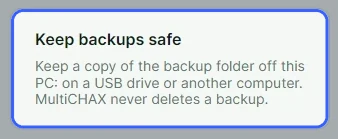
| Column | Shows |
|---|---|
| MADE | The time of the backup. |
| WHY | Back up now, Before a restore, Before an upgrade, Daily or Weekly. |
| BY | The user and PC that made it. |
| VERSION | The version of the database it came from. |
| SIZE | How large the backup file is. |
To put a backup back, see Restoring a backup.
A backup is a Firebird backup file named MULTICHAX-yyyyMMdd-HHmmss-reason.fbk, with a .manifest.json beside it. The manifest records when, where and by whom it was made, the MultiCHAX and database versions, the file size, and a SHA-256 fingerprint that a restore checks before using the file.
While writing, the file is named .fbk.part. MultiCHAX renames it only once it’s complete, so a partial backup can’t pass as a good one.
The Firebird server streams the backup, so your PC can save it to its own folder even with the database on another PC.
The previous version of MultiCHAX on Firebird 5 uses the same backup format, so each version can restore the other’s backups.
When MultiCHAX starts and finds an older database, it upgrades it immediately (“Upgrading the database…”). Only Back up and upgrade on this page backs up first, so make a backup before you install a new version.
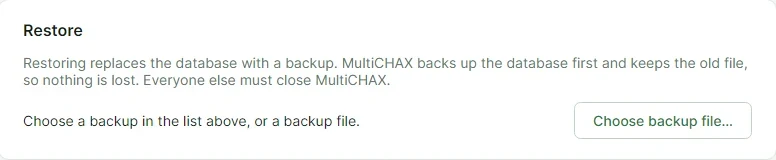
Return the database to the state it was in when a backup was made. MultiCHAX checks the backup, backs up the current database first, and keeps the old file.
gfix to check the restored database. It comes with the Firebird server.On the server PC, go to Settings › Database & backup. Select a backup in the list, or use Choose backup file… to pick a .manifest.json or .fbk file from another place, such as a USB drive.
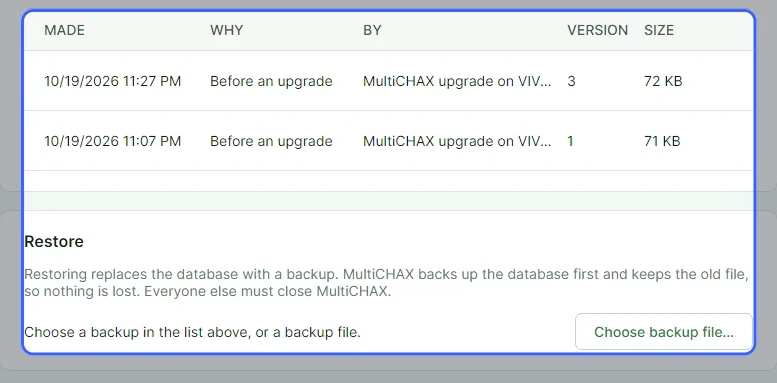
Choose Check the backup. MultiCHAX confirms that the file is whole and undamaged, that nobody else is on the database, and that the backup didn’t come from a newer MultiCHAX. A message then tells you it’s ready to restore, with the backup’s date, the user and PC that made it, and a request to type RESTORE.
Enter RESTORE in the box, in capitals. This keeps a restore from starting by accident.
Choose the red Restore backup button and wait while MultiCHAX shows each step.
When Restart MultiCHAX to use the restored database. appears, choose Restart MultiCHAX. People on the other PCs can then reopen MultiCHAX.
| Message | What to do |
|---|---|
| Restoring replaces the database file, so it runs on the PC the database is on | Open MultiCHAX on the server PC the message names. |
| Another copy of MultiCHAX is open on this PC. Close it, then check again. | Close the other window, the previous version included, and choose Check the backup again. |
| 2 other connections … from: FRONT-DESK, BACK-OFFICE. Close MultiCHAX on those PCs, then check again. | Close MultiCHAX on each PC listed. |
| … It is damaged or incomplete. | The size or fingerprint doesn’t match the manifest. Use a different backup. |
| The backup is from a newer MultiCHAX (database version 6); this MultiCHAX supports up to 5. | Update MultiCHAX on this PC first. |
| Type RESTORE, in capitals, to confirm. | Enter the word in capital letters. |
Backups folder next to the database file.MULTICHAX.restored-stamp.FDB.gfix validation, reads every table, and compares the database version.MULTICHAX.before-restore-stamp.FDB.When a step fails, MultiCHAX puts the previous database back, so you always have one.
The previous version of MultiCHAX on Firebird 5 writes the same backup format. You can restore its backups here, and the previous version of MultiCHAX can restore backups made here.
Set up one server PC, point the other PCs at its database, and everyone shares the same bank accounts, templates and checks.
The database sits on one PC, called the server PC, which runs the Firebird database server. The other PCs run MultiCHAX and connect to it over the office network. An ordinary office PC that people use can be the server PC, provided it’s on whenever someone prints checks.
The previous version of MultiCHAX and MultiCHAX 11 can share one database at the same time, so you can move the office over PC by PC. See Upgrading from a previous version of MultiCHAX.
The server PC uses a database on itself: Server is localhost and the file is usually C:\MultiChax\MULTICHAX.FDB. See First-run setup. Then confirm Windows Firewall lets the other PCs reach Firebird on TCP port 3050.
When MultiCHAX starts on a new PC and finds no database, Welcome to MultiCHAX 11 opens. Under Server, enter the server PC’s name, such as OFFICE-PC. If Firebird on the server uses a different port, put it after a slash: OFFICE-PC/3051.
Under Database file on the server, enter the path as it exists on the server PC, such as C:\MultiChax\MULTICHAX.FDB. A mapped drive letter or network share won’t work.
Choose Test connection. Once it reports Connected. Firebird 5.0…, choose Use this database. MultiCHAX saves the connection and restarts.
| Edition | PCs that can use the database |
|---|---|
| Trial | One PC |
| Standard | 2 PCs |
| Professional | No limit |
| Enterprise | No limit |
Every PC that prints checks must activate its own license. See Activating your license. For edition prices, see pricing.

Settings › Database & backup lists the PCs registered with the database and marks yours with (this PC).
When you replace a PC, choose Remove next to the old one so the new one can run MultiCHAX. If you don’t, a Standard license may stop the new PC with A Standard license runs MultiCHAX on 2 PCs, and 2 are already registered. Upgrade to Professional to use MultiCHAX on more PCs.
| Shared by every PC (in the database) | Kept on each PC |
|---|---|
| Bank accounts, check templates, payees and payers | MICR printer and trays (Printer and stock) |
| Users and permissions | Page and MICR offsets (Check alignment) |
| Transactions: every printed check | Print folder and automatic printing (Accounting software) |
| PDF security password and permissions | PDF folder and backup folder |
| Sign-in on or off, and the secure amount font | Light or dark, the startup screen, the license, and the bank routing directory |
The server and file are stored in MultiChax.xml next to MultiCHAX’s program file. MultiCHAX signs in to Firebird with the same MULTICHAX user on every PC. The SYSDBA password only sets up that user and is never saved.
At startup, each PC adds its name to a list in the database, the same list the previous version uses, and MultiCHAX checks your edition’s PC limit against it.
Each PC uses its own MICR printer and its own print folder. A check printed on one PC shows up in Transactions on all PCs immediately.
Bring your license and printer setup to a new PC, along with the database if the old PC was the server, and keep every check record.
Look at the bottom of the sidebar on the old PC. Firebird · localhost tells you the database is on that PC.
| The old PC | What moves | Where to start |
|---|---|---|
| Uses a database on another PC | The license and the PC’s printer setup. The database stays put. | Move a PC that prints checks |
| Is the server PC, which holds the database | The database, the license, and the printer setup. | Move the database to a new server PC, then the license and printer steps |
Each PC keeps its own printer settings, and the database doesn’t hold them. On the old PC, note the MICR printer and trays in Printer and stock, the offsets in Check alignment, and the print folder in Accounting software.

Go to Settings › License. Choose Deactivate on this computer…, and then Deactivate. MultiCHAX shows a Deactivation code. Keep it, because support may ask for it. The old PC returns to trial mode.
Install MultiCHAX and the MultiCHAX virtual printer. When MultiCHAX asks for the database, enter the server PC’s name and the database file as the server sees it. Using MultiCHAX on more than one PC has the details.

Settings › Accounting software shows whether the virtual printer is installed.
In Settings › License, enter the same license code or serial number, and choose Activate. See Activate your license.
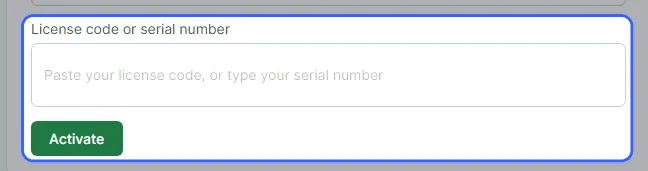
Enter the printer, trays, offsets, and print folder you wrote down. Print a test page from Check alignment, and hold it against your check stock.
In Settings › Database & backup, find PCs using MultiCHAX and choose Remove next to the old PC. A Standard license runs on 2 PCs, so this frees a place.
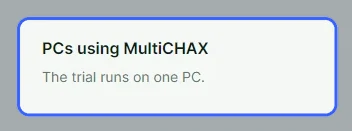
Shown in trial mode, without the list of PCs.
Ask everyone to close MultiCHAX. In Settings › Database & backup, choose Back up now. Copy the new .fbk file and its .manifest.json file to a USB drive or network folder. Your database and backups explains these files.

Install Firebird and MultiCHAX on the new PC. On the welcome screen, leave localhost and C:\MultiChax\MULTICHAX.FDB as they are. Choose Test connection, then Create a new database here, then Use this database.
Sign in as the new database’s administrator. Contact support for the starting sign-in details. Go to Settings › Database & backup, choose Choose backup file…, and pick the backup you copied. Check it, type RESTORE, and restore it. Your own users and passwords return with the backup. Restore a backup covers this in full.
On each of the other PCs, go to Settings › Database & backup and choose Change database…. Enter the new server PC’s name, test the connection, and choose Use this database. PCs on the previous version need the same change made there.

%AppData%\CHAX\MultiChaxUserSetting.db. The previous version of MultiCHAX shares this file.%LocalAppData%\CHAX\multichax11-license.json.CHAX’s license server counts each activation. Deactivating gives up this PC’s activation, so the new PC can use the license. Uninstalling MultiCHAX without deactivating leaves the activation counted.
Take MultiCHAX 11 off a PC and decide whether your checks database and settings go with it, while the previous version of MultiCHAX and anything other PCs use stay in place.
In Windows, go to Settings › Apps and uninstall MultiCHAX 11. You can also run Uninstaller.exe, which sits next to MultiChax.exe in the MultiCHAX 11 program folder. Windows asks you to allow changes. If MultiCHAX is open, choose Close it and continue.
The Uninstall MultiCHAX 11 window lists these under REMOVED FROM THIS PC: the MultiCHAX 11 program and its shortcuts, the MultiCHAX virtual printer, and the logs and leftover settings of every Windows user on the PC.
Under YOUR DATA, nothing is deleted unless you tick Also delete my checks database and settings. When other PCs or the previous version of MultiCHAX use the database, the box reads Also delete this PC’s MultiCHAX settings, and the database stays no matter what.
Under DATABASE SERVER, tick Also remove Firebird only if nothing else on this PC needs it. If the database is in use, you see Firebird stays: the checks database is still in use.
When you’ve chosen to delete data, choose Next. The This permanently deletes your data page lists each item and its size. Choose Create backup… to save MultiCHAX data backup date.zip in Documents, and keep a copy off this PC. Delete permanently stays off until you’ve saved a backup or ticked Delete without a backup. I understand my data can’t be recovered.
Choose Uninstall, or Delete permanently, and allow a minute or two. The last page tells you what was removed, where your backup is, and whether you need to restart the PC.
| Stays on the PC | Reason |
|---|---|
| PDFs in Documents\MultiCHAX, and Documents\MultiCHAX Backups | These are your own files, and the uninstaller never deletes them. |
| A database that other PCs use | The database stays if it’s shared on the network, Firebird is open to other PCs, another PC is connected, or a previous version of MultiCHAX is installed. You can’t override this. |
| Previous versions and other CHAX products | The uninstaller removes MultiCHAX 11 and nothing else. |
The database file and the C:\MultiChax folder, MultiChax.xml, the license file, and MultiCHAX 11’s own folders under %LocalAppData%. The printer settings file goes only after the previous version of MultiCHAX is gone as well.
IT staff can run Uninstaller.exe /quiet, which uninstalls and keeps data. These options add to it:
/deletedata backs up to the Desktop, then deletes data./removefirebird removes Firebird./dryrun logs what would go and removes nothing.The log is at %TEMP%\MultiCHAX-Uninstall-date.log.
The MULTICHAX login stays on the Firebird server. The license activation stays counted until you deactivate it.
Talk to the support team, or browse all MultiCHAX 11 help.
Contact Support All MultiCHAX 11 Help