
Setting Up Multiple Bank Accounts for Check Printing in QuickBooks Desktop
Managing multiple bank accounts in QuickBooks Desktop is a common requirement for businesses that need to separate funds for payroll, operations, and other specific purposes. While QuickBooks makes it easy to create multiple bank accounts, printing checks from each one requires a robust system to prevent costly errors. Using the wrong check stock or sending a payment from the wrong account can lead to accounting nightmares and reconciliation headaches.
This guide will walk you through how to set up multiple bank accounts in QuickBooks Desktop and how to use MultiCHAX to create a seamless, error-proof check printing workflow for all of them.
Why Separate Bank Accounts?
Businesses often maintain multiple bank accounts for several key reasons:
- Payroll: A dedicated payroll account simplifies wage and tax payments and is often required for compliance.
- Security: Isolating high-volume accounts from your primary operating account can limit the scope of potential fraud.
- Expense Tracking: Separate accounts for different departments, projects, or properties can make expense tracking and budgeting more accurate.
- Client Funds: Law firms, property managers, and other fiduciaries are legally required to hold client funds in separate trust accounts (IOLTA).
While this separation is a best practice, it introduces a major challenge: managing check printing for each account.
The Problem with Printing from Multiple Accounts in QuickBooks
QuickBooks Desktop allows you to assign a default check template to each bank account, but it relies on the user to manually load the correct pre-printed check stock into the printer for each batch. This manual process is prone to human error:
A single mistake, such as printing a batch of payroll checks on your operating account stock, can result in dozens of bounced payments, angry employees, and hours of manual reconciliation work with the bank.
This is where using blank check stock with a dedicated check printing software like MultiCHAX becomes essential.
The Solution: MultiCHAX + Blank Check Stock
By switching to blank check stock, you eliminate the risk of loading the wrong pre-printed checks. MultiCHAX integrates with QuickBooks Desktop and automatically prints all the correct bank account information, including the bank name, address, routing number, and account number, directly onto the blank check. The MICR line is printed with a special magnetic ink that is 100% compliant with all US and Canadian banking regulations [1].
Here’s how to set it up.
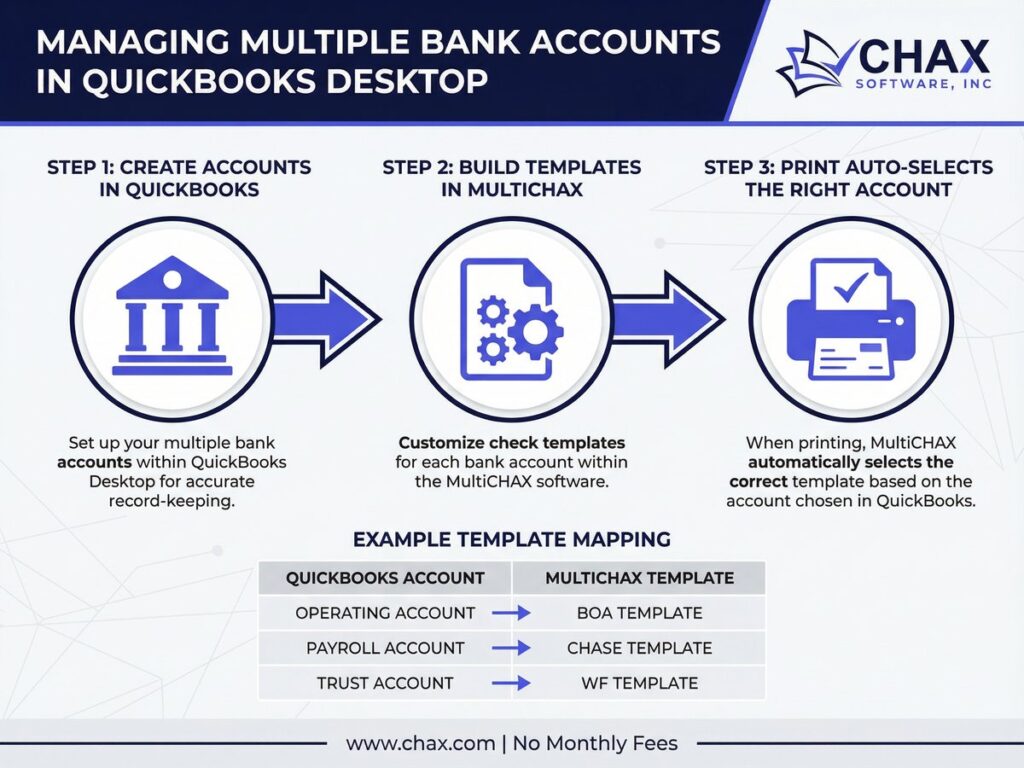
Step 1: Create Your Bank Accounts in QuickBooks
First, ensure all your bank accounts are set up correctly in QuickBooks.
- Go to Lists > Chart of Accounts.
- Right-click anywhere and select New.
- Choose Bank as the account type and click Continue.
- Enter the name of your bank account (e.g., “Operating Account – Bank of America”, “Payroll Account – Chase”).
- Enter the opening balance and save the account.
Repeat this process for all the bank accounts you will be printing checks from.
Step 2: Configure MultiCHAX for Each Bank Account
Next, you will create a unique check template within MultiCHAX for each of your QuickBooks bank accounts. This is the core of the automated workflow.
- Open MultiCHAX.
- Go to File > New to create a new check design.
- In the check design window, you will add your company and bank information. MultiCHAX has fields for every element on a check, including:
- Company Name & Address
- Bank Name & Address
- Fractional ABA Number
- Routing Number (MICR)
- Account Number (MICR)
- Check Number
- Digital Signature
- Enter the specific details for your first bank account (e.g., your primary operating account).
- Save this design with a clear name, such as
Operating_Account_BOA.chx. - Repeat this process, creating a separate
.chxfile for each of your bank accounts (e.g.,Payroll_Account_Chase.chx,Trust_Account_WellsFargo.chx).
Step 3: Link QuickBooks Accounts to MultiCHAX Templates
Now, you will tell MultiCHAX which check template to use for each QuickBooks bank account. This is done by linking the account name.
- In MultiCHAX, go to the Bank/Account Selection settings.
- Create a new rule. In the “If QuickBooks Account Name Contains” field, enter a unique keyword from your QuickBooks account name. For example, for “Operating Account – Bank of America”, you could use the keyword
BOA. - In the “Use This Check Design” field, select the corresponding MultiCHAX template you created (
Operating_Account_BOA.chx). - Save the rule.
Repeat this for every bank account:
| QuickBooks Account Name Contains | Use This MultiCHAX Design |
|---|---|
BOA |
Operating_Account_BOA.chx |
Chase |
Payroll_Account_Chase.chx |
WellsFargo |
Trust_Account_WellsFargo.chx |
Step 4: Print Your Checks
Now, the process is seamless. When you go to print checks in QuickBooks Desktop:
- Select the checks you want to print, regardless of which bank account they are from.
- Choose MultiCHAX Virtual Printer as your printer.
- Click Print.
MultiCHAX will automatically detect the bank account for each check based on the rules you set up and print it using the correct template with all the right bank information. You can print a batch of 100 checks from five different bank accounts in a single click, and MultiCHAX will ensure every single one is printed correctly.
This automated workflow eliminates human error, saves hours of manual work, and provides a secure, compliant check printing process for businesses of any size.
Internal Links
- Learn more about our primary check printing software.
- Need to accept payments by phone? Explore our Check-by-Phone software.
- For a deep dive into QuickBooks integration, see our QuickBooks Check Printing Software page.
- Curious about electronic payments? Read our guide on What is ACH?.
References
[1] Check 21 Act, Federal Reserve. URL:https://www.federalreserve.gov/paymentsystems/regcc-check21.htm