
CHAX Check-by-Phone: The Ultimate Getting Started Guide
So, you’re ready to stop waiting for checks in the mail and start getting paid faster. You’ve made a great choice! CHAX Check-by-Phone software is a powerful tool that puts you in control of your accounts receivable. But like any new tool, getting started can feel like the hardest part.
Don’t worry. We’ve designed CHAX to be incredibly simple and intuitive. This guide will walk you through the entire process, from installation to depositing your first check, in five easy-to-follow steps.
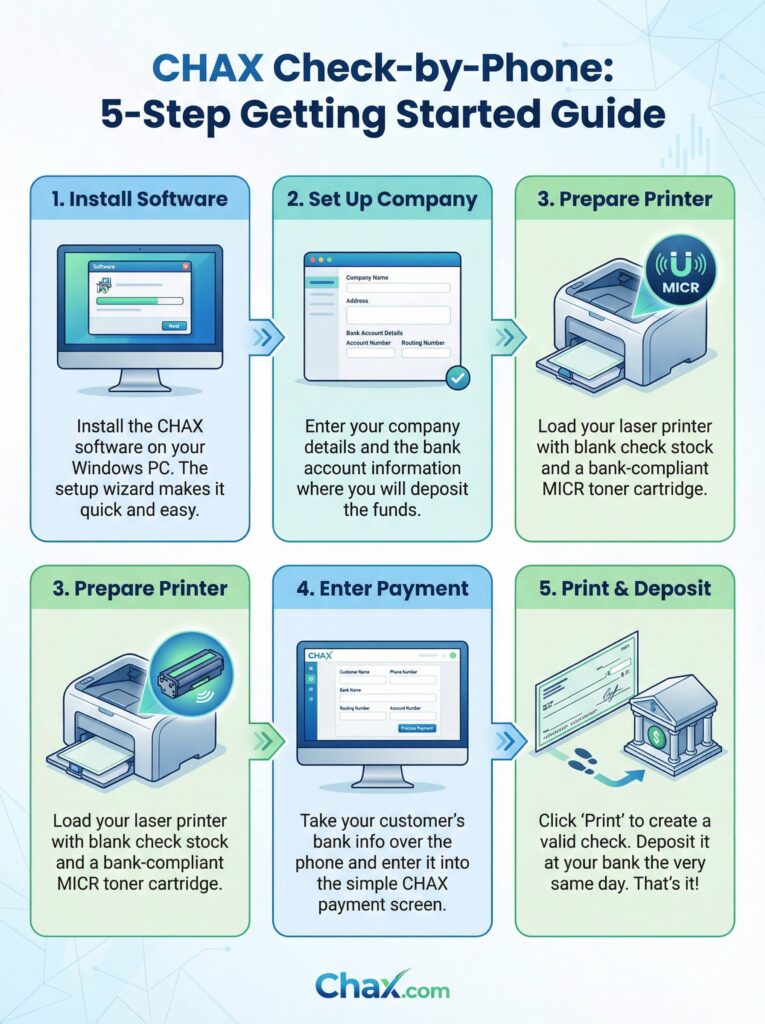
!CHAX Check-by-Phone: 5-Step Getting Started Guide

Step 1: Install the CHAX Software
First things first, you need to install the CHAX software on your Windows-based computer. If you haven’t purchased it yet, you can buy it here or download a free trial to see it in action first.
The installation process is straightforward. Simply run the installer file you downloaded and follow the on-screen prompts. The setup wizard will handle the rest, and in just a few clicks, CHAX will be ready to go.
Step 2: Set Up Your Company & Bank Details
Once installed, the first time you open CHAX you’ll be prompted to set up your company information. This is a critical step to ensure your checks are printed correctly.
You will need to enter:
- Your Company Information: Your business name and address, as you want it to appear on the checks.
- Your Bank Account Information: The details of the bank account where you will be depositing the funds. This includes your bank’s name, address, the account number, and the routing number.
CHAX securely stores this information so you only have to enter it once. This information will be used to populate the payee details on the checks you print.
Step 3: Prepare Your Printer with MICR Toner
This is the most important hardware requirement for printing bank-compliant checks. To ensure your printed checks can be automatically processed by any bank in the country, you must use MICR (Magnetic Ink Character Recognition) toner.
- What you need: A standard laser printer (inkjet printers are not compatible) and a MICR toner cartridge designed for your specific printer model.
- What to do: Simply swap out your regular toner cartridge for the MICR cartridge. Then, load your printer’s paper tray with blank check stock.
Using MICR toner is not optional; it’s the key that makes the entire system work. You can find MICR toner and blank check stock on the CHAX store.
Step 4: Enter a Customer Payment
Now for the fun part: taking a payment!
When a customer is ready to pay over the phone, open the CHAX software. You’ll see a simple, intuitive screen prompting you for the customer’s payment details. All you need to ask for is:
- The customer’s name and address
- Their bank name
- Their bank account number
- Their bank routing number
- The payment amount
Type this information into the corresponding fields in CHAX. The software will automatically format it into a standard check layout. CHAX also allows you to save payer information, so for repeat customers, you can simply select their name and the fields will auto-populate.
Step 5: Print & Deposit Your Check
Once you’ve entered all the information and double-checked it for accuracy, simply click the “Print” button. Your laser printer will produce a perfectly formatted, legally valid check.
From here, the process is exactly the same as with any other check you receive. You can:
- Deposit it at your bank’s teller window.
- Deposit it through a bank ATM.
- Deposit it using your bank’s mobile deposit app on your smartphone.
That’s it! You’ve successfully taken a payment over the phone and have the funds ready for deposit in minutes, not days. No more waiting, no more wondering, and no more expensive credit card fees.
Ready to transform your billing process? Get started with CHAX today!