
Multi-User Mode Check Printing in QuickBooks Desktop: A Step-by-Step Guide
QuickBooks Desktop’s multi-user mode is a powerful feature for teams, allowing several people to work in the same company file simultaneously. However, this collaborative environment can introduce complexities into the check printing process. How do you manage a single printer, ensure checks are printed from the correct bank account, and maintain a secure workflow when multiple users can initiate payments?
This guide provides a clear, step-by-step process for setting up a streamlined and secure check printing system in a multi-user QuickBooks environment using a virtual printer solution like MultiCHAX.
The Challenge of Multi-User Printing
In a typical multi-user setup, several workstations are connected to a server where the QuickBooks company file is stored. The primary challenges are:
- Printer Management: If checks are printed from different workstations, ensuring each one has the correct drivers and alignment settings is a constant battle.
- Security: Decentralized printing means pre-printed check stock may need to be stored at multiple locations, increasing the risk of theft.
- Workflow Control: It can be difficult to control which user is printing which check, leading to potential errors or unauthorized payments.
The Solution: Centralized Virtual Printing
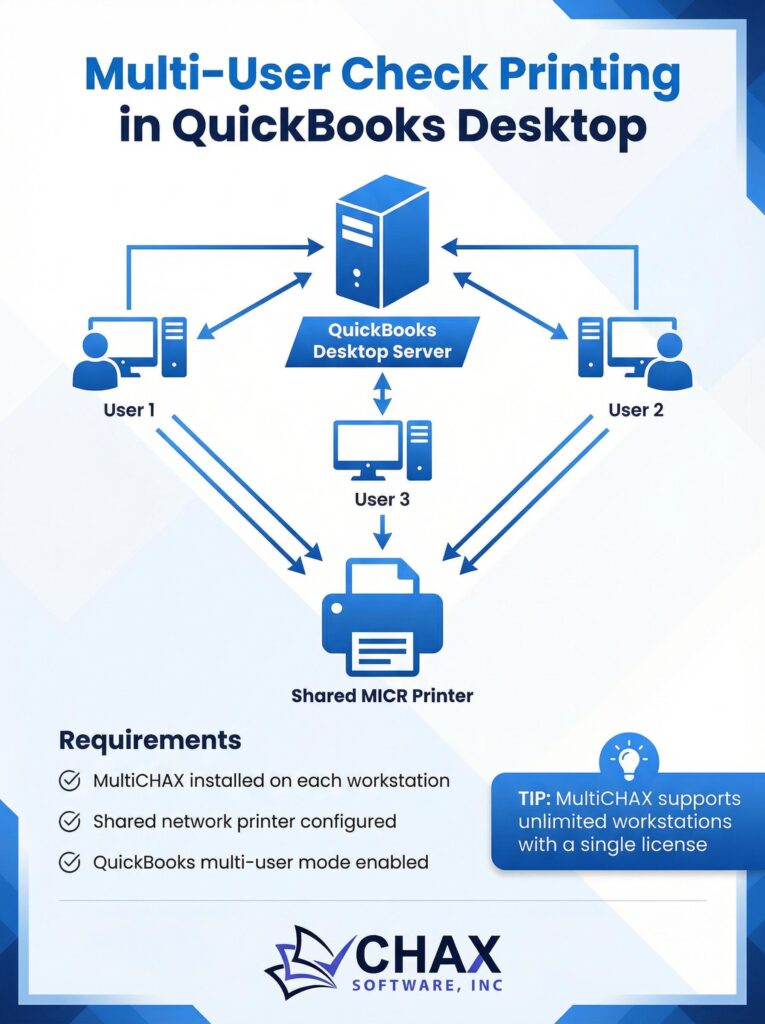
The most effective way to manage this is to centralize the printing process through a network-shared virtual printer. Here’s how it works:
1. Install on a Central Machine: The check printing software (e.g., MultiCHAX) is installed on a single, secure computer—this could be the main server or a dedicated administrative workstation. The physical check printer is connected to this machine.
2. Share the Virtual Printer: The MultiCHAX virtual printer is then shared over the network, just like any other printer.
3. Users Print to the Shared Printer: All other QuickBooks users on the network add this shared virtual printer to their workstations. When they print a check from their QuickBooks session, they select the shared MultiCHAX printer.
This setup ensures that all check printing jobs are funneled through a single, secure, and perfectly configured machine.
Step-by-Step Implementation Guide
Step 1: Designate and Set Up the Print Server
Choose one computer to act as your dedicated print server. This machine should be in a secure location. Install your check printing software (MultiCHAX) on this computer and connect your laser printer (with its MICR toner cartridge) directly to it. Configure the software with all your bank account templates.
Step 2: Share the Virtual Printer on the Network
In Windows, go to `Settings > Devices > Printers & scanners`. Select the MultiCHAX virtual printer, click `Manage`, and go to `Printer properties`. Under the `Sharing` tab, check the box to `Share this printer` and give it an easily recognizable name, like “Central_Check_Printer”.
Step 3: Connect Workstations to the Shared Printer
On each user’s workstation, go to `Settings > Devices > Printers & scanners` and click `Add a printer or scanner`. The system should detect the shared printer on the network. If not, you can add it manually using the print server’s computer name and the printer share name (e.g., `\\PRINT-SERVER\Central_Check_Printer`).
Step 4: Set the Default Printer in QuickBooks
For each user, open QuickBooks and go to `File > Printer Setup`. In the `Form Name` dropdown, select `Check/Paycheck`. In the `Printer name` dropdown, select the newly added shared virtual printer. This ensures that QuickBooks defaults to the correct printer for all check runs.
Step 5: Print Securely
Now, any authorized user can initiate a check print run from their own QuickBooks session. The job is sent over the network to the central print server, where the MultiCHAX software applies the correct template and prints a perfect, secure check on the connected printer. The blank check stock is stored securely in one location, and all printing is managed through a single, controlled point.
By centralizing your QuickBooks check printing in a multi-user environment, you overcome the key challenges of security and management, creating a workflow that is both efficient and secure.