
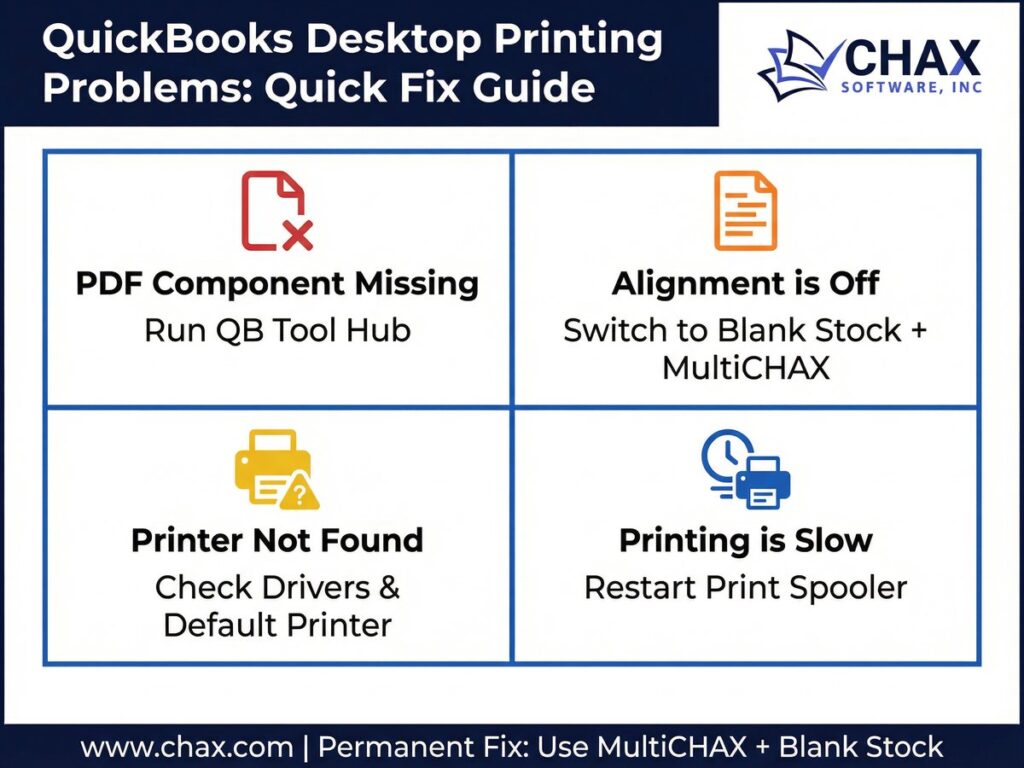
Troubleshooting Common QuickBooks Desktop Printing Problems
QuickBooks Desktop is a powerful accounting tool, but it can sometimes be finicky when it comes to printing. Whether you’re trying to print checks, invoices, or reports, running into printing errors can bring your workflow to a grinding halt. From the infamous “QuickBooks PDF Component Missing” error to alignment issues and printer communication failures, these problems are common but thankfully, they are also fixable.
This guide will walk you through the most common QuickBooks Desktop printing problems and provide step-by-step instructions on how to solve them.
Problem 1: Can’t Print or “QuickBooks PDF Component Missing” Error
This is perhaps the most frequent printing issue QuickBooks users face. QuickBooks uses a PDF driver (the “component”) to create a printable image of your forms and checks. If this component is corrupted, outdated, or not configured correctly, printing will fail.
Symptoms:
- You click “Print” and nothing happens.
- You get an error message like “The form you are about to print is not aligned,” even if it was fine before.
- You see a specific error: “QuickBooks could not save your form as a PDF file.”
Solution: The QuickBooks Print and PDF Repair Tool
Intuit provides a dedicated utility called the QuickBooks Print and PDF Repair Tool, which is part of the broader QuickBooks Tool Hub. This should always be your first step.
- Download and Install the QuickBooks Tool Hub: If you don’t already have it, download it directly from the Intuit website [1].
- Run the Tool:
- Open the Tool Hub.
- Select Printing Problems.
- Click on the QuickBooks Print and PDF Repair Tool.
- The tool will run automatically and attempt to fix any issues with the PDF driver. This can take a few minutes.
- Test Printing: After the tool finishes, try printing from QuickBooks again.
In over 80% of cases, this tool resolves the issue. If it doesn’t, you may need to manually reinstall the XPS Document Writer, which is a Windows component QuickBooks relies on.
Problem 2: Check Printing Alignment is Off
Your checks are printing, but the amounts, dates, or memo lines are in the wrong places. This is a classic alignment problem.
Symptoms:
- The MICR line is printing too high or too low.
- The payee name or amount is not aligned with the fields on your pre-printed check stock.
- The alignment changes from one print run to the next.
Solution: Use a Dedicated Check Printing Software
While QuickBooks has a built-in alignment tool, it is notoriously difficult to use and often fails to produce consistent results. It requires printing dozens of test pages and making tiny, frustrating adjustments.
The permanent solution is to switch to blank check stock and use a software like MultiCHAX.
MultiCHAX comes with pre-configured, pixel-perfect templates for all standard check layouts (check-on-top, check-in-middle, etc.). Because it prints all the check elements—including the MICR line and bank information—onto a blank page, the alignment is perfect every single time. You simply choose your template once, and you never have to worry about alignment again.
This approach not only solves the alignment problem for good but also saves you money and increases security, as you no longer need to buy expensive, risky pre-printed checks.
Problem 3: QuickBooks Can’t Find the Printer
You try to print, but your printer doesn’t appear in the list, or you get an error that QuickBooks can’t communicate with the selected printer.
Symptoms:
- Your printer is not listed in the QuickBooks print dialog.
- You get an error message like “QuickBooks is unable to complete this operation.”
Solution: Check the Printer Setup and Drivers
This issue is usually caused by a problem outside of QuickBooks itself.
- Test Print from Another Program: First, try printing from a simple program like Notepad. If you can’t print from Notepad, the problem is with your Windows printer setup, not QuickBooks. You may need to reinstall your printer drivers.
- Set the Correct Printer as Default: Ensure your desired check printer is set as the default printer in Windows.
- Rename the
qbprint.qbpfile: QuickBooks uses a file calledqbprint.qbpto store your printing preferences. This file can become corrupted. Closing QuickBooks and renaming this file (e.g., toqbprint.old) will force QuickBooks to create a new, clean one when it restarts.
Problem 4: Printing is Very Slow
You click print, and it takes several minutes for the print job to even start.
Symptoms:
- QuickBooks freezes for a long time after you click “Print.”
- The print job appears in the Windows print queue but sits there for minutes before printing.
Solution: Check Network and Spooler Settings
Slow printing is often related to network issues or the Windows Print Spooler service.
- For Network Printers: If you are using a network printer, a slow network connection can be the culprit. Try printing a test page from another application to see if the issue is specific to QuickBooks.
- Restart the Print Spooler: The Windows Print Spooler manages all print jobs. Restarting this service can clear out a stuck job that is slowing everything down.
- Press Windows Key + R, type
services.msc, and press Enter. - Scroll down to Print Spooler.
- Right-click on it and select Restart.
- Press Windows Key + R, type
By systematically working through these common issues, you can solve the vast majority of QuickBooks Desktop printing problems and get back to running your business.
Internal Links
- For a permanent solution to alignment and pre-printed check issues, learn about our core check printing software.
- Our software integrates seamlessly with QuickBooks. See the full details on our QuickBooks Check Printing Software page.
- Need to accept payments by phone? Our Check-by-Phone software can help.
- To understand the difference between checks and electronic payments, read our guide: What is ACH?.
References
[1] Intuit, Inc. “QuickBooks Tool Hub Download and Installation Guide.” URL:https://quickbooks.intuit.com/learn-support/en-us/help-article/repair-company-file/fix-common-problems-errors-quickbooks-desktop-tool/L6vD7m2mN_US_en_US