
The Complete Guide to Printing Checks from QuickBooks Desktop on Blank Stock with MultiCHAX
Published: March 5, 2026 | Author: Chax.com Team | Category: Accounting Software Integration
If you’re a small business owner using QuickBooks Desktop, you know how critical it is to manage cash flow efficiently. But are you still spending a small fortune on expensive, pre-printed checks from your bank or Intuit? There’s a better way.
By switching to blank check stock and a powerful software utility like MultiCHAX, you can slash your check-related costs by up to 80%, gain more control over your payables, and enhance your security. This guide will walk you through everything you need to know to start printing professional, bank-compliant checks directly from QuickBooks Desktop.
Why Stop Using Pre-Printed Checks?
Before we dive into the “how,” let’s talk about the “why.” Relying on pre-printed checks creates several problems:
- High Costs: Banks and check suppliers charge a premium for pre-printed checks, often hundreds of dollars for a small batch.
- Security Risks: Storing boxes of pre-printed checks with your bank account number on them is a security liability. If they’re stolen, your account is compromised.
- Inflexibility: If you have multiple bank accounts, you need multiple sets of pre-printed checks. If your bank details change, your entire stock becomes useless.
- Manual Effort: Writing checks by hand or even aligning them in a printer is a time-consuming, error-prone process.
Printing on blank check stock solves all these issues. It’s cheaper, more secure, and far more flexible.
What You Need to Get Started
- QuickBooks Desktop (Pro, Premier, or Enterprise): The accounting software you already use.
- MultiCHAX Software: The bridge that connects QuickBooks to your printer, allowing you to print the entire check—logo, bank info, MICR line, and all—in one pass.
- Blank Check Stock: Paper with built-in security features but no pre-printed bank information. You can order this from a variety of online suppliers, including the Chax Store.
- A Laser or Inkjet Printer: No special printer is required, but a laser printer with MICR toner is recommended for the highest level of security.
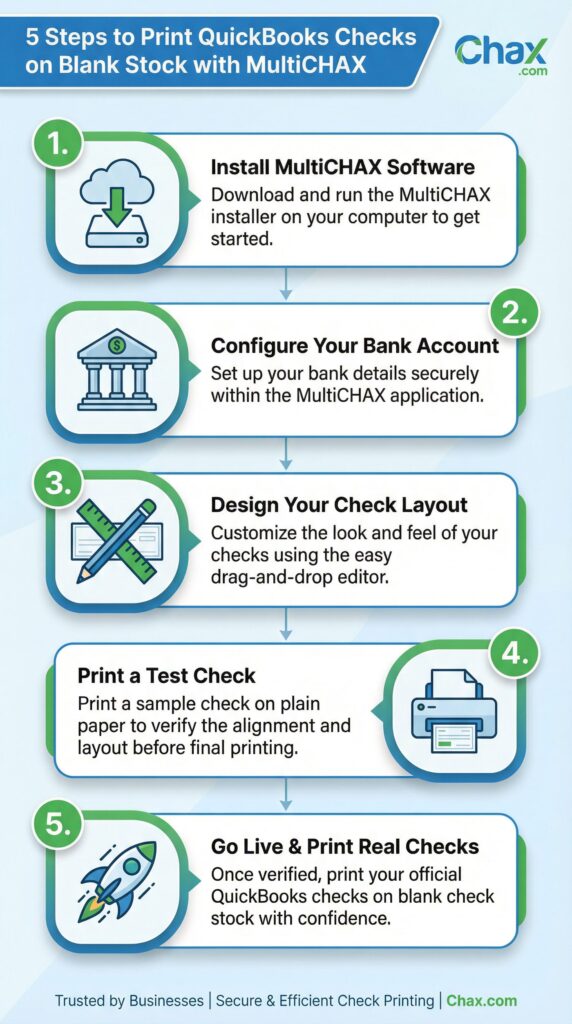
5 Steps to Print QuickBooks Checks on Blank Stock with MultiCHAX
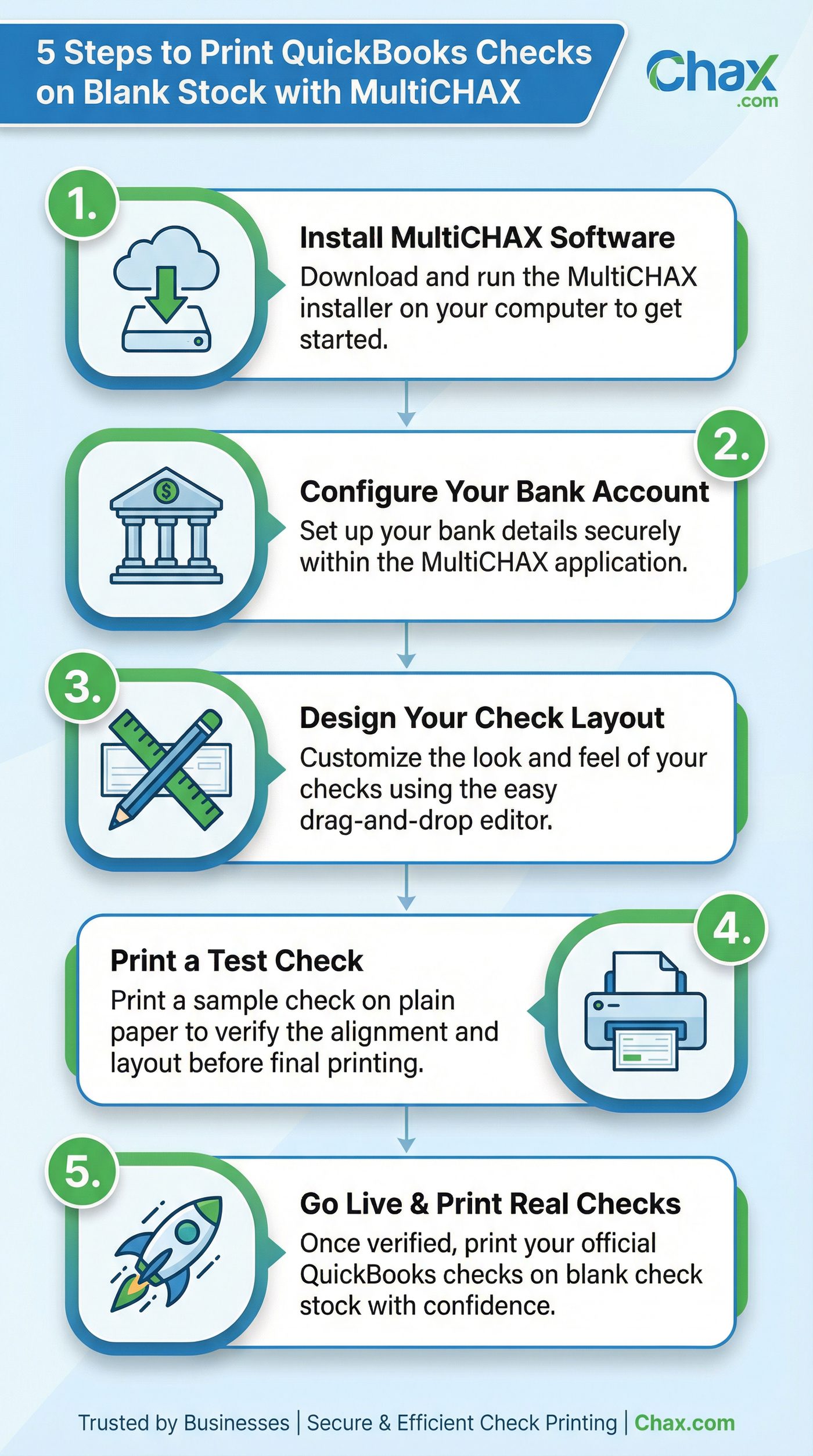
Step 1: Install MultiCHAX Software
First, download and install the MultiCHAX software on the same computer where your QuickBooks Desktop is installed. The installation is straightforward; simply follow the on-screen prompts. During the process, MultiCHAX will automatically detect your QuickBooks installation.
Step 2: Configure Your Bank Account
Open MultiCHAX and navigate to the bank account setup screen. Here, you will securely enter the information that will be printed on your checks:
- Bank Name and Address
- Account Holder Name and Address
- Bank Account Number
- Bank Routing Number (ABA Number)
This information is stored securely within MultiCHAX and is never shared. You can set up an unlimited number of bank accounts, making it perfect for businesses that manage multiple entities.
Step 3: Design Your Check Layout
This is where you customize the look of your check. MultiCHAX features an intuitive drag-and-drop editor that lets you place elements exactly where you want them. You can:
- Add your company logo.
- Upload a digital signature file to be printed directly on the check.
- Choose the check format (e.g., check-on-top, check-in-middle).
- Adjust the position of the date, payee, amount, and other fields.
Once you have a layout you like, save it as a template for future use.
Step 4: Print a Test Check
Before you start printing live checks, it’s crucial to print a test copy on plain paper. In QuickBooks, go to File > Print Forms > Checks. Select the checks you want to print, and when the print dialog appears, choose MultiCHAX Virtual Printer as your printer.
MultiCHAX will capture the print job and display a preview. Click “Print” and then hold your printed sample up to a real blank check to ensure the alignment is perfect. Make any necessary adjustments in the MultiCHAX layout editor.
Step 5: Go Live & Print Real Checks
Once you’ve verified the alignment, you’re ready to go. Load your blank check stock into your printer and repeat the printing process from QuickBooks. This time, your professional, bank-compliant checks will be printed, ready to be signed (if you didn’t use a digital signature) and mailed.
Frequently Asked Questions
Q: Is printing my own checks legal?
A: Absolutely. As long as the checks are printed with the correct bank information and a valid MICR line, they are fully compliant with banking regulations in the United States.
Q: What is MICR toner and do I need it?
A: MICR (Magnetic Ink Character Recognition) toner is a special type of ink that allows bank sorting equipment to read the routing and account numbers at the bottom of a check. While not strictly required by law, using MICR toner is highly recommended as it ensures faster processing and reduces the risk of your checks being rejected by a bank’s automated systems. Read our full guide on MICR here. (This link will be updated when the Month 2 article is published).
Q: Can I print signatures directly on the checks?
A: Yes. You can scan your signature, save it as an image file (like a .BMP or .JPG), and add it to your check layout in MultiCHAX. For added security, you can password-protect the use of the signature file.
Ready to Take Control of Your Check Printing?
Stop wasting money and time on pre-printed checks. With MultiCHAX and QuickBooks Desktop, you can implement a more secure, flexible, and cost-effective accounts payable process.
Download a FREE trial of MultiCHAX today and see how easy it is to print your own checks on-demand checks.