
How to Use the CHAX Bulk Import Feature to Process 100s of Payments
Taking check payments one by one is a massive improvement over waiting for the mail. But what if you need to process dozens, or even hundreds, of payments at once? Entering them manually is time-consuming and prone to error. That’s where the CHAX Bulk Import feature becomes your most powerful tool.
Designed for power users like insurance companies, utilities, property management firms, and high-volume debt collectors, the bulk import function allows you to process an entire batch of payments from a single file. This guide will show you how to leverage this feature to save hours of administrative work.
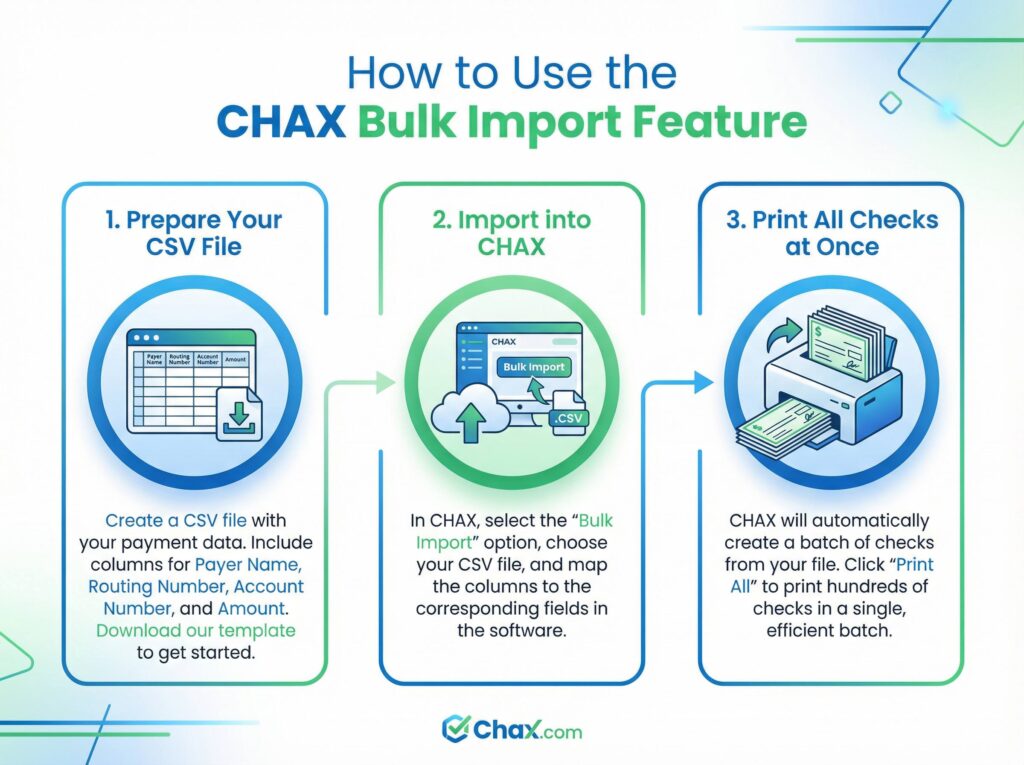
!How to Use the CHAX Bulk Import Feature

Step 1: Prepare Your CSV File
The foundation of a successful bulk import is a properly formatted CSV (Comma-Separated Values) file. This is a simple text-based spreadsheet that you can create using Microsoft Excel, Google Sheets, or any other spreadsheet software.
Your CSV file must contain the necessary columns for CHAX to create the checks. The required columns are:
- Payer Name: The name of the person or company paying you.
- Routing Number: The payer’s 9-digit bank routing number.
- Account Number: The payer’s bank account number.
- Amount: The exact payment amount.
You can also include optional columns for data like an invoice number, customer ID, or memo line, which can be printed on the check for better record-keeping.
Pro Tip: To ensure your file is formatted correctly, we highly recommend downloading our pre-made CSV template. Simply fill in the rows with your payment data and save the file in CSV format.
Step 2: Import the File into CHAX
With your CSV file saved and ready, the next step is to bring it into the CHAX software.
Step 3: Print All Checks at Once
Once you’ve confirmed the data is correct, you are ready to print. Instead of creating checks one by one, CHAX has now created an entire batch of pending check transactions.
You will see a summary of the batch, including the total number of checks and the total dollar amount.
Simply click the “Print All” or “Print Batch” button. CHAX will send the entire job to your printer, which will begin printing all of the checks sequentially. In a matter of minutes, you can have hundreds of checks printed, signed, and ready for deposit.
This feature transforms CHAX from a simple payment tool into a true enterprise-grade processing system. By batching your payments into a single, streamlined workflow, you can reclaim hours of manual data entry, reduce errors, and get your revenue into the bank faster than ever before.
Ready to supercharge your payment processing? Get CHAX today and discover the power of bulk importing.