
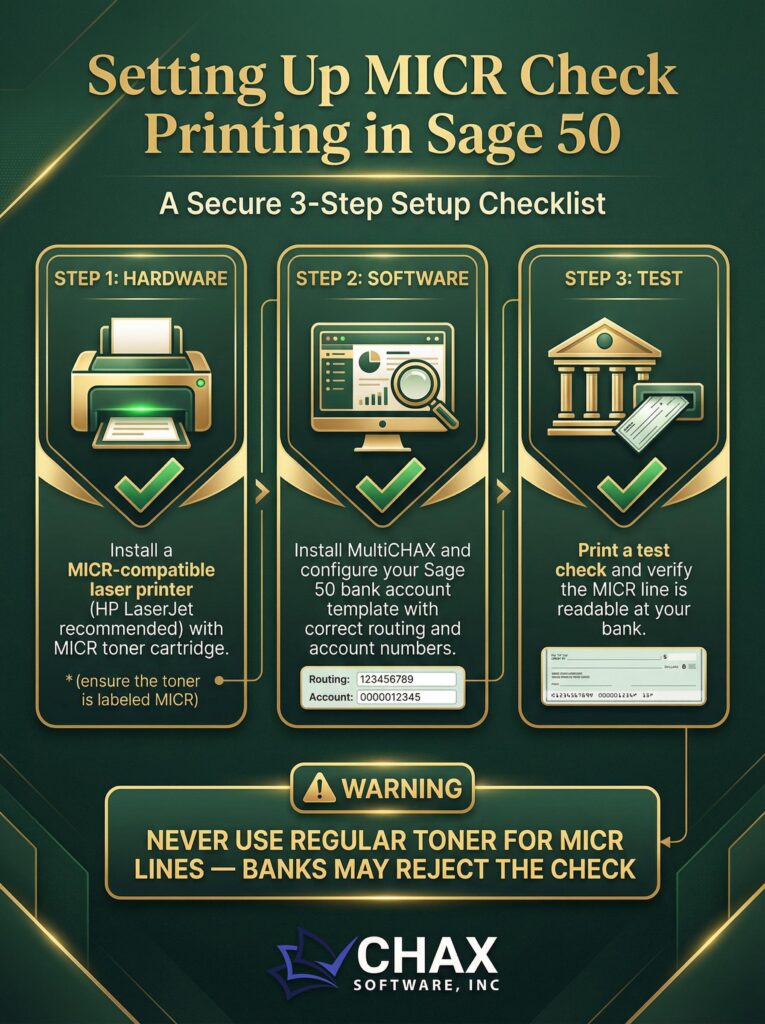
Setting Up MICR Check Printing in Sage 50
To print legitimate, bank-compliant checks from Sage 50, you must print a MICR line on each check. MICR (Magnetic Ink Character Recognition) is the special line of characters at the bottom of a check that allows for automated processing by banks. Printing checks without a proper MICR line will result in bank rejection and costly fees.
While Sage 50 does not have a native feature to create this MICR line, you can easily set up a compliant workflow using two key components: a MICR toner cartridge and a virtual check printing software.
This guide will walk you through the correct setup.
Why Sage 50 Can’t Print MICR Natively
Sage 50’s printing module is designed with the assumption that users will be using pre-printed check stock, where the company, bank, and MICR line information is already printed by a check manufacturer. The software is only designed to fill in the variable data: the date, payee, and amount.
It lacks the ability to:
1. Generate the E-13B Font: This is the legally required font for the MICR line.
2. Position the MICR Line: It cannot place the font in the precise, standardized “clear band” at the bottom of the check.
Attempting to download a free MICR font and configure Sage 50 to use it is not a reliable solution, as it often leads to formatting and alignment errors that make the check unreadable by bank machines.
The Correct, Two-Component Solution
To print compliant checks, you need to add two components to your existing Sage 50 setup.
Component 1: MICR Toner Cartridge
This is non-negotiable. The “M” in MICR stands for “Magnetic.” The ink contains iron oxide, which gives it a magnetic property that bank reader-sorter machines detect. You cannot use regular black toner.
- No Special Printer Needed: You do not need to buy a new printer. Simply purchase a MICR toner cartridge that is compatible with your existing office laser printer (e.g., HP, Brother, Lexmark). They are designed as direct replacements for standard cartridges.
Component 2: A Virtual Check Printing Software
This is the “brain” of the operation. A virtual printer application like MultiCHAX is designed to do what Sage 50 cannot: create a perfectly formatted check, including the MICR line, and print it to blank check stock.
This software works by seamlessly integrating with Sage 50’s print output.
Step-by-Step MICR Setup Guide
Step 1: Install MultiCHAX and Create Your Bank Account Template
Install the MultiCHAX software on your computer. During the initial setup, you will create a template for your bank account. This involves entering your bank’s routing number, your account number, and your company information. The software uses this information to generate the fully compliant MICR line automatically. It has the E-13B font built-in and positions it perfectly according to banking standards.
Step 2: Install Your MICR Toner Cartridge
Simply swap the regular toner cartridge in your laser printer with the new MICR cartridge.
Step 3: Point Sage 50 to the Virtual Printer
In Sage 50, go to the check printing form setup (`Reports & Forms > Forms > Checks`). In the printer selection dialog for your check form, choose the MultiCHAX virtual printer as the destination printer. This tells Sage 50 to send all the check data to the MultiCHAX software instead of directly to your physical printer.
Step 4: Print from Sage 50 as Usual
Your internal process in Sage 50 does not change. When you are ready to pay bills, run your check printing process as you always have. When you click “Print,” Sage 50 will send the payment data (payee, amount, etc.) to the MultiCHAX application.
MultiCHAX will then merge this data with your secure bank template, generate the critical MICR line, and send the final, complete check image to your laser printer. The result is a 100% bank-compliant check printed on a secure, blank check stock.
By using this simple, two-component solution, you can move away from expensive pre-printed checks and implement a modern, secure, and cost-effective check printing workflow that works perfectly with your Sage 50 accounting software.