
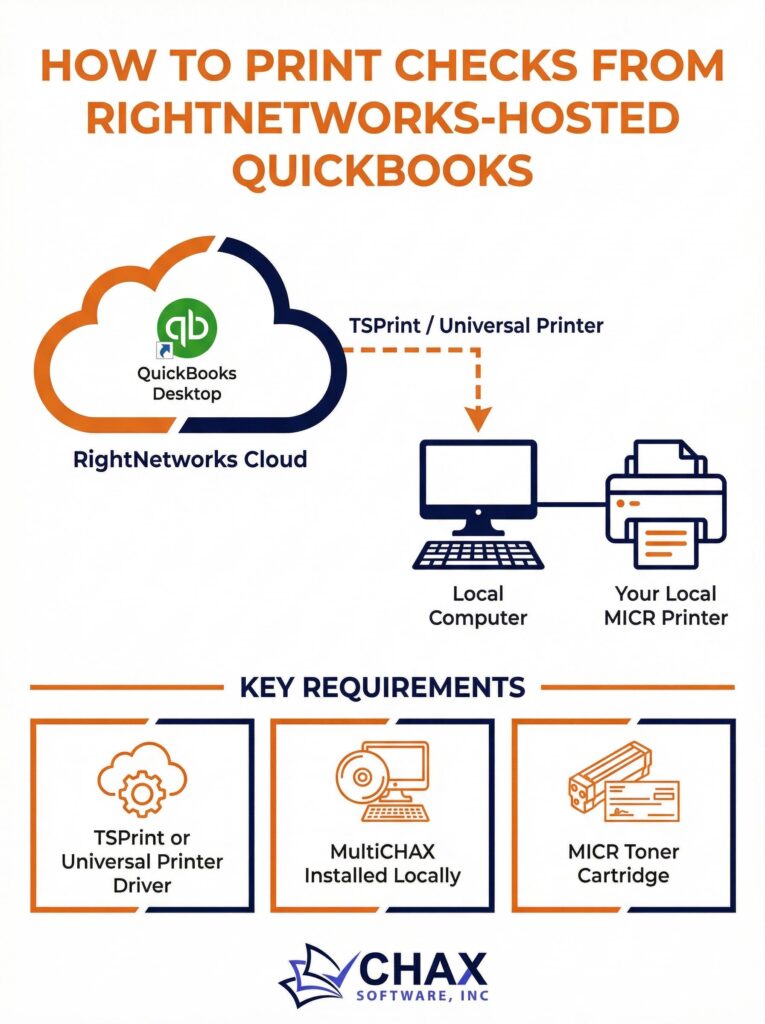
How to Print Checks from RightNetworks-Hosted QuickBooks Desktop
RightNetworks is a leading hosting provider for QuickBooks Desktop, offering businesses the ability to access their familiar desktop software from anywhere, with the benefits of cloud accessibility and security. However, this hosted environment introduces a unique challenge: how do you print a physical check from a remote server to the printer sitting on your desk?
This is a common point of confusion for new RightNetworks users. This guide will demystify the process and show you how to set up a seamless check printing workflow from your hosted QuickBooks.
The Challenge: Bridging the Remote-to-Local Gap
When you are logged into your RightNetworks hosted desktop, you are essentially operating a computer on a remote server. That server has no direct connection to your local office hardware, including your printer. Simply clicking “Print” in QuickBooks won’t work out of the box because the remote computer doesn’t know your local printer exists.
To solve this, RightNetworks employs a technology called printer redirection. This technology creates a virtual channel that “redirects” a print job from the remote server back to your local computer and its connected printer.
The Solution: TSPrint, The Universal Printer Driver
RightNetworks uses a specific tool called TSPrint to manage printer redirection. TSPrint is a universal printer driver that simplifies the process. Instead of trying to install your specific printer’s drivers on the remote server (which is often not possible), TSPrint creates a single, universal virtual printer on your hosted desktop.
When you print to the TSPrint printer, the tool compresses the print job, sends it securely over your internet connection to your local computer, and then routes it to your default local printer.
Step-by-Step Guide to Printing Checks on RightNetworks
Step 1: Install the TSPrint Client Locally
Before you can print from the hosted environment, you must install the TSPrint client software on your local computer (the one connected to your printer). You can download this directly from the RightNetworks helpdesk or their website. This installation only needs to be done once.
Step 2: Log into RightNetworks and Select the TSPrint Printer
Log into your RightNetworks hosted desktop. When you go to print a check from QuickBooks (`File > Print Forms > Checks`), you will see a list of available printers. You should select one of the TSPrint options, such as “TSPrint Default” or “TSPrint Printer”.
- TSPrint Default: This will automatically send the print job to your local computer’s default printer.
- TSPrint Printer: This will open a dialog box on your local computer, allowing you to choose which of your local printers you want to use.
Step 3: The Final Step for Perfect Checks – A Virtual Printer
While TSPrint solves the remote-to-local connection, it doesn’t solve the inherent check printing issues within QuickBooks, like alignment and the need for MICR printing. For this, you need a second virtual printer that specializes in check printing, like MultiCHAX.
The ideal workflow combines both technologies:
1. Install MultiCHAX on the RightNetworks Server: You can work with RightNetworks support to have the MultiCHAX software installed on your hosted desktop.
2. Print from QuickBooks to MultiCHAX: In your hosted QuickBooks, you will print to the MultiCHAX virtual printer. This allows the software to apply your secure bank account template, MICR line, and digital signature.
3. MultiCHAX Prints to TSPrint: The MultiCHAX software then sends the final, perfectly formatted check image to the TSPrint Default printer.
4. TSPrint Sends to Your Local Printer: TSPrint redirects the job to your local office printer, which prints a fully compliant check on your blank check stock.
This two-step virtual printing process may seem complex, but it is the most secure and reliable method. It ensures perfect alignment, bank-compliant MICR printing, and a seamless bridge between your hosted QuickBooks check printing software and your local hardware.