
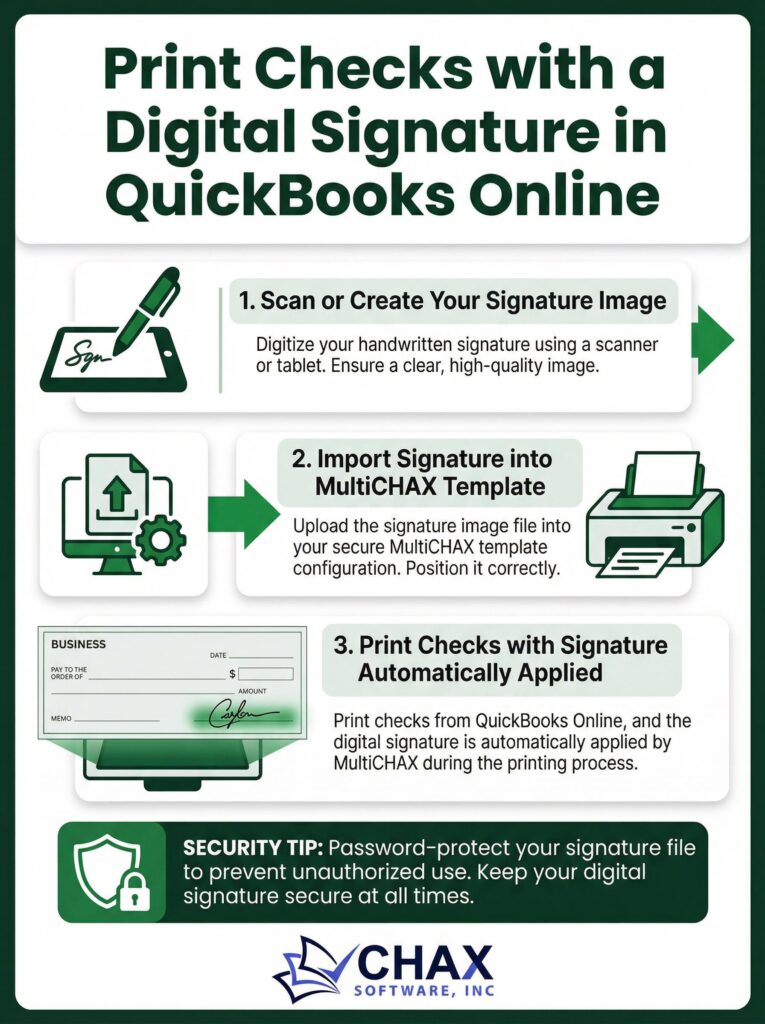
How to Print Checks with a Digital Signature in QuickBooks Online
For busy entrepreneurs and finance managers, signing dozens or even hundreds of checks by hand is a tedious and time-consuming task. It’s a bottleneck in the accounts payable process that can delay payments and pull you away from more strategic work. The solution is to use a digital signature, which allows you to print checks with your signature already on them.
While QuickBooks Online does not have a built-in feature for adding a digital signature to checks, you can easily implement this workflow by using a third-party check printing software. This guide shows you how.
Why Use a Digital Signature?
- Time Savings: The most obvious benefit is the immense amount of time you save. A batch of 100 checks can be “signed” and printed in minutes, not hours.
- Efficiency and Scalability: It allows you to scale your payment operations without adding manual overhead. As your business grows, you can process a higher volume of payments without being slowed down by manual signing.
- Continuity: If the authorized signer is on vacation or out of the office, payments don’t have to stop. The AP process can continue uninterrupted.
- Security (When Implemented Correctly): A digital signature file can be more secure than a manual signature, as it is protected by software permissions and is harder to forge than a simple handwritten signature.
Creating Your Digital Signature File
The first step is to create a high-quality image file of your signature. This is a simple process:
1. Sign on White Paper: Take a plain white, unlined sheet of paper and sign your name clearly in the center using a black pen.
2. Scan the Signature: Scan the paper at a high resolution (at least 300 DPI) and save it as an image file (such as .BMP, .JPG, or .PNG). Most modern office printers have a scanning function, or you can use a mobile scanning app.
3. Crop the Image: Use any basic image editor (like Microsoft Paint or Preview on Mac) to crop the image tightly around the signature, removing any excess white space.
The Workflow: Using a Third-Party App for Signatures
Since QBO doesn’t support this feature, you will need a dedicated check printing application like MultiCHAX that integrates with QBO via a data export/import process.
Step 1: Import Your Signature into the Software
In your check printing software, there will be a section for managing bank account templates. When you edit a check template, you will find an option to add a signature file. Simply upload the signature image you just created. The software will allow you to place and resize the signature on the signature line of the check template.
Step 2: Add Password Protection
For security, the best check printing applications allow you to password-protect the signature file. This is a critical step. It ensures that only authorized users who have the password can print checks with the signature. This prevents unauthorized employees from printing signed, blank checks.
Step 3: Process Your Checks
Your workflow for printing checks will be:
1. Record the bill payments you want to make in QuickBooks Online.
2. Export the payment data from QBO as a CSV file.
3. Import this file into your check printing software. The software will populate the checks with the payee and amount data.
4. When you click “Print,” the software will prompt for the signature password (if enabled). Upon entering it, the software merges the check data, the bank account template, and the secure signature file, printing a complete, signed, and ready-to-mail check.
By moving the final printing step out of QBO and into a specialized application, you gain access to powerful features like digital signatures. This simple change can revolutionize your accounts payable workflow, saving you countless hours and creating a more efficient and scalable payment process for your QuickBooks check printing needs.