
How to Set Up MultiCHAX with Sage 50 (Peachtree) in 10 Minutes
Published: April 16, 2026 | Author: Chax.com Team | Category: Accounting Software Integration
Sage 50, formerly known as Peachtree, is a powerful accounting solution trusted by countless small businesses. While Sage 50 has robust check printing capabilities, unlocking its full potential requires pairing it with a specialized check printing utility like MultiCHAX. This combination allows you to print on affordable blank check stock, add logos and signatures, and manage multiple bank accounts seamlessly.
This guide provides a step-by-step tutorial on how to configure MultiCHAX to work with your Sage 50 software. The entire process can be completed in about 10 minutes.
Why Use MultiCHAX with Sage 50?
- Use Blank Check Stock: Stop buying expensive pre-printed checks for every bank account.
- Enhance Security: Print checks with a secure MICR line and add digital signatures.
- Improve Branding: Easily add your company logo to every check you print.
- Streamline Workflows: Manage checks from multiple bank accounts within a single, easy-to-use interface.
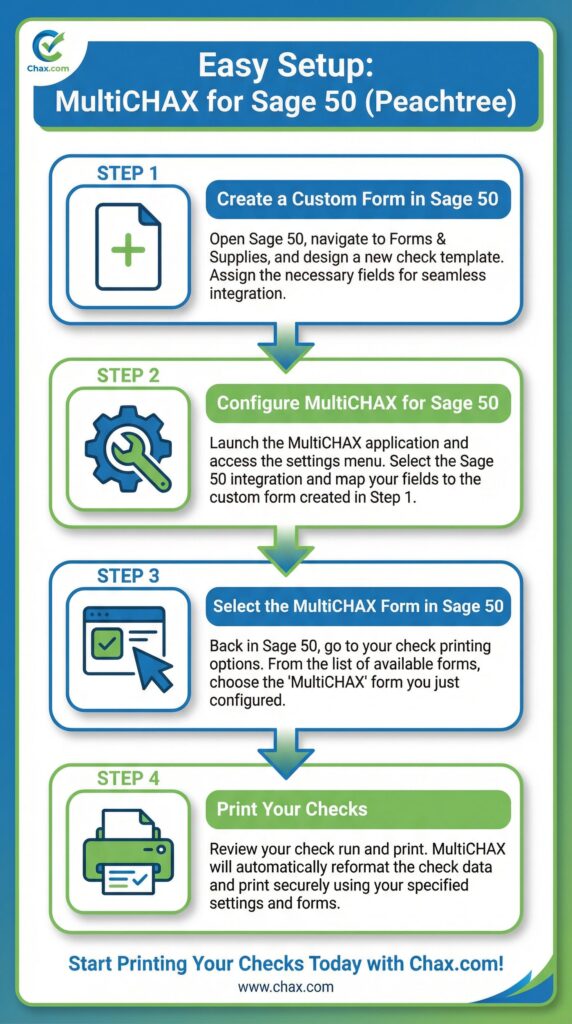
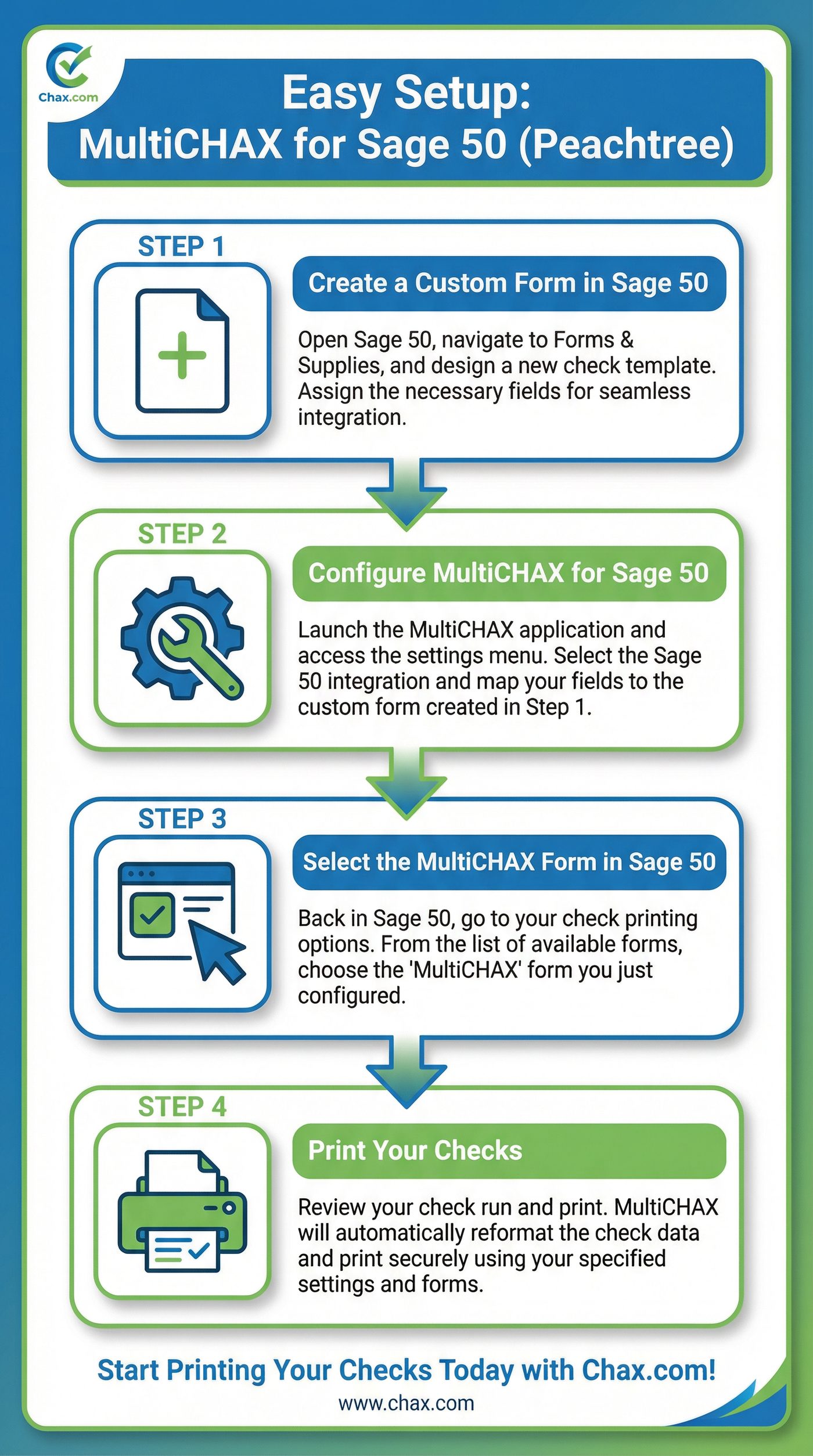
Easy Setup: MultiCHAX for Sage 50 (Peachtree)
Step 1: Create a Custom Form in Sage 50
The first step is to create a new check form within Sage 50 that MultiCHAX can use to extract the necessary data (payee, amount, date, etc.).
- In Sage 50, navigate to Reports & Forms > Forms > Checks.
- In the “Select a Report or Form” window, choose an existing check form to use as a template (e.g., “AP Preprinted Laser 1 Stub”).
- Click the Customize button. This will open the Sage 50 Forms Designer.
- You don’t need to change the design itself. The key is to save this as a new, uniquely named form. Go to File > Save As.
- Name the new form “MultiCHAX” and click Save. You can now close the Forms Designer.
This new “MultiCHAX” form is what you will select when you print checks, telling Sage 50 to output the data in a way that our software can read.
Step 2: Configure MultiCHAX for Sage 50
Now, let’s tell MultiCHAX how to interpret the data from Sage 50.
- Open the MultiCHAX software.
- Go to the Program Setup or Configuration menu.
- Select Sage 50 / Peachtree from the list of compatible accounting programs.
- MultiCHAX will display a mapping interface. This is where you associate the fields from your Sage 50 form with the fields in MultiCHAX. For the most part, the default settings will be correct.
- Ensure your bank account details are set up correctly under the Bank Account settings.
Step 3: Select the MultiCHAX Form in Sage 50
This step tells Sage 50 to use your new custom form for printing.
- In Sage 50, go to the screen where you print your checks (e.g., Tasks > Payments).
- Click the Print button.
- In the “Print Forms” dialog box, look for an option like “Select Form” or “Form Type.”
- From the list of available forms, choose the “MultiCHAX” form you created in Step 1.
- Click OK.
Step 4: Print Your Checks
You are now ready to print.
- In the main Sage 50 print dialog, select the checks you wish to print.
- Crucially, for your printer, select the “MultiCHAX Virtual Printer” from the list of available printers.
- Click Print.
MultiCHAX will automatically intercept the print job from Sage 50. It will read the data, format it according to the check layout you designed in MultiCHAX (with your logo, signature, and MICR line), and then print a perfect, bank-compliant check on your blank check stock.
Troubleshooting Tips
- Data Not Aligning Correctly? The most common issue is a mismatch in the form template. Ensure you are using a standard Sage 50 check form as the basis for your custom “MultiCHAX” form. If problems persist, the MultiCHAX support team can help you map the fields correctly.
- MultiCHAX Virtual Printer Not Appearing? If the MultiCHAX printer is not in your list of printers, a simple reinstall of the MultiCHAX software will typically resolve the issue.
Unlock the Full Power of Sage 50
By integrating MultiCHAX with Sage 50, you transform your accounting software into a complete, secure, and cost-effective check printing powerhouse. Stop letting pre-printed checks dictate your workflow and budget.
Get started with a FREE trial of MultiCHAX today and revolutionize your Sage 50 check printing process.