
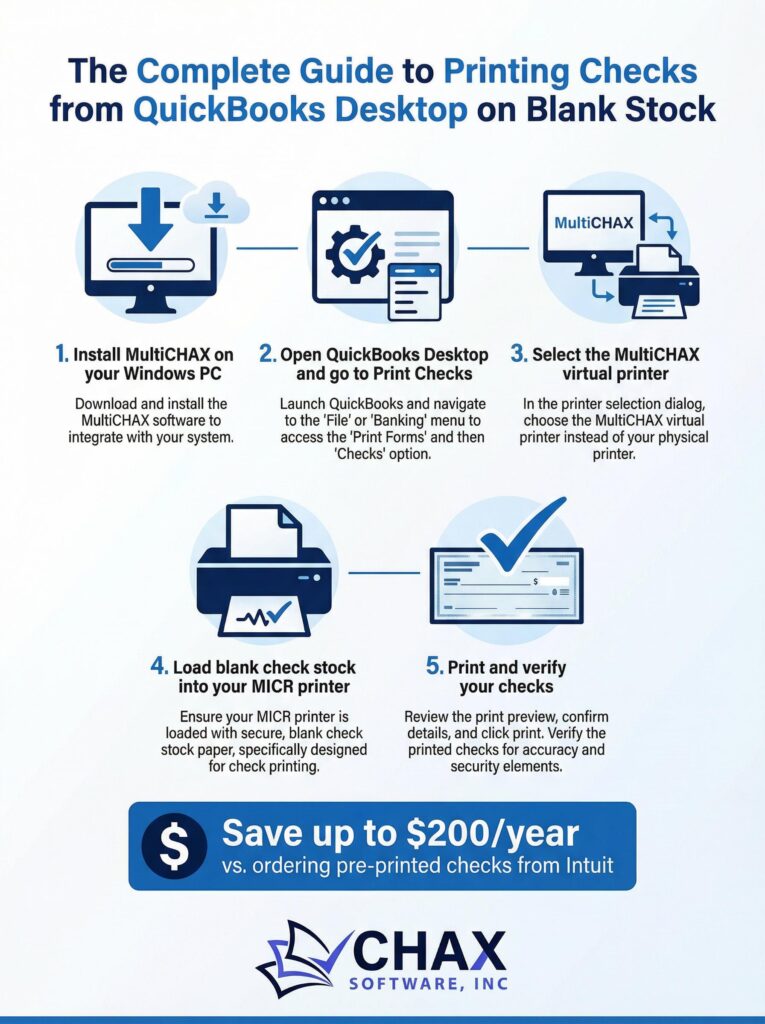
The Complete Guide to Printing Checks from QuickBooks Desktop on Blank Stock
For businesses that rely on the robust, desktop version of QuickBooks, managing accounts payable efficiently is key. While QuickBooks is a powerhouse for accounting, printing checks directly from the software often means being locked into expensive, pre-printed check stock from Intuit. However, there is a much more cost-effective and flexible solution: printing your QuickBooks checks on blank check stock using a third-party application like MultiCHAX.
This guide will walk you through the entire process, from setup to printing your first batch of checks, saving your company significant time and money.
Why Switch to Blank Check Stock?
Before we dive into the “how,” let’s cover the “why.”
- Cost Savings: Blank check stock is dramatically cheaper than pre-printed checks. Businesses can save up to 80% on check-related expenses.
- Enhanced Security: With blank stock, your sensitive bank account information is not pre-printed on thousands of checks. You print the MICR line, account number, and bank information on demand, reducing the risk of check fraud.
- Flexibility: Need to pay vendors from multiple bank accounts? With blank stock, you don’t need to juggle multiple checkbooks. You can switch between accounts seamlessly within your check printing software.
- Efficiency: Never run out of checks for a specific account again. Your inventory is simplified to a single stack of blank checks.
Step 1: Set Up Your Check Printing Software
The first step is to choose and install a reliable check printing software that integrates with QuickBooks Desktop. MultiCHAX is a leading choice, designed to work seamlessly as a virtual printer.
After installing the software, you will configure it by adding your company details and bank account information. This is a one-time setup that involves entering the bank routing number, account number, and your company’s address as it should appear on the check.
Step 2: Configure Your Printer and MICR Toner
To print bank-compliant checks, you need two things: a laser printer and a MICR (Magnetic Ink Character Recognition) toner cartridge. The MICR line at the bottom of a check contains special magnetic ink that allows banks to process it automatically. Printing without it can lead to check rejection and bank fees.
Simply swap your regular toner cartridge for a MICR cartridge in your existing laser printer. It’s a simple change that makes your check printing process fully compliant.
Step 3: Print from QuickBooks to the Virtual Printer
This is where the magic happens. Once MultiCHAX is installed, it appears as a new printer option in your Windows printer list.
Inside QuickBooks Desktop, go to your check queue as you normally would (`File > Print Forms > Checks`). Instead of selecting your physical office printer, you will select the ‘MultiCHAX Virtual Printer’ from the printer dropdown menu.
When you click ‘Print,’ QuickBooks sends the check data (payee, amount, date, etc.) to MultiCHAX. The software then merges this data with the bank account template you configured and prints a complete, bank-ready check on your blank check stock, all in a single pass.
Step 4: Verify and Sign
Your check will emerge from the printer with the payee information, amount, and a fully formed MICR line. All that’s left is to sign it. For businesses with high check volumes, MultiCHAX also supports adding a digital signature file to the check template for a fully automated workflow.
A More Secure, Efficient AP Process
By integrating a solution like MultiCHAX with your QuickBooks Desktop, you transform your accounts payable workflow. You gain the security of on-demand printing, the flexibility of managing multiple accounts with ease, and significant cost savings.
Ready to take control of your QuickBooks check printing? Explore how a dedicated check printing software can streamline your operations and reduce your expenses today.