
How to Print QuickBooks Checks with a MICR Font (and Why You Need To)
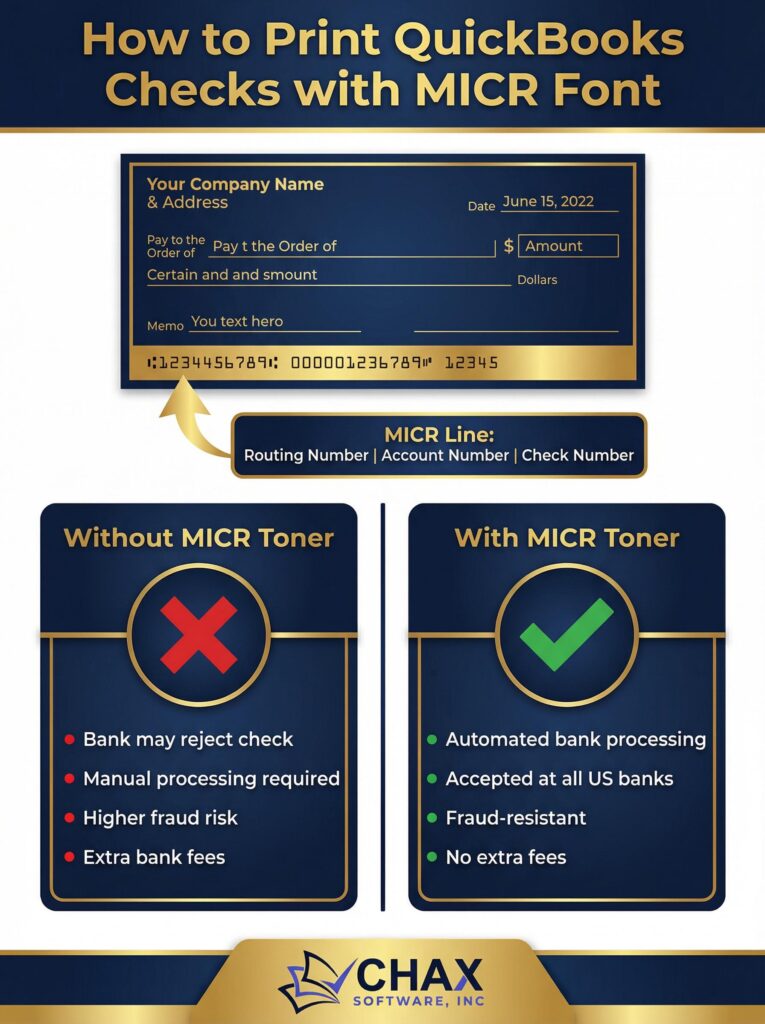
When you look at the bottom of any standard check, you see a line of oddly shaped numbers and symbols. This is the MICR line, and it’s the most critical component for automated bank processing. For businesses printing their own checks from QuickBooks, understanding and correctly implementing MICR is not just a best practice—it’s a necessity.
This guide explains what MICR is, why it’s essential, and how you can easily print fully compliant checks with a MICR font directly from your QuickBooks workflow.
What is MICR?
MICR stands for Magnetic Ink Character Recognition. It is a technology invented in the 1950s that allows bank sorting equipment to read information at very high speeds. The ink contains iron oxide, which gives it a unique magnetic signature that the machines can read.
The MICR line contains three key pieces of information:
1. Bank Routing Number: Identifies the financial institution.
2. Account Number: Identifies your specific account.
3. Check Number: Identifies the specific transaction.
Why You Absolutely Need to Print with MICR
Some businesses are tempted to save a few dollars by printing checks with a regular black toner cartridge, using a font that simply looks like the MICR font. This is a costly mistake for several reasons:
- Bank Rejection: Without the magnetic ink, automated sorting machines cannot read the check. This forces the bank to process it manually, a process known as “exception item handling.”
- Bank Fees: Banks charge significant fees for each check they have to handle manually. These fees, which can range from $25 to $50 per check*, are passed on to the account holder who issued the non-compliant check.
- Payment Delays: Manual processing slows down the entire payment clearing cycle. This can mean that your payments to vendors are delayed, potentially harming your business relationships.
- It Violates Banking Standards: The American National Standards Institute (ANSI) has specific standards for the character layout, spacing, and magnetic signal strength of the MICR line. Printing without proper MICR technology violates these standards.
How to Print MICR Checks from QuickBooks
Printing compliant MICR checks is a straightforward process that involves two key components outside of QuickBooks itself: a MICR toner cartridge and a dedicated check printing software.
Step 1: Get a MICR Toner Cartridge
This is the simplest step. You do not need a special printer. For your existing office laser printer, simply purchase a MICR toner cartridge instead of a regular one. They are designed as direct replacements and are widely available for all major printer brands like HP, Brother, and Lexmark.
Step 2: Use a Virtual Printer Software
While QuickBooks can print the check data, it does not have the built-in capability to properly format and print a compliant MICR line. For this, you need a virtual printer application like MultiCHAX.
This software integrates with QuickBooks and handles the technical aspects of MICR printing:
- E-13B Font: It uses the specific, legally mandated E-13B font for the MICR line.
- Precise Positioning: It places the MICR line in the exact location on the check as required by ANSI standards (the “clear band”).
- Data Integration: When you print from QuickBooks to the MultiCHAX virtual printer, it automatically pulls the routing, account, and check numbers and formats them perfectly into the MICR line.
The Workflow:
1. In QuickBooks, create your checks as usual.
2. Go to `File > Print Forms > Checks`.
3. Select the MultiCHAX virtual printer.
4. Click `Print`.
The software merges your QuickBooks data with a secure check template and sends the complete, MICR-compliant check to your laser printer loaded with MICR toner.
By investing in the right tools—a MICR toner cartridge and a reliable QuickBooks check printing software—you ensure that every check you print is professional, secure, and 100% bank compliant, saving you from costly fees and delays.