
How to Fix Check Printing Alignment Issues in QuickBooks Desktop for Good
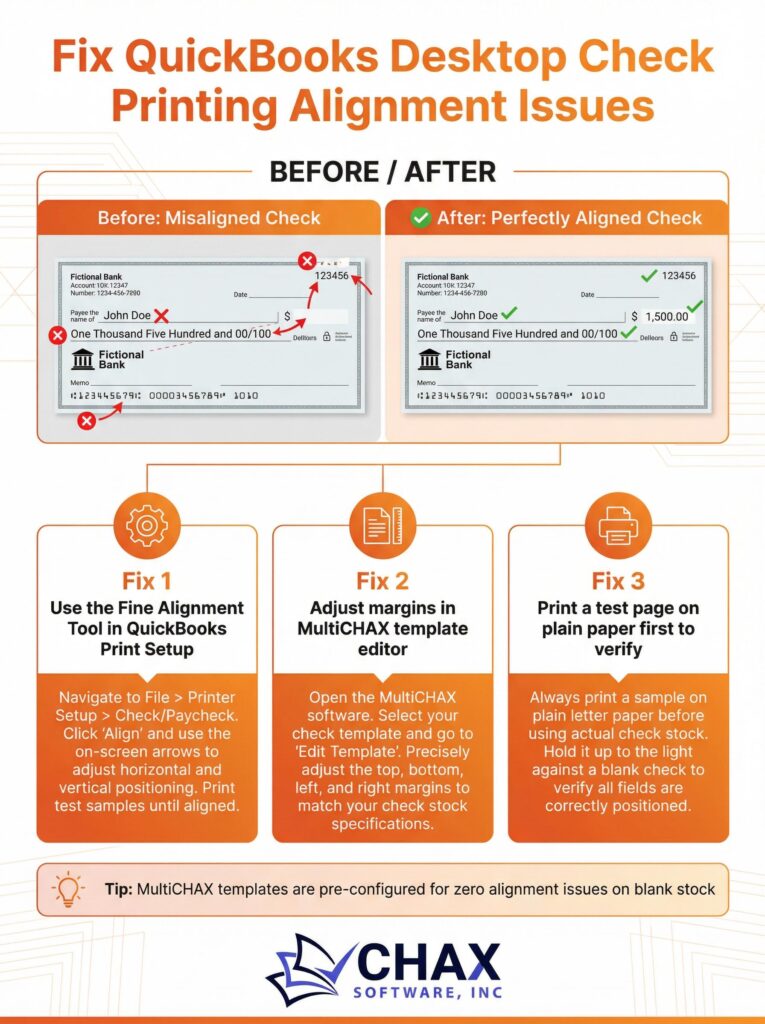
One of the most frustrating and persistent problems for QuickBooks Desktop users is check printing alignment. You hit ‘Print,’ and the dollar amount ends up in the memo line, the payee’s name is too high, or the MICR line is completely off. This not only wastes expensive pre-printed check stock but also consumes valuable time trying to manually adjust settings.
Fortunately, there is a permanent solution to this issue that moves beyond the finicky alignment tools within QuickBooks itself. This guide will explain why alignment issues happen and how to solve them for good.
Why Does QuickBooks Have Alignment Problems?
QuickBooks Desktop’s printing functionality was designed to work with a vast array of printers and check layouts. This one-size-fits-all approach often fails because:
- Printer Driver Variations: Every printer model has a slightly different driver, which interprets printing instructions in its own way. A small variance can cause significant alignment shifts.
- Check Stock Differences: Not all pre-printed check stock is created equal. The position of the fields can vary slightly from one manufacturer to another.
- Manual Adjustments are Tedious: The built-in QuickBooks alignment tool requires you to print a sample grid and then manually enter X/Y coordinate adjustments. This is a trial-and-error process that often needs to be repeated if you change printers or check stock.
The Permanent Solution: A Virtual Printer Driver
Instead of fighting with QuickBooks’ internal settings, the most reliable solution is to use a dedicated check printing software that acts as a virtual printer. Applications like MultiCHAX are designed specifically for this purpose.
Here’s how it solves the alignment problem:
1. It Bypasses QuickBooks’ Printer Engine: When you print from QuickBooks, you select the MultiCHAX virtual printer. The software captures the raw check data (payee, amount, date, etc.) before it gets formatted by QuickBooks’ problematic printing engine.
2. Pixel-Perfect Templates: The virtual printer software has its own template system. You drag and drop the check elements (Payee, Amount, Address, etc.) onto a visual representation of a check. You align it perfectly once, and it stays that way forever.
3. Printer Independence: Because the virtual printer handles the layout, it sends a perfectly formatted, standardized print job to your physical printer. This eliminates the inconsistencies caused by different printer drivers.
A Step-by-Step Guide to Perfect Alignment
Fixing your alignment issues for good is a straightforward process:
1. Install a Virtual Printer Application: Choose a robust QuickBooks check printing software like MultiCHAX and install it.
2. Create Your Check Template: In the software, create a new check layout. You will visually drag the check data fields to match the layout of your blank check stock. This one-time setup takes just a few minutes.
3. Print from QuickBooks: When you are ready to print, simply select the virtual printer (e.g., ‘MultiCHAX’) from your printer list in QuickBooks. The data is sent to the software, which applies your perfect template.
4. Print to Your Physical Printer: The software then sends the final, perfectly aligned check image to your office laser printer, which prints it onto blank check stock.
By taking the layout control away from QuickBooks and placing it in the hands of a specialized application, you eliminate the root cause of alignment errors. You save time, reduce wasted check stock, and create a more reliable and efficient accounts payable process.