
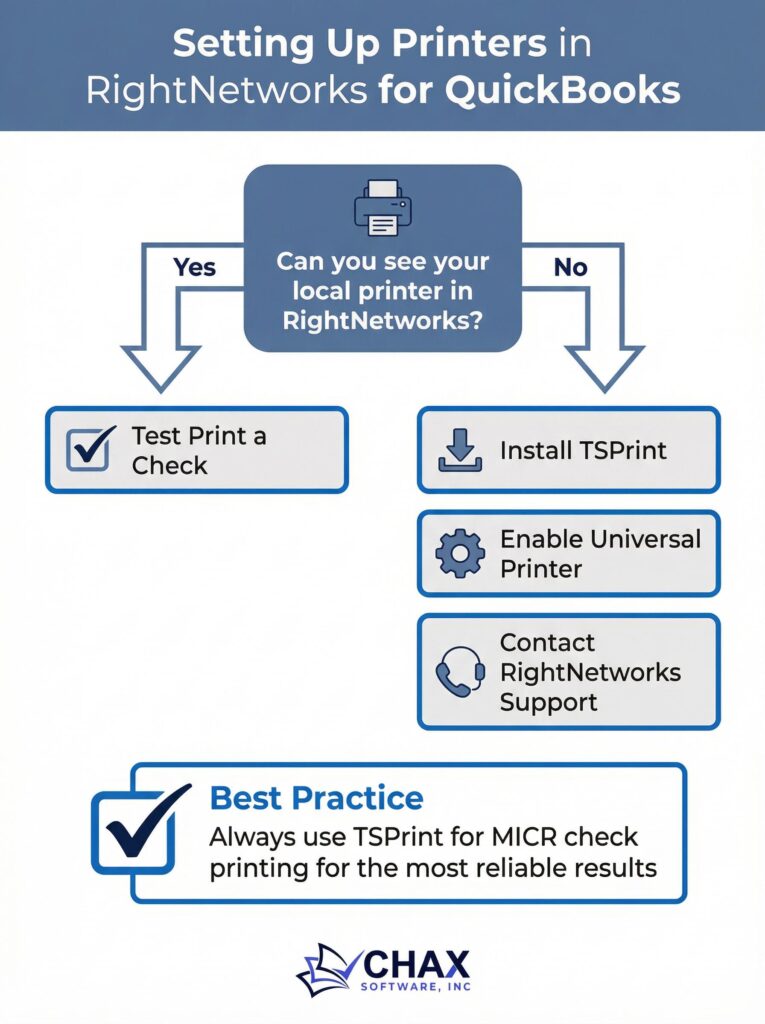
The Ultimate Guide to Setting Up Printers in RightNetworks for QuickBooks
Setting up a printer in a RightNetworks hosted environment can be one of the most confusing tasks for new users. Because your QuickBooks Desktop is running on a remote server, it can’t automatically see the printer sitting on your desk. The key to making it work is understanding and correctly using RightNetworks’ universal printing solution, TSPrint.
This definitive guide will walk you through the setup process, explain the different TSPrint options, and provide troubleshooting tips for a seamless printing experience.
How Printing Works on RightNetworks: An Overview
RightNetworks uses a technology called printer redirection. It works by installing a “virtual” printer on your remote desktop. When you print to this virtual printer, the print job is securely transmitted to your local computer and then directed to your physical printer. This avoids the need to install specific, and often incompatible, printer drivers on the RightNetworks server.
The software that powers this is called TSPrint.
Step 1: Install the TSPrint Client on Your Local Computer
This is the most important step. The system will not work without it. Before you even log into RightNetworks, you must download and install the TSPrint client on the local computer that your printer is connected to. You can find the installer on the RightNetworks support website. The installation is quick and straightforward.
Step 2: Understanding Your Printer Options in RightNetworks
Once you log into your RightNetworks hosted desktop, you will see several printers available in any print dialog. The ones you need to know are:
- TSPrint Default: This is the most commonly used option. It will automatically send your print job to whatever printer is set as the “default” on your local computer. It’s the fastest and simplest choice.
- TSPrint Printer: If you select this option, a dialog box will pop up on your local computer after* you click print, allowing you to choose any of the printers installed on your local machine. This is useful if you need to switch between, for example, a laser printer for checks and an inkjet for reports.
- TSPrint PDF: This option doesn’t print to a physical printer. Instead, it generates a PDF of the document and automatically opens it on your local computer, allowing you to save it or email it.
Step 3: Configuring Your Printer in QuickBooks
For the most common printing tasks in QuickBooks, like printing invoices, reports, or checks, it’s best to set the default printer for each form type.
1. In your hosted QuickBooks, go to `File > Printer Setup`.
2. From the `Form Name` dropdown, select the form you want to configure (e.g., `Invoice`, `Report`, or `Check/Paycheck`).
3. In the `Printer name` dropdown, select `TSPrint Default`.
4. Click `OK`.
Repeat this for each form type you regularly print. This ensures that QuickBooks will always use the correct redirection printer, saving you a step every time you print.
The Special Case: Check Printing
While the above steps work perfectly for standard documents, check printing requires an extra layer of precision for alignment and MICR compliance. For this, the best practice is to use a dedicated check printing software that acts as a second virtual printer within the RightNetworks environment.
The workflow is:
1. QuickBooks prints to MultiCHAX: You select the MultiCHAX virtual printer inside QuickBooks.
2. MultiCHAX prints to TSPrint: The MultiCHAX software formats the check with the MICR line and signature, and then sends the job to the `TSPrint Default` printer.
3. TSPrint prints to your local printer: TSPrint redirects the final, perfect check image to your local office printer.
Troubleshooting Common Issues
- Printer Not Showing Up: This is almost always because the TSPrint client is not installed or running on your local computer. Log out of RightNetworks, install the client, and log back in.
- Printing is Slow: Large print jobs, especially graphics-heavy reports, can be slow as they have to be transmitted over the internet. There is not much to be done about this, as it is dependent on your internet connection speed.
- Alignment is Off: This is a QuickBooks issue, not a RightNetworks or TSPrint issue. The best solution is to use a check printing software like MultiCHAX to control the layout, as described above.
By following these steps, you can master the RightNetworks printing setup and create an efficient workflow for all your QuickBooks printing needs.