
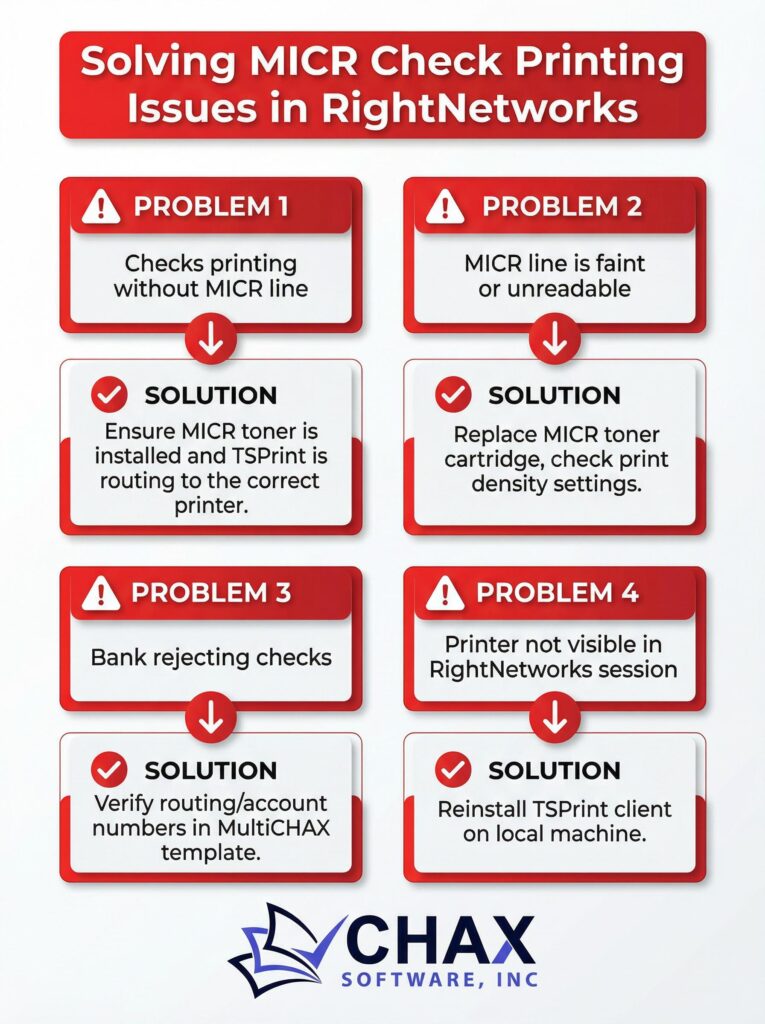
Solving MICR Check Printing Issues in a RightNetworks Hosted Environment
Printing bank-compliant checks from a RightNetworks hosted QuickBooks requires one critical component: MICR, or Magnetic Ink Character Recognition. This special ink allows banks to automatically process your checks. However, getting a clean, readable MICR line printed from a remote server to your local printer can be challenging. Many users find that their checks are rejected by the bank, leading to costly fees and payment delays.
This guide will diagnose the common causes of MICR printing failures in a RightNetworks environment and provide a clear, best-practice solution.
Why MICR Printing Fails in a Hosted Environment
The problem almost always stems from a breakdown in the complex chain of communication between the remote server and your local printer. Here are the most common failure points:
1. Font Substitution or Corruption: The MICR font (E-13B) is highly specific. As the print job is passed from QuickBooks to the server’s printing subsystem, then to the TSPrint redirection software, and finally to your local printer driver, the font can sometimes be substituted for a generic font like Arial or Times New Roman. The characters might look similar, but they lack the precise dimensions required for machine reading.
2. Incorrect Formatting by QuickBooks: QuickBooks’ own printing engine is notoriously finicky. It can introduce small alignment errors or character spacing issues that, while invisible to the naked eye, are enough to make the MICR line unreadable by bank equipment.
3. Using a Non-MICR Toner Cartridge: This is the most basic issue. Even if the font and formatting are perfect, if you are not using a toner cartridge with magnetic ink, the check will be rejected. You must have a MICR toner cartridge in your local laser printer.
The Wrong Solution: Trying to Print MICR Directly from QuickBooks
Many users attempt to solve this by installing a MICR font on their local computer and in the RightNetworks environment, and then trying to configure QuickBooks to use it. This approach is unreliable and prone to failure because it doesn’t address the root causes of font substitution and formatting errors within the QuickBooks printing engine.
The Right Solution: A Layered Virtual Printer Approach
The most robust and reliable method is to take the formatting of the MICR line completely out of QuickBooks’ hands. This is achieved by using a dedicated check printing software that acts as a virtual printer inside the RightNetworks environment.
Here is the correct, best-practice workflow:
Step 1: Install a Virtual Check Printer on the Server
Work with RightNetworks support to install an application like MultiCHAX on your hosted desktop. This software is designed to do one thing perfectly: create 100% bank-compliant check layouts.
Step 2: Configure Your Check Template in the Software
Within MultiCHAX, you will set up your bank account. The software handles the creation of the MICR line automatically, using its own built-in, perfectly formed E-13B font. It is not relying on any fonts installed in the Windows environment, which is key to its reliability.
Step 3: Print from QuickBooks to the Virtual Check Printer
When you print your checks from QuickBooks, you do not select TSPrint or any other printer. You select the MultiCHAX virtual printer. QuickBooks sends the raw check data (payee, amount, etc.) to the software.
Step 4: The Software Sends a Perfect Image to TSPrint
MultiCHAX takes the raw data and merges it with your secure check template. It generates a perfect, complete image of the check, including a flawless MICR line. This image is then sent to the TSPrint Default printer.
Step 5: TSPrint Delivers the Job to Your Local Printer
TSPrint redirects the finalized check image to your local printer, which simply has to print the image it receives. There is no font to substitute or format to corrupt. Your local printer, loaded with its MICR toner cartridge, prints a perfect check every time.
By using this layered approach, you isolate each part of the process. QuickBooks manages the accounting data, MultiCHAX manages the sensitive check layout and MICR formatting, and TSPrint manages the secure transport from the remote server to your local printer. This division of labor is the key to solving MICR printing issues in a hosted environment for good.