
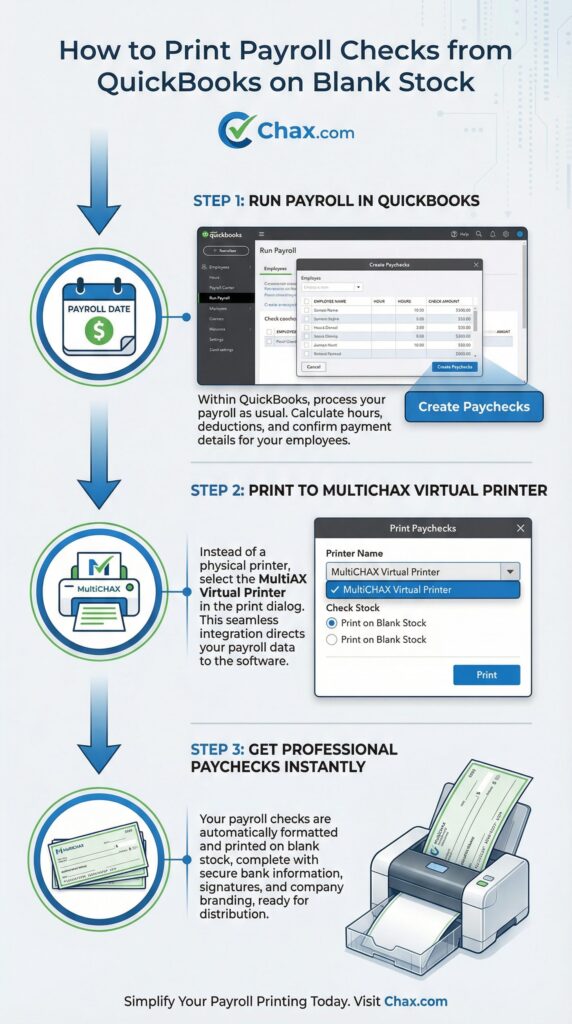
”’
How to Print Payroll Checks on Blank Stock from QuickBooks (Desktop and Online)
Published: July 16, 2026 | Author: Chax.com Team | Category: Accounting Software Integration
Running payroll is one of the most critical functions in any business. For the millions of small businesses that rely on QuickBooks for this task, the process is streamlined and efficient. However, when it comes time to print the actual paychecks, many are still stuck buying expensive, pre-printed payroll check stock from Intuit.
This is an unnecessary cost. By using MultiCHAX, you can print your QuickBooks payroll checks—complete with the pay stub—on secure, affordable blank check stock. The process is simple, secure, and works for both QuickBooks Desktop and QuickBooks Online.
The Advantage of Blank Stock for Payroll
- Significant Cost Reduction: Blank payroll check stock (typically with one check on top and two stubs below) is far cheaper than its pre-printed equivalent.
- Enhanced Security: A stolen stack of blank checks is just paper. A stolen stack of pre-printed checks is a direct line to your payroll account.
- Simplified Inventory: You only need one type of blank check stock, even if you have multiple company bank accounts.
How to Print Payroll Checks from QuickBooks on Blank Stock
The process is incredibly straightforward, especially for QuickBooks Desktop users, thanks to MultiCHAX’s virtual printer technology.
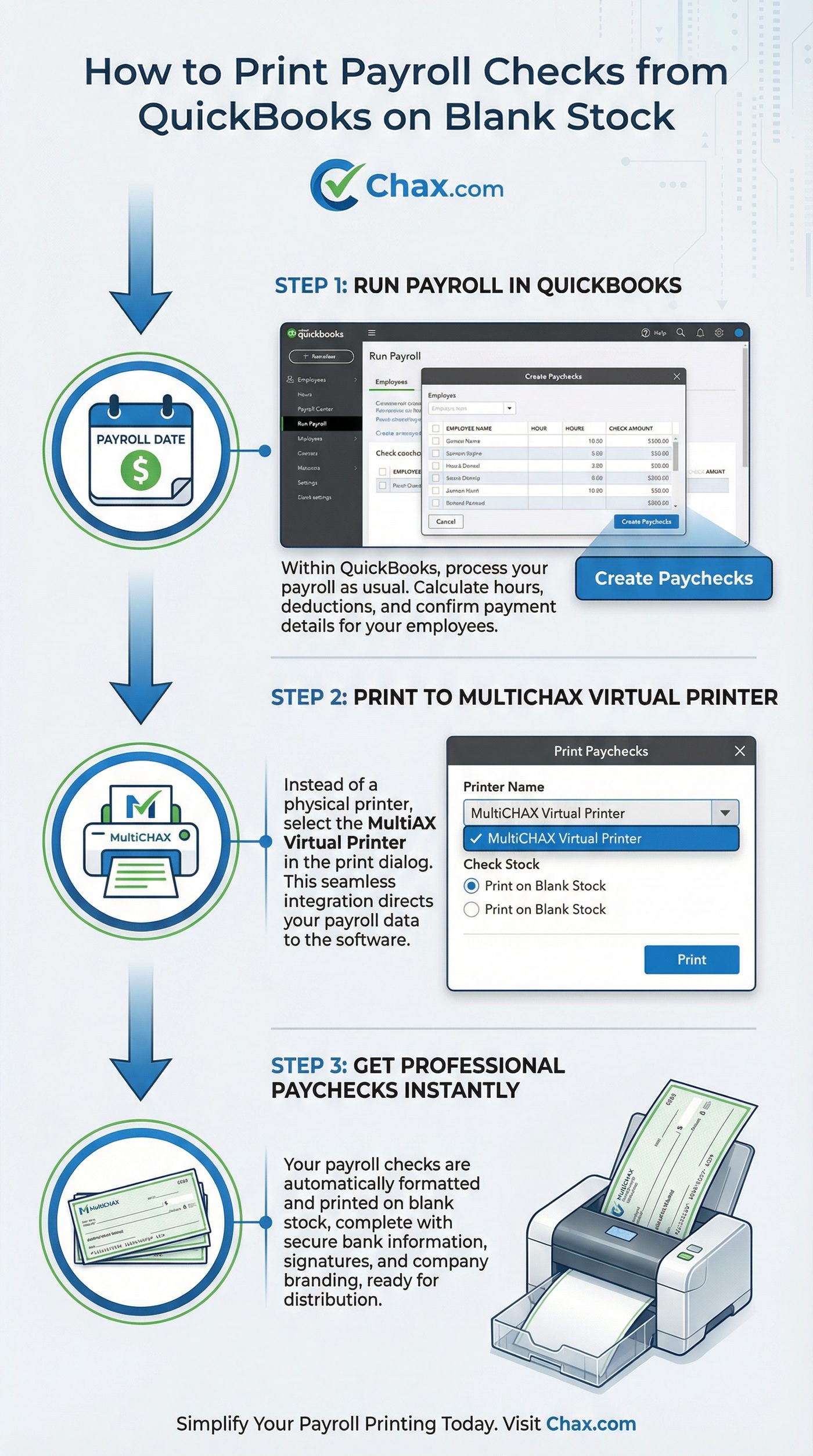
Step 1: Run Payroll in QuickBooks as Usual
There is no change to your existing payroll workflow inside QuickBooks. You will continue to:
- Enter employee hours.
- Let QuickBooks calculate wages, taxes, and deductions.
- Approve the payroll run to create the paychecks.
Step 2: Print to the MultiCHAX Virtual Printer
This is the only step that changes. When you are ready to print your paychecks:
- In QuickBooks, go to File > Print Forms > Paychecks.
- Select the paychecks you want to print.
- In the “Print Paychecks” dialog box, you will see a “Printer” selection dropdown.
- Instead of your physical office printer, select the “MultiCHAX Virtual Printer” from the list.
- Click Print.
Step 3: Get Professional Paychecks Instantly
MultiCHAX works its magic in the background. It captures the entire print job from QuickBooks—including the employee, wage, deduction, and net pay information on the pay stub—and formats it perfectly onto your blank check stock.
The final output is sent to your physical printer, and you get a stack of professional, secure paychecks, ready for distribution. The check portion includes the bank-compliant MICR line, your company logo, and digital signatures, while the stubs contain all the detailed payroll information your employees need.
What About QuickBooks Online Payroll?
The same process described in our QuickBooks Online guide applies to payroll. You will:
- Run your payroll in QBO.
- Export the paycheck data as a .CSV or .QIF file.
- Import that file into MultiCHAX.
- Print the complete paychecks on your blank check stock.
While it involves one extra step (the export/import), it provides the same significant cost savings and security benefits.
A Smarter Way to Pay Your Team
Your employees are your most valuable asset. Paying them should be a process that is secure, professional, and cost-effective. By combining the power of QuickBooks Payroll with the flexibility and economy of MultiCHAX, you can achieve all three.
Stop overpaying for pre-printed payroll checks. Make the switch to a more modern and efficient system.
Learn more about MultiCHAX and download a free trial to test with your QuickBooks Payroll today.
”’)))))}])