
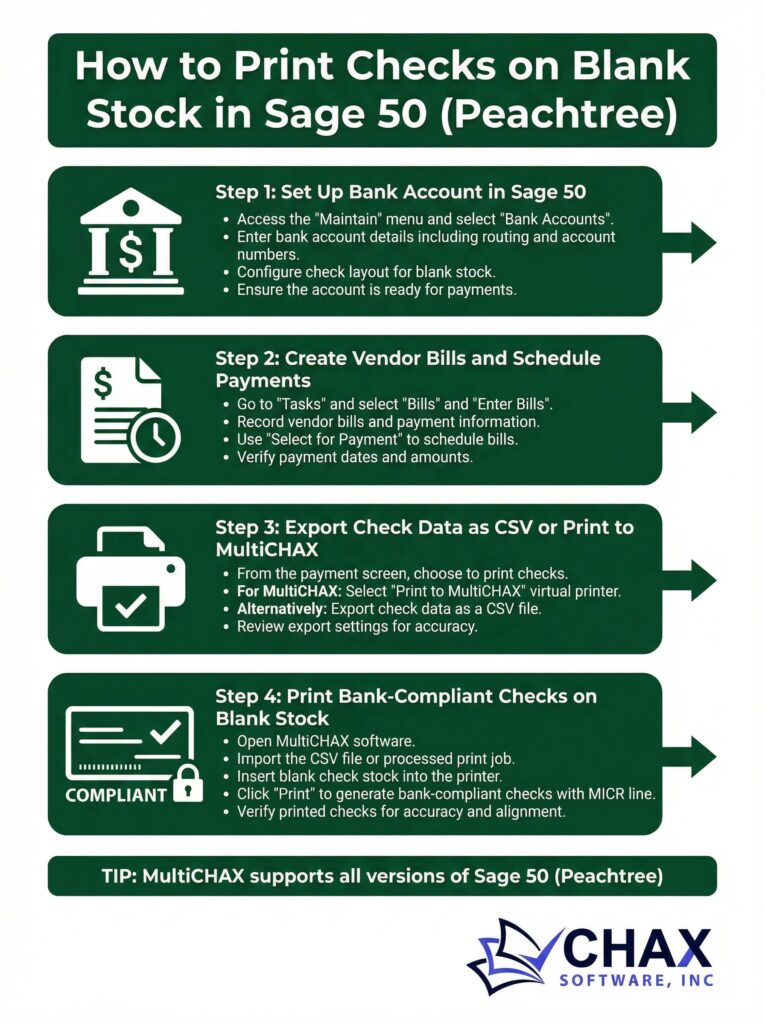
How to Print Checks on Blank Stock in Sage 50 (Peachtree)
Sage 50, formerly known as Peachtree, is a powerful accounting solution for small to medium-sized businesses. While it has robust financial management capabilities, its built-in check printing function is primarily designed for expensive, pre-printed check stock. However, businesses can unlock significant cost savings, security, and efficiency by switching to a workflow that allows them to print on blank check stock.
This guide will explain how to bypass Sage 50’s limitations and implement a modern check printing process.
The Challenge with Sage 50’s Default Printing
Like many accounting platforms, Sage 50’s native check printing module is not optimized for blank stock. It lacks the essential features required for creating a full, bank-compliant check from scratch, such as:
- MICR Font Creation: It cannot generate the special E-13B MICR font required for automated bank processing.
- Flexible Layout Control: It doesn’t have the sophisticated layout tools needed to precisely place all the check elements (payee, amount, MICR line, signature) onto a blank page.
- Bank Account Flexibility: Managing multiple bank accounts often requires complex and cumbersome setup within the Sage 50 environment.
The Solution: A Universal Virtual Printer
The most effective way to print from Sage 50 onto blank stock is to use a universal check printing software that functions as a virtual printer. An application like MultiCHAX is designed to work with virtually any Windows-based accounting program, including Sage 50.
Here’s how this workflow overcomes Sage 50’s limitations:
1. It Captures Print Data: When you print a check run from Sage 50, you select the MultiCHAX virtual printer instead of your physical office printer. The software intercepts the data—payee, amount, address, etc.—that Sage 50 sends.
2. It Applies a Secure Template: The MultiCHAX software then merges this captured data with a pre-configured, secure check template. This template contains all the static information, such as your company details, bank logo, and the critical MICR line data for your bank account.
3. It Prints a Complete Check: The software sends the final, complete check image to your laser printer (loaded with a MICR toner cartridge) to be printed on blank check stock.
Step-by-Step Guide for Sage 50 Users
Step 1: Install and Configure Your Check Printing Software
First, install an application like MultiCHAX on your computer. The initial setup involves creating a check template for each of your bank accounts. You will enter your bank routing number, account number, and company information. You can also add a digital signature file for automated signing, which you should password-protect for security.
Step 2: Set the Printer in Sage 50
Open Sage 50 and navigate to the printer setup for checks. This is typically found under `Reports & Forms > Forms > Checks`. In the printer settings for your check form, select the MultiCHAX virtual printer as the designated printer.
Step 3: Run Your Check Payments as Usual
There is no need to change your accounts payable process within Sage 50. You will continue to select bills for payment and enter payments as you normally do. When you are ready to print, simply execute the print command.
Step 4: Print from Sage 50
When you initiate the print job, Sage 50 will send it to the MultiCHAX virtual printer. The software will automatically apply the correct template, format the MICR line, and print a perfect, bank-compliant check to your laser printer.
By using a virtual printer, you are not limited by Sage 50’s native capabilities. You gain a modern, secure, and highly cost-effective check printing system that works seamlessly with your existing accounting workflow. This method allows you to take advantage of the significant cost savings of blank check stock while enhancing the security and efficiency of your entire payment process.