
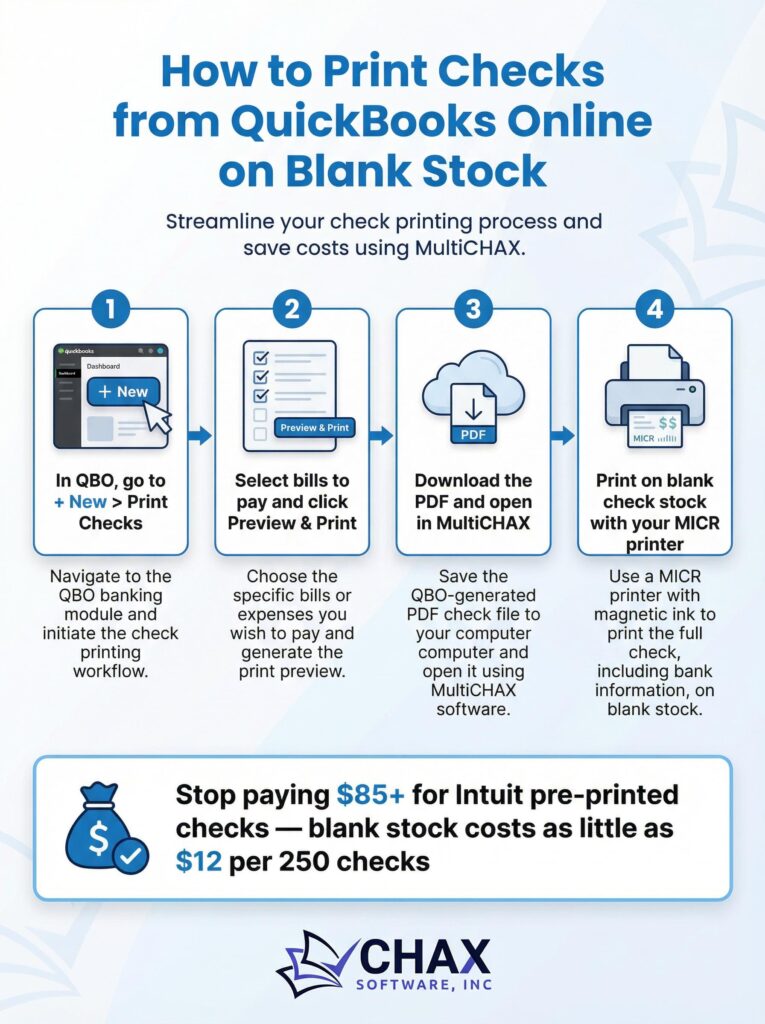
How to Print Checks from QuickBooks Online on Blank Check Stock (The Easy Way)
QuickBooks Online (QBO) has revolutionized accounting for small businesses with its cloud-based accessibility. However, one area that remains surprisingly old-fashioned and expensive is check printing. The default QBO method pushes users to buy high-priced, pre-printed checks from Intuit. But there’s a smarter, more affordable, and secure way: printing your QBO checks on blank check stock.
This guide will show you the easy way to break free from pre-printed checks and streamline your accounts payable process.
The Problem with Ordering Checks from Intuit
While convenient, ordering checks directly through QuickBooks Online has several major drawbacks:
- High Cost: Pre-printed checks are expensive, often costing upwards of $0.70 per check. This is a significant and unnecessary expense for any business.
- Security Risks: Your company’s sensitive banking information is printed on every single check. If a box of checks is lost or stolen, your account is compromised.
- Inflexibility: If you have multiple bank accounts, you need to manage multiple sets of expensive checkbooks. This is inefficient and clutters your office.
The Solution: Third-Party Integration for Blank Stock Printing
The best way to print checks from QuickBooks Online is to use a third-party application that specializes in check printing. These apps integrate with your QBO account and allow you to print fully compliant checks on inexpensive, blank check stock.
While some apps like OnlineCheckWriter.com offer this service, they often come with monthly subscription fees. For businesses looking for a solution with no recurring costs, a desktop-based virtual printer like MultiCHAX offers a powerful alternative.
How It Works: The QBO to Desktop Workflow
This workflow combines the cloud convenience of QBO with the secure printing power of a desktop application.
Step 1: Export Your Check Data from QuickBooks Online
QuickBooks Online doesn’t allow direct printing to a virtual printer in the same way the Desktop version does. Therefore, the first step is to export the payment data. You can do this by running a report of the bills you need to pay and exporting it as a CSV file. This file will contain all the necessary information: payee names, amounts, and memo lines.
Step 2: Set Up Your Check Printing Software
On your local computer, install a robust check printing application like MultiCHAX. In the software, you will create a template for your bank account, which includes your company details, bank information, and the MICR line data. This is a one-time setup.
Step 3: Import the Data and Print
Most professional check printing software includes a bulk import feature. You simply import the CSV file you exported from QBO. The software will automatically populate the check templates with the data from the file, creating hundreds of checks in seconds.
With a single click, you can then print the entire batch to your laser printer, which should be loaded with blank check stock and a MICR toner cartridge for bank compliance.
Why This Method is Superior
This hybrid cloud-to-desktop approach provides the best of both worlds:
- Massive Cost Savings: You get the 80%+ cost reduction of using blank check stock without being tied to a monthly SaaS subscription.
- Unmatched Security: Your banking information is never stored in the cloud or on pre-printed paper. It’s added at the moment of printing in your secure office environment.
- Powerful Batch Processing: This workflow is ideal for businesses that run large check batches (e.g., weekly vendor payments or payroll), as it’s much faster than printing checks one by one.
By optimizing your QuickBooks check printing workflow, you can significantly cut costs, enhance security, and improve your operational efficiency.