
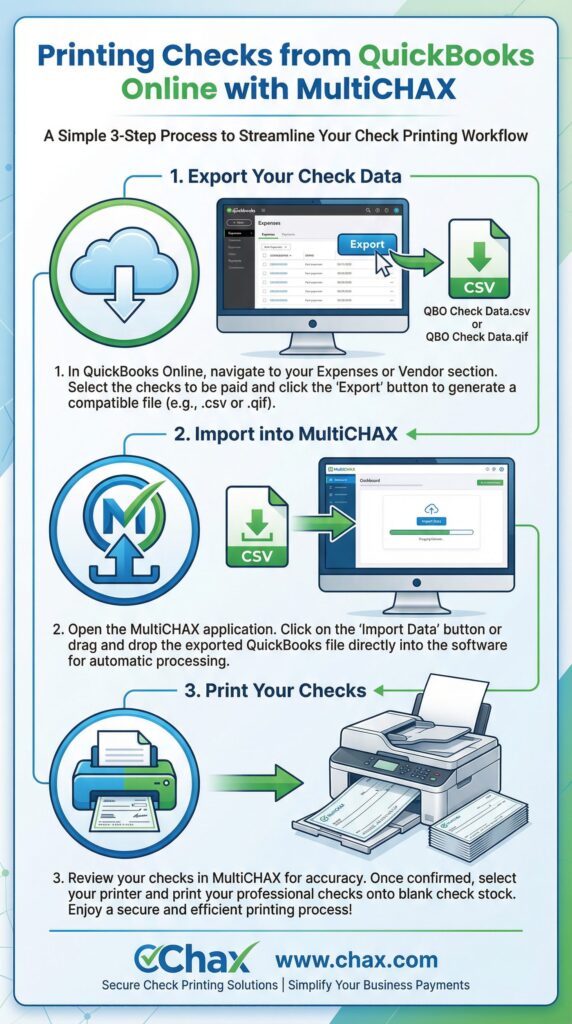
”’
How to Print Checks from QuickBooks Online on Blank Check Stock
Published: May 21, 2026 | Author: Chax.com Team | Category: Accounting Software Integration
QuickBooks Online (QBO) has revolutionized how small businesses manage their finances, offering the flexibility to run your books from anywhere. However, when it comes to printing checks, many QBO users still find themselves tethered to expensive, pre-printed check stock from Intuit. This not only inflates costs but also offers less security and flexibility.
There is a more efficient and affordable way: using MultiCHAX to print your QBO checks on completely blank check stock. While the integration is not as direct as with QuickBooks Desktop, the process is simple and opens the door to significant cost savings and enhanced security. This guide will show you how.
Why Not Print Directly from QBO?
QuickBooks Online’s built-in check printing function is designed to work with pre-printed checks where your bank account information is already visible. This forces you to buy expensive, vendor-specific check stock. MultiCHAX liberates you from this by allowing you to use secure, inexpensive blank stock, printing all the check elements—including the MICR line—in a single pass.
Printing Checks from QuickBooks Online with MultiCHAX
Because QBO is a cloud-based platform, the process involves a simple export-and-import workflow. It’s fast, secure, and easy to master.
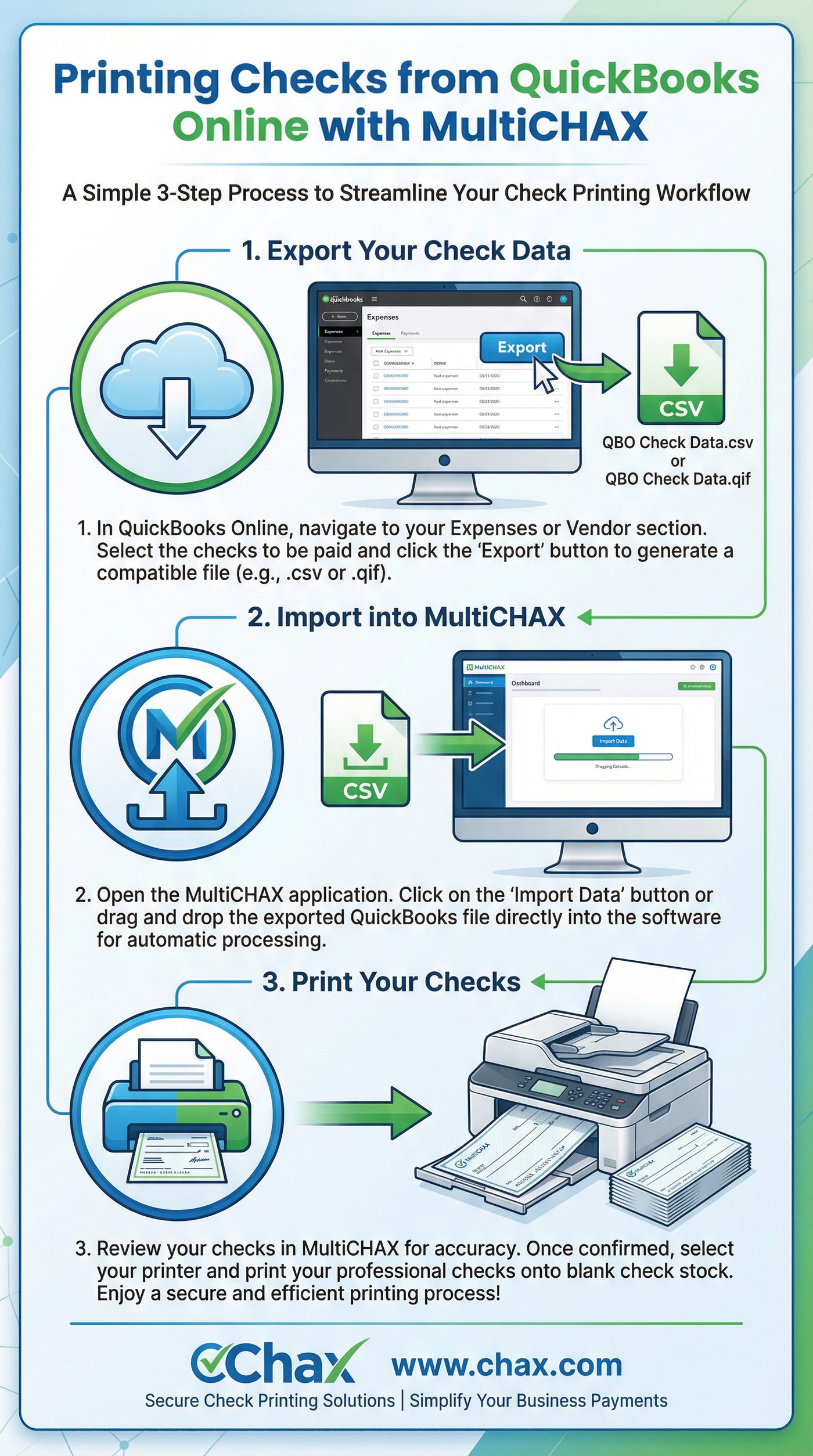
Step 1: Export Your Check Data from QuickBooks Online
First, you need to get your payment information out of QBO in a format that MultiCHAX can read.
- Log in to your QuickBooks Online account.
- Navigate to the section where you manage your expenses or vendor payments.
- Select the bills you want to pay by check.
- Instead of clicking “Print,” look for an Export option. You can typically export your data as a .CSV or .QIF file. Both formats work with MultiCHAX.
- Save the exported file to a known location on your computer, such as your Desktop or a dedicated “Check Runs” folder.
Step 2: Import the Data into MultiCHAX
Next, you will feed this data into the MultiCHAX software.
- Open the MultiCHAX application on your computer.
- In the main menu, find and click the Import Data button.
- Select the .CSV or .QIF file you just exported from QuickBooks Online.
- MultiCHAX will automatically parse the file, extracting the payee, amount, date, and memo for each check. You will see a preview of the checks to be printed.
Step 3: Print Your Professional Checks
Now for the final step.
- Review the imported checks in the MultiCHAX preview window to ensure accuracy.
- Load your blank check stock into your printer.
- Select your printer from the dropdown menu within MultiCHAX.
- Click Print.
MultiCHAX will print your checks, complete with your company logo, bank information, a secure MICR line, and even a digital signature if you’ve configured one. The result is a batch of professional, bank-compliant checks, printed for a fraction of the cost of using pre-printed stock.
The Benefits of this Workflow
- Massive Cost Savings: Blank check stock can be up to 80% cheaper than pre-printed checks.
- Enhanced Security: Your blank check stock contains no sensitive bank information, making it useless to thieves.
- Flexibility: Do you have multiple bank accounts? Simply select the desired account within MultiCHAX before printing. No need to switch check stock.
- Batch Processing: This export-import method is incredibly efficient for printing dozens or even hundreds of checks at once.
Is This the Right Method for You?
This workflow is perfect for QuickBooks Online users who:
- Process more than a handful of checks each month.
- Want to significantly reduce their check printing costs.
- Manage multiple bank accounts.
- Prioritize security in their accounts payable process.
For businesses that are still using QuickBooks Desktop, the process is even simpler, as MultiCHAX integrates directly as a virtual printer. You can read our guide for QuickBooks Desktop here.
Make the Switch Today
Don’t let the limitations of QuickBooks Online’s default printing options lock you into an expensive and insecure workflow. By pairing QBO with MultiCHAX, you can create a powerful, efficient, and affordable check printing system.
Download your free trial of MultiCHAX and discover the freedom of printing on blank check stock.
”’))ete_check_printing_process.
Download your free trial of MultiCHAX and discover the freedom of printing on blank check stock.