
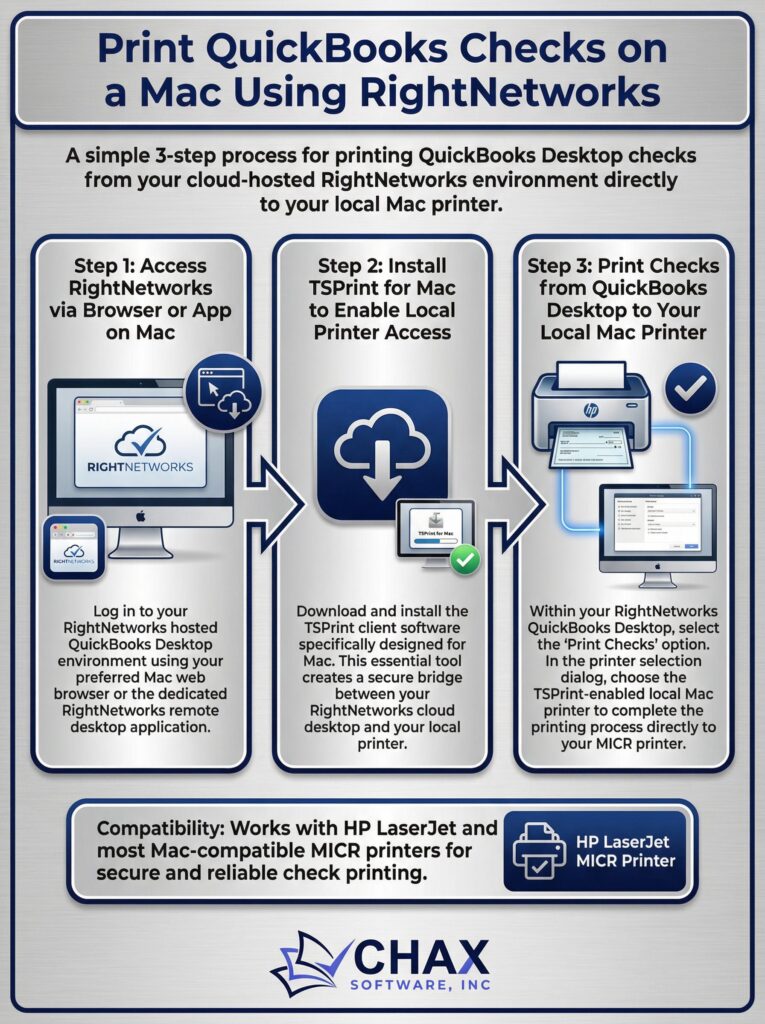
How to Print Checks from QuickBooks on a Mac Using RightNetworks
One of the great advantages of using RightNetworks to host your QuickBooks Desktop is that it allows Mac users to access the full-featured Windows version of the software. However, this cross-platform environment can create confusion when it comes to a fundamental task: printing checks.
If you are a Mac user accessing QuickBooks via RightNetworks, this guide will show you exactly how to set up your system to print checks seamlessly to your local printer.
The Technology Bridge: Microsoft Remote Desktop and TSPrint
The entire system works through two key pieces of software:
1. Microsoft Remote Desktop for Mac: This is the application you use to connect to your RightNetworks hosted desktop. It is the window from your Mac into the Windows world where QuickBooks lives.
2. TSPrint: This is the universal printing software used by RightNetworks. It creates a virtual printer on the remote Windows server that redirects print jobs back to your Mac.
Step 1: Install the Necessary Software on Your Mac
Before you begin, ensure you have two applications installed on your Mac:
- Microsoft Remote Desktop: Download this for free from the Mac App Store.
- TSPrint Client for Mac: Download this from the RightNetworks support website. It is essential for enabling the printer redirection.
Step 2: Configure Printer Redirection in Microsoft Remote Desktop
This is a critical step. You need to tell the Microsoft Remote Desktop app that you want to allow it to access your local printers.
1. Open the Microsoft Remote Desktop app on your Mac.
2. Do not connect yet. Select your RightNetworks connection and click the Edit button (it looks like a pencil icon).
3. In the edit window, go to the Devices & Audio tab.
4. Check the box that says Printers.
5. Click Save.
By enabling this setting, you are giving permission for the remote server to see the virtual printer created by the TSPrint client on your Mac.
Step 3: Printing a Standard Document
Now, connect to your RightNetworks desktop. Open any application (like Notepad) and try to print. In the print dialog, you should see the “TSPrint Default” printer. Select it and click Print. The document should print to the default printer connected to your Mac.
Step 4: The Best-Practice Workflow for Printing Checks
While the above method works for simple documents, printing checks requires higher precision for alignment and MICR compliance. For this, a layered approach using a dedicated check printing software is the most reliable solution.
Here is the recommended workflow for Mac users:
1. Install MultiCHAX on the Server: Have the RightNetworks support team install a virtual printer application like MultiCHAX on your hosted Windows desktop.
2. Print from QuickBooks to MultiCHAX: Inside your hosted QuickBooks, when you are ready to print checks, select the MultiCHAX virtual printer. This software will handle the complex layout and MICR formatting, which QuickBooks itself struggles with.
3. MultiCHAX Prints to TSPrint: The MultiCHAX software then sends the perfectly formatted check image to the TSPrint Default printer.
4. TSPrint Redirects to Your Mac: The TSPrint software on the server sends the print job to the TSPrint client on your Mac.
5. Your Mac Prints the Check: The TSPrint client sends the final job to your default local printer (which should be a laser printer loaded with a MICR toner cartridge and blank check stock).
This ensures that the sensitive formatting of the check is handled within the controlled Windows environment by a specialized application, and only the final, perfect image is sent to your Mac for printing. This method avoids all the common cross-platform font and driver issues, guaranteeing a bank-compliant check every time.
By following this setup, Mac users can enjoy the full power of QuickBooks Desktop on RightNetworks without any of the usual printing headaches.