
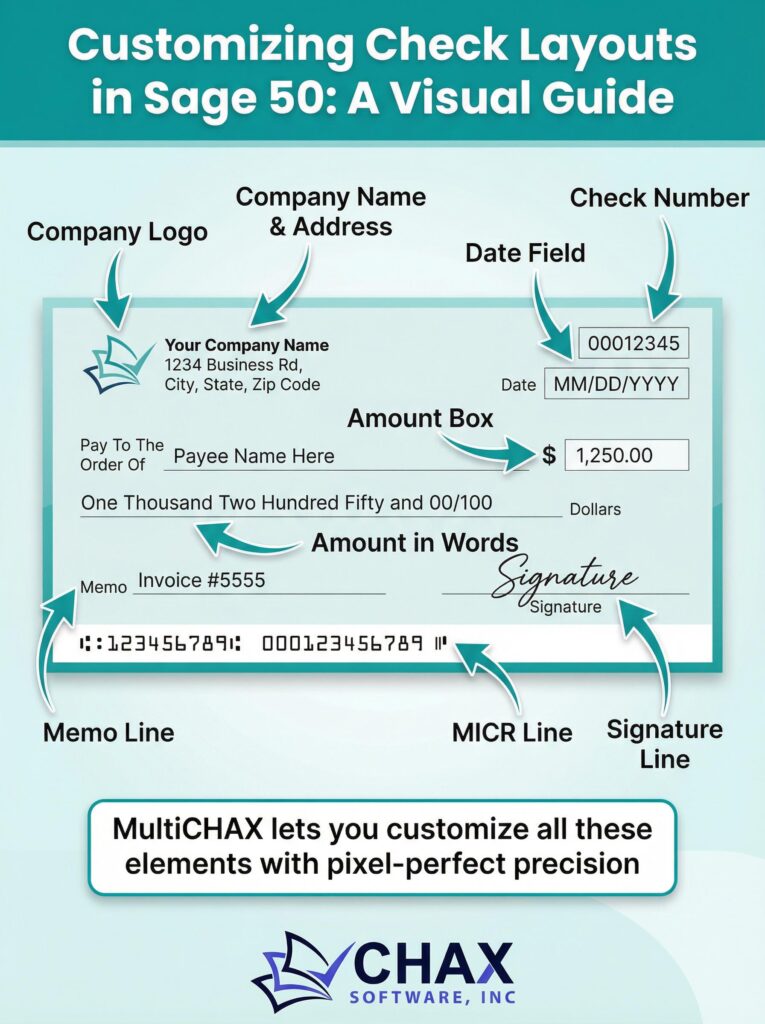
Customizing Check Layouts in Sage 50: A Complete Guide
One of the strengths of Sage 50 is its ability to customize forms and reports. However, when it comes to check layouts, many users find the process to be rigid and confusing, especially when trying to align pre-printed checks or add new elements. While Sage 50’s internal designer has its limits, you can gain complete control over your check layout by using an external virtual printing solution.
This guide will cover both the native Sage 50 method and the far more flexible third-party software approach.
Method 1: Using the Sage 50 Forms Designer
Sage 50 has a built-in forms designer that allows for basic customizations. You can access it by going to `Reports & Forms > Forms`, selecting your check form, and clicking the `Customize` button.
What You Can Do:
- Move and Resize Fields: You can select data fields (like the date, payee name, and amount) and move them around or resize them. This is the primary tool for trying to fix alignment issues with pre-printed checks.
- Add Text and Images: You can add static text boxes or import a company logo image file to be printed on the check.
The Limitations:
- No MICR Control: You cannot create or edit the MICR line. The designer assumes this is already on your pre-printed stock.
- Rigid Structure: The designer is not a free-form canvas. You are largely limited to the existing data blocks and cannot fundamentally change the check’s structure.
- Alignment is Trial-and-Error: Aligning checks by moving fields in the designer is a tedious process of printing a sample, measuring the difference, making a small adjustment in the designer, and repeating until it’s correct. This process often has to be redone for a new printer.
Method 2: The Superior Approach – A Virtual Check Printing Software
For true customization and the ability to use secure, blank check stock, the best solution is to use a virtual printer application like MultiCHAX. This software bypasses Sage 50’s forms designer entirely and gives you a powerful, drag-and-drop interface to build your perfect check from scratch.
How It Works:
Instead of customizing the form inside Sage 50, you print to the MultiCHAX virtual printer. The software captures the raw data and allows you to format it in any way you choose.
The Advantages of a Virtual Printer for Layouts:
- Complete Flexibility: You get a blank canvas where you can place any data field anywhere you want. You can design top-of-page (voucher), middle-of-page, or three-per-page check layouts with ease.
- Full MICR Control: The software generates the bank-compliant MICR line for you, placing it in the precise location required by banking standards.
- Easy Digital Signatures: You can import a signature image file, place it on the signature line, and password-protect it for security—a feature not available in Sage 50’s designer.
- One-Time Setup: Once you design your check template in the software, it works perfectly every time, regardless of which printer you use. The software handles the printer communication, eliminating alignment issues.
- Use Blank Stock: This is the biggest advantage. Because you are designing the entire check, you no longer need expensive pre-printed stock. You can use secure, inexpensive blank check paper, saving up to 80% on costs.
Recommended Workflow
1. Install MultiCHAX: Set up the software and create a new check template for your bank account.
2. Design Your Perfect Check: In the MultiCHAX visual designer, drag and drop the fields (Payee, Amount, Address Block, MICR Line, Signature) to your desired positions. Add your company logo.
3. Set the Printer in Sage 50: In Sage 50’s check printing settings, choose the MultiCHAX virtual printer as your default.
4. Print: When you print from Sage 50, the data is sent to MultiCHAX, which applies your custom layout and prints a perfect check every time.
While Sage 50’s internal designer can be useful for minor tweaks to reports, it is not the right tool for modern, secure check printing. For complete control over your check layout and to unlock the massive cost savings of blank check stock, a dedicated check printing software is the essential tool for any Sage 50 user.