
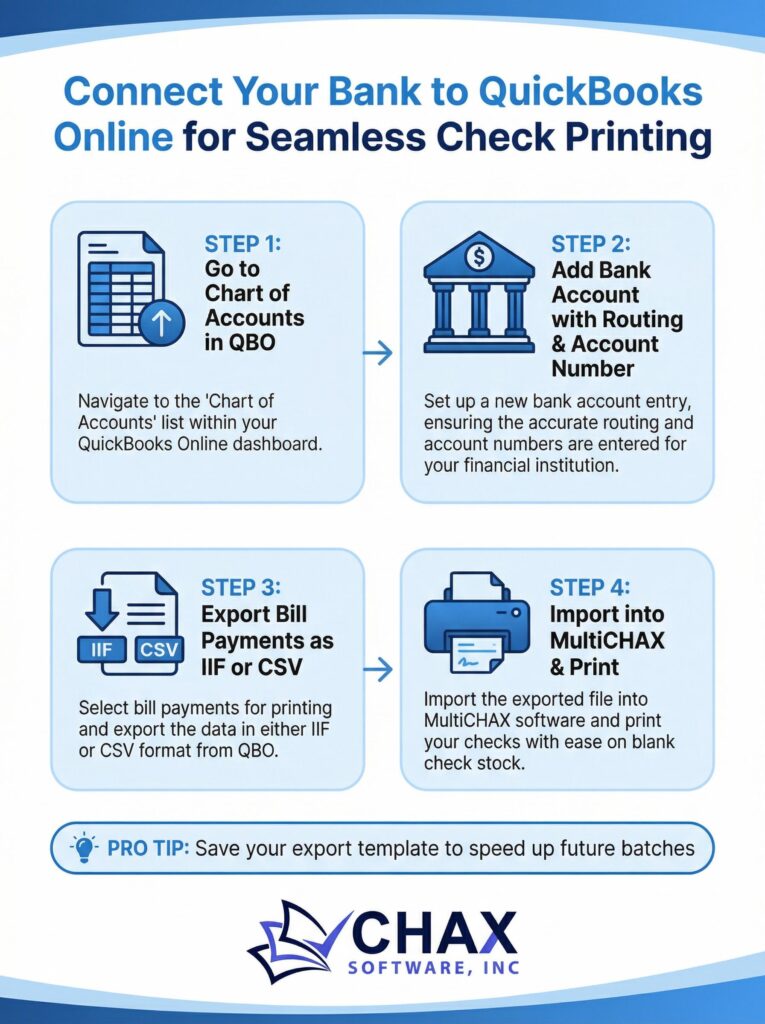
Connecting Your Bank Account to QuickBooks Online for Seamless Check Printing
One of the most powerful features of QuickBooks Online is its ability to connect directly to your business bank accounts. This live connection automates transaction downloads, simplifies reconciliation, and provides a real-time view of your cash flow. But it also plays a crucial role in streamlining your check printing process.
This guide explains how to connect your bank account to QBO and how that connection facilitates a more efficient and accurate check printing workflow, especially when used with a third-party printing solution.
Why Connect Your Bank Account to QBO?
Connecting your bank account (also known as setting up “bank feeds”) offers several key advantages for accounts payable:
- Real-Time Balance: You always know exactly how much cash is in your account before you decide to print checks and pay bills.
- Simplified Reconciliation: When the checks you print are cashed, the cleared transactions are automatically downloaded into QBO. This makes bank reconciliation a simple matter of matching records rather than manual data entry.
- Improved Accuracy: Automating the data flow reduces the risk of human error, ensuring your books are always accurate and up-to-date.
How to Connect Your Bank Account: A Step-by-Step Guide
Connecting your account is a secure and straightforward process that takes just a few minutes.
1. Navigate to the Banking Menu: From your QuickBooks Online dashboard, select `Banking` from the left-hand navigation menu.
2. Select `Link account`: If this is your first time, you will see a prominent button to link an account. If you already have accounts linked, you will see an `Add account` or `Link account` button.
3. Search for Your Bank: QBO supports thousands of banks. Simply search for your bank’s name (e.g., Chase, Bank of America, or your local credit union).
4. Log In Securely: You will be prompted to enter the same username and password you use to log in to your online banking portal. This connection is made through a secure, encrypted channel. QBO does not store your login credentials.
5. Select the Account to Connect: If you have multiple accounts at that bank (e.g., checking, savings, credit card), select the specific checking account(s) you want to connect to QBO.
6. Map the Account: QBO will ask you to map the bank feed to the corresponding account in your Chart of Accounts. For a checking account, you would map it to your “Checking” asset account.
7. Initial Download: QuickBooks will then download the last 90 days of transactions from your bank. From this point forward, it will download new transactions automatically every night.
How Bank Feeds Improve Your Check Printing Workflow
While QBO’s bank feeds are powerful, QBO itself still pushes you towards expensive pre-printed checks. The ideal workflow combines QBO’s live data with the cost-savings and security of a dedicated check printing software like MultiCHAX.
Here’s how they work together:
1. Accurate Bill Pay Decisions: With a real-time bank balance visible in QBO, you can confidently decide which vendors to pay and when.
2. Efficient Check Creation: You create the bill payments in QBO as usual. Then, you export the payment data and import it into your check printing software for batch printing on secure, blank check stock.
3. Effortless Reconciliation: As your vendors cash the printed checks, the cleared transactions appear automatically in your QBO bank feed. You simply match the downloaded transaction to the bill payment you recorded. This completes the cycle and keeps your books perfectly reconciled.
By connecting your bank account, you create a seamless flow of information that starts with an accurate payment decision and ends with an effortless reconciliation. It’s the foundation of a modern, efficient, and accurate accounts payable system for any business using QuickBooks check printing software.